An MCP server is a small piece of software that lets an AI assistant use another app's tools. Without one, the assistant only knows what you paste into the chat. With one, you can ask Claude which customers asked about delivery today, and it can go and look in your inbox itself, then answer with what it found.
MCP stands for Model Context Protocol. It is an open standard, first published by Anthropic in 2024 and now supported by a growing list of AI apps and code editors. This guide explains what an MCP server does, how it is different from an API or an automation, what to check before you connect one to your customer conversations, and how the ChatinFlow MCP server is built.
The three parts: client, server and tools
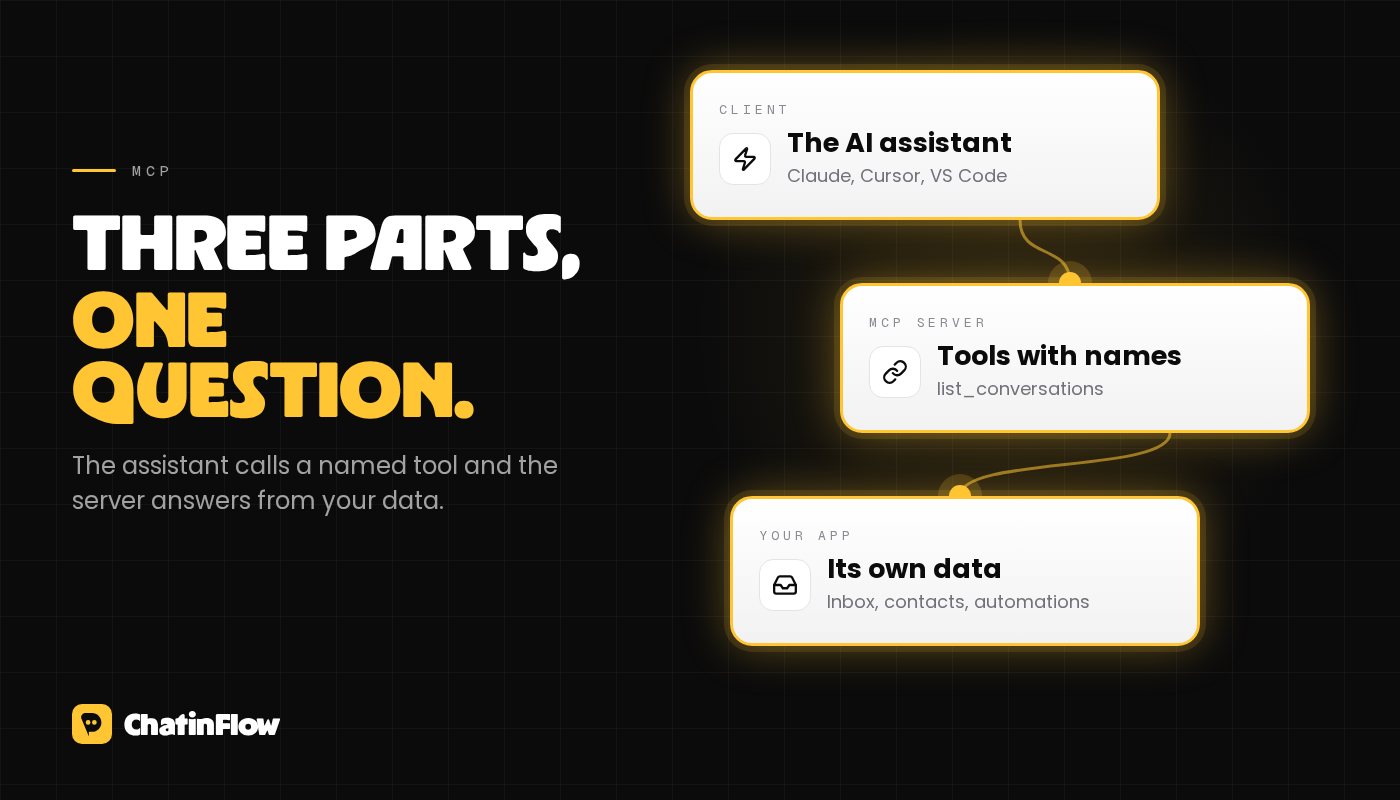
Every MCP setup has the same three parts.
- The client is the AI app you talk to: Claude Code, Cursor, VS Code with its chat, or another assistant that speaks MCP.
- The server belongs to the app whose data you want to use. It describes what it can do and answers the client's calls.
- The tools are the actions a server offers, each with a name, a short description and the inputs it takes, such as "search contacts by name" or "read the messages of a conversation".
When you ask a question, the assistant reads the list of tools, decides which one helps, calls it with the right inputs and reads the result before it answers. You can watch this happen: most clients show each tool call, and many ask you to approve it first.
How an MCP server differs from an API
An API is made for developers. Someone reads the documentation, writes code against each endpoint and handles every error. An MCP server sits on top of the same capabilities but is made for an AI assistant to use without that code: each tool explains itself in plain words, so the assistant can pick the right one for a question it has never seen before.
That is why the two usually come together. The API stays the contract for scripts and integrations you build once and run often. The MCP server is for the questions you only think of in the moment, like "who wrote to us twice this week without an answer?"
How it differs from an automation
An automation runs on its own when something happens: a comment with a keyword, a new follower message, a booking. It does the same job every time, at any hour, and it is what answers your customers.
An MCP server waits for you. It does nothing until you ask the assistant something, and then it helps the assistant find the answer. One answers customers at scale; the other helps a person on the team understand what is going on. They work well side by side: the automation replies to the price question at night, and in the morning you ask the assistant which of those conversations still need a person.
What to check before you connect one to your DMs
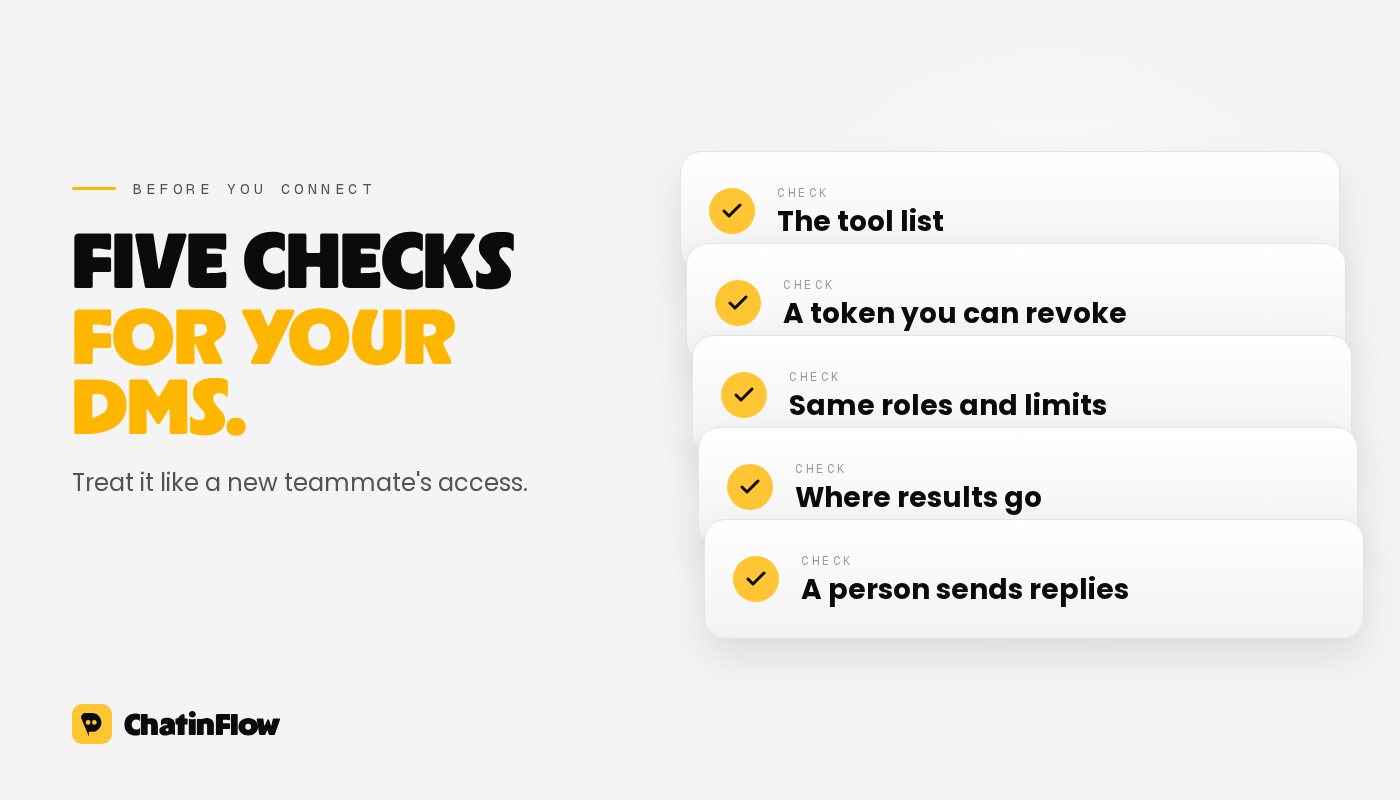
Customer conversations are personal data, so treat an MCP connection the way you would treat a new team member's access.
- Which tools it offers. Read the list before you connect. A server that can only read is a different risk from one that can send messages.
- How it signs in. Look for a token you create and can revoke, with a scope that limits what it can reach, rather than your password.
- Whether the app's own rules still apply. Roles, inbox visibility and plan limits should hold for every tool call, exactly as they do in the dashboard.
- Where the data goes. When the assistant calls a tool, the result goes to that assistant and its provider. Their terms decide what happens next, so connect only the assistants you already trust with this data.
- Whether a person stays in the loop. For anything a customer sees, a person should decide what goes out.
How the ChatinFlow MCP server works
The ChatinFlow MCP server gives one workspace's inbox, contacts and automations to an AI assistant. It answers over HTTP at an address that includes your workspace, and you connect with a personal access token from Settings, then Developers.
- Read tools list and read conversations and their messages, search and read contacts, list tags and automations, and show the impact summary of your automations.
- Two kinds of write tools leave an internal note on a conversation, which the customer never sees, and add or remove a tag on a contact. A tag can start an automation, so this tool counts as a change.
- No tool messages a customer. The assistant can draft a reply for you, and a person on your team sends it.
Every tool call goes through the same checks as the ChatinFlow API: the token's scope, your role, which conversations you are allowed to see, your plan and the rate limits. A read token can only read, and the assistant only sees the tools that token can use. The MCP server comes with API access, so it is part of the plans that include the API.
Questions worth asking your inbox
Once it is connected, the useful questions are the ones that would take ten minutes of scrolling:
- What did customers ask about on Instagram today, grouped by topic?
- Which open conversations mention a refund, and who are they assigned to?
- Find the contacts tagged as wholesale who wrote this week.
- Which automations are live, and what starts each one?
- Read the last conversation with this customer and draft a reply I can send.
The answer is only as good as what the tools can see, so ask about the inbox, contacts and automations, and check anything important in the dashboard before you act on it.
Where to go next
If you want to try it, the step by step setup for Claude Code, Cursor and VS Code is in our guide to connecting an AI assistant to your DMs, and the MCP server page lists every tool. If you build your own integration instead, the API documentation covers the same data for code.
ईमेल से
नए फ़्लो आपके इनबॉक्स में।
काम करने वाले फ़्लो, नई प्लेबुक और ChatinFlow में क्या बदला। कोई स्पैम नहीं, और एक टैप में बाहर निकल सकते हैं।
आपको यह भी पसंद आ सकता है

सवाल और जवाब
इस लेख के बारे में पूछें। ChatinFlow टीम यहीं जवाब देती है।
ChatinFlow टीम
अभी कोई सवाल नहीं है। पहला सवाल आप पूछें, जवाब हम यहीं देंगे।