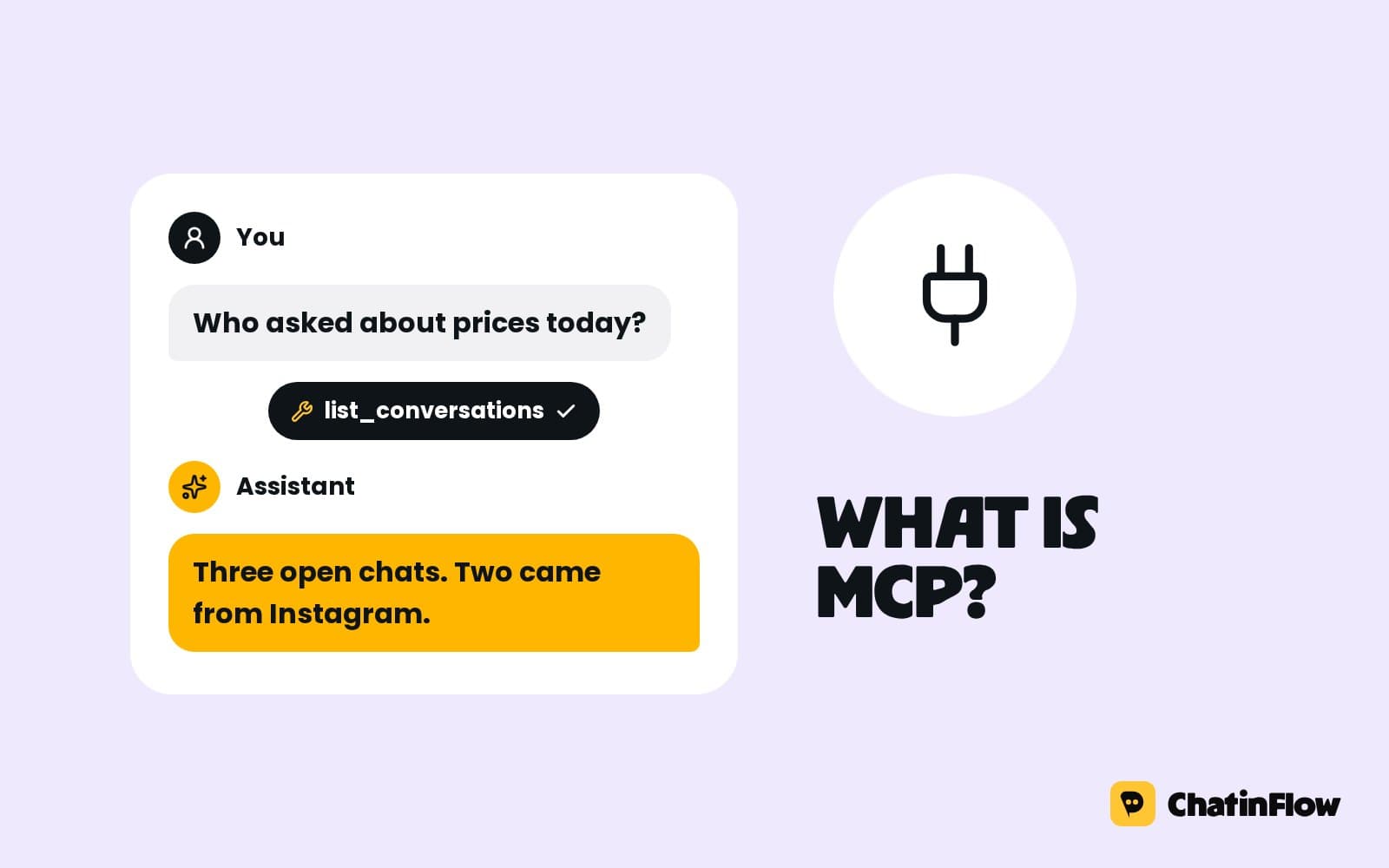
You can let Claude, Cursor or VS Code read your ChatinFlow inbox, contacts and automations in about two minutes. You create a token, copy your workspace's MCP server address and paste both into the assistant. After that you can ask it what customers asked today, look someone up or leave a note for the team, and it finds the answer in your workspace instead of in what you paste into the chat.
This guide walks through the setup for each of the three clients, explains which token to pick, and ends with what to do when a tool call fails.
Before you start
- A plan with API access. The MCP server comes with the API, so it is part of the plans that include it. The pricing page shows which ones.
- Access to Settings, then Developers in your workspace. That is where tokens and the server address are.
- One of the clients: Claude Code in a terminal, Cursor, or VS Code with its chat and agent mode.
Step one: create a token
In ChatinFlow, open Settings, then Developers, and create a personal access token. Give it a name you will recognise later, such as the assistant and the computer it runs on.
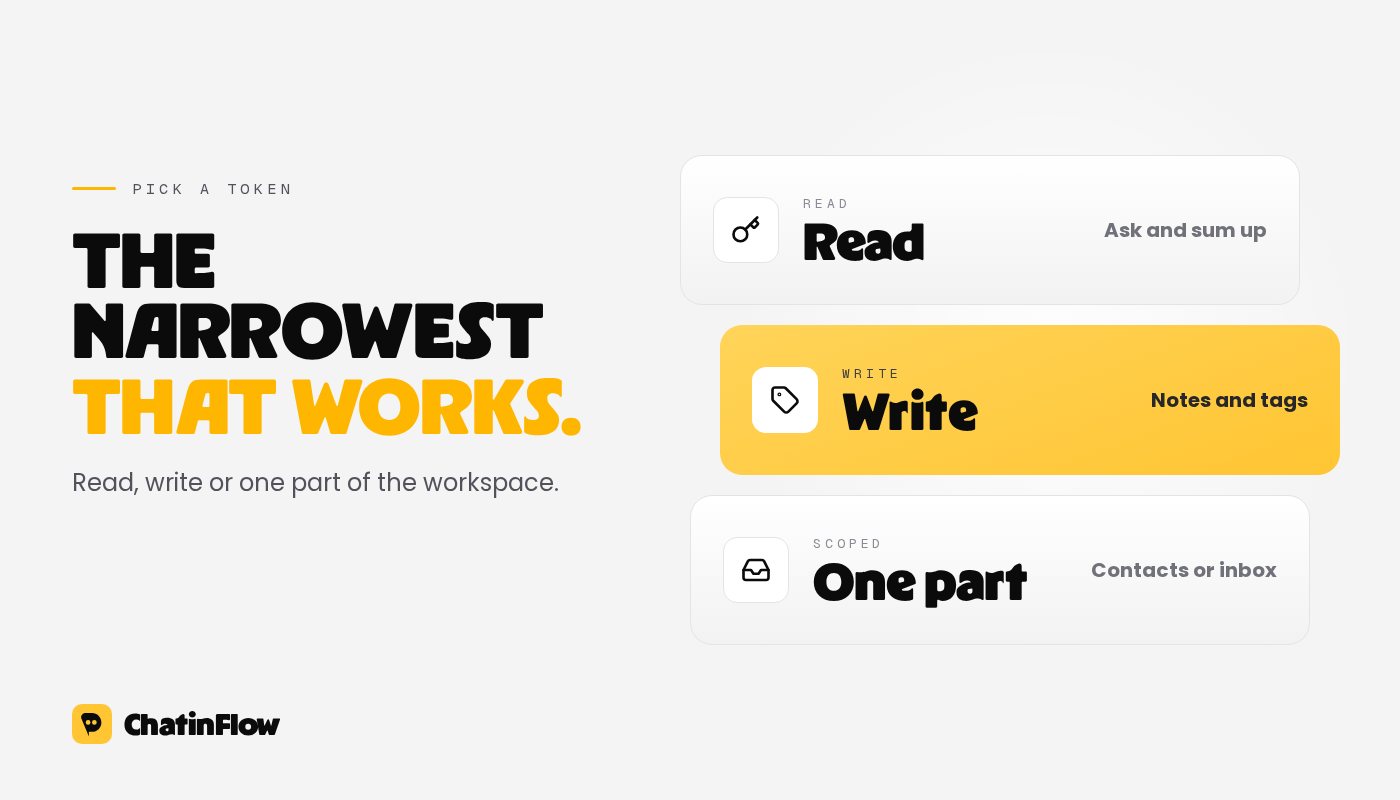
Pick the narrowest ability that does the job:
- Read lets the assistant list and read conversations, contacts, tags and automations. It is enough for questions and summaries.
- Write adds the two tools that change something: leaving an internal note on a conversation and adding or removing a tag on a contact. Tags can start automations, so only pick write if you want the assistant to do that.
- Contacts or inbox only limits the token to that part of the workspace, for read or for write.
The token is shown once, so copy it straight into the client. It expires on the date you chose and you can revoke it on the same page at any time.
Step two: copy the server address
The same page shows the MCP server address of your workspace. It is the ChatinFlow API address followed by your workspace and mcp, and the page has a copy button. The address is different for each workspace, so an assistant connected to one workspace never reads another.
Step three: add it to your client
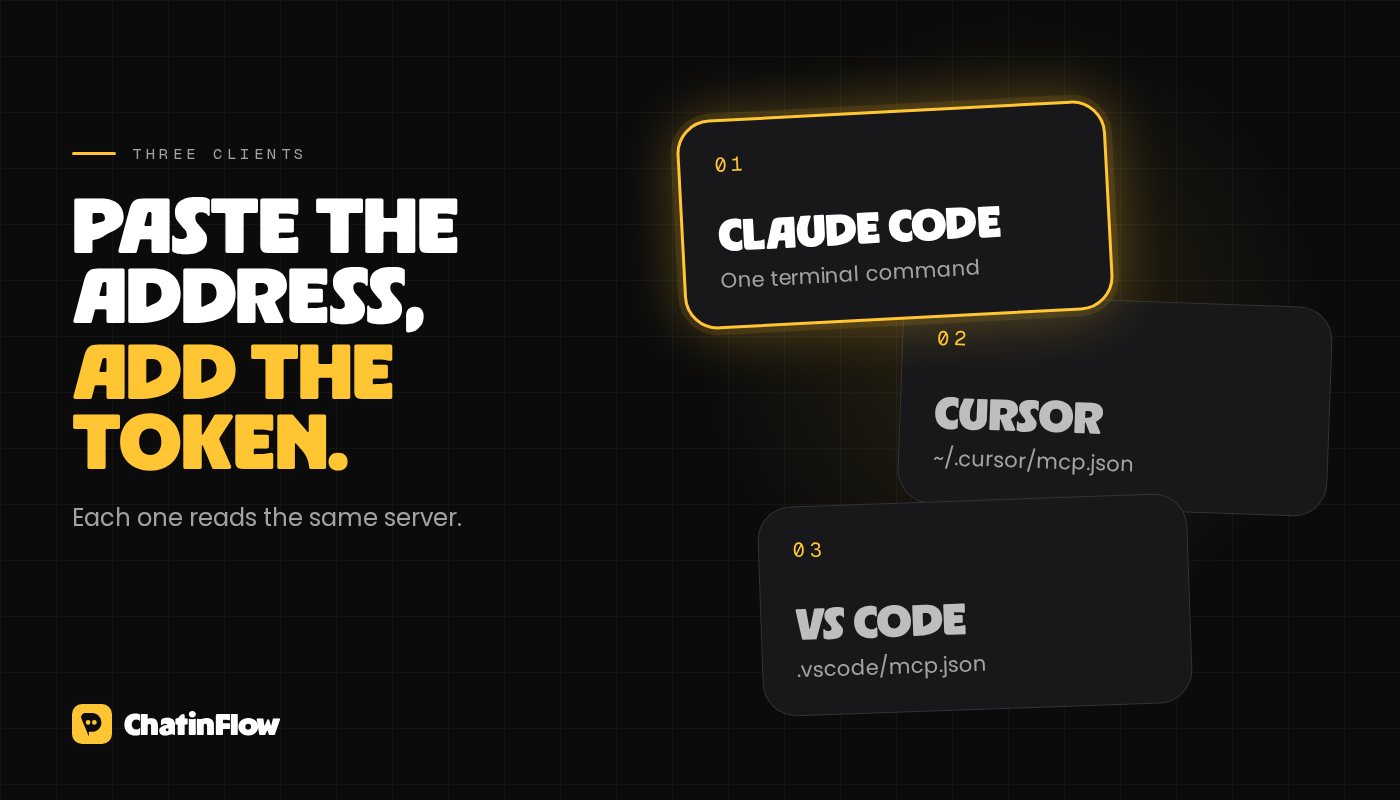
Claude Code. In a terminal, add the server with the claude mcp add command, choosing the HTTP transport, the server address and an Authorization header that carries your token as a bearer token. Settings, then Developers shows the full command with your address filled in; you only replace the token. Start Claude Code again and the ChatinFlow tools are listed when you ask what tools it has.
Cursor. Open Cursor's MCP settings and add a server to the mcp.json file in your home folder: a name such as chatinflow, the server address as its url, and an Authorization header with your token. Cursor shows the server as connected and lists its tools.
VS Code. Add an mcp.json file to the .vscode folder of a project, with a server of type http, the address, and an Authorization header. The configuration in Settings, then Developers asks VS Code for the token when the server starts, so the token is not saved in the file. Open the chat in agent mode and the tools appear in its tool list.
Try it with a first question
Start with something you could check by hand, so you can see how the assistant uses the tools:
- Show me the open conversations from today, newest first.
- Find the contact named Ayla and tell me which tags she has.
- Which automations are live, and what starts each one?
Most clients show each tool call before or after it runs. If yours asks for approval, read the tool name and the inputs: list and read tools change nothing, while add internal note and tag contact do.
What the assistant can and cannot do
The assistant sees what your token and your role allow, and nothing else. If you are an inbox agent who only sees your own conversations, so does the assistant. Plan limits and rate limits count every tool call, the same as an API request.
It cannot message customers. There is no tool that sends a DM, a WhatsApp message or a broadcast. Ask it to draft a reply and send that reply yourself from the inbox, or let your automations handle the questions they already answer.
When something goes wrong
- The server does not connect. Check that the address is complete and that the header reads Authorization, then the word Bearer and a space before the token.
- No tools appear. The token's ability decides which tools are listed. A contacts token shows only the contact tools; a read token hides the two write tools.
- A tool answers with an error. The message comes from ChatinFlow and says why, for example a missing scope, a conversation your role cannot see, or a plan without API access. Fix the cause and ask again.
- Too many requests. The assistant can call tools faster than a person clicks. Ask for fewer results at a time, or wait a minute for the rate limit to reset.
Keep it tidy
Use one token per assistant and computer, so you can revoke one without breaking the others. Give write tokens only to the assistants that need them, and look at the token list in Settings, then Developers now and then to remove the ones you no longer use. The MCP server page lists every tool with what it does, and the API documentation covers the same data for code.
Par e-mail
De nouveaux flows dans votre boîte.
Les flows qui marchent, de nouveaux playbooks et ce qui a changé dans ChatinFlow. Pas de spam, et un seul geste pour vous désabonner.
Vous aimerez aussi
Questions et réponses
Posez vos questions sur cet article. L'équipe ChatinFlow répond ici.
Équipe ChatinFlow
Pas encore de questions. Posez la première, nous répondons ici même.