Flow template · Lead capture
DM lead generation
An email and a phone number, asked for in the chat.
Copy this flow
Open the template in your workspace, change the words to yours and publish when it looks right. It's free to start.
More recipes
An email and a phone number, asked for in the chat.
AI answers from your sources and hands off when it should.
 Politika6 dk okuma
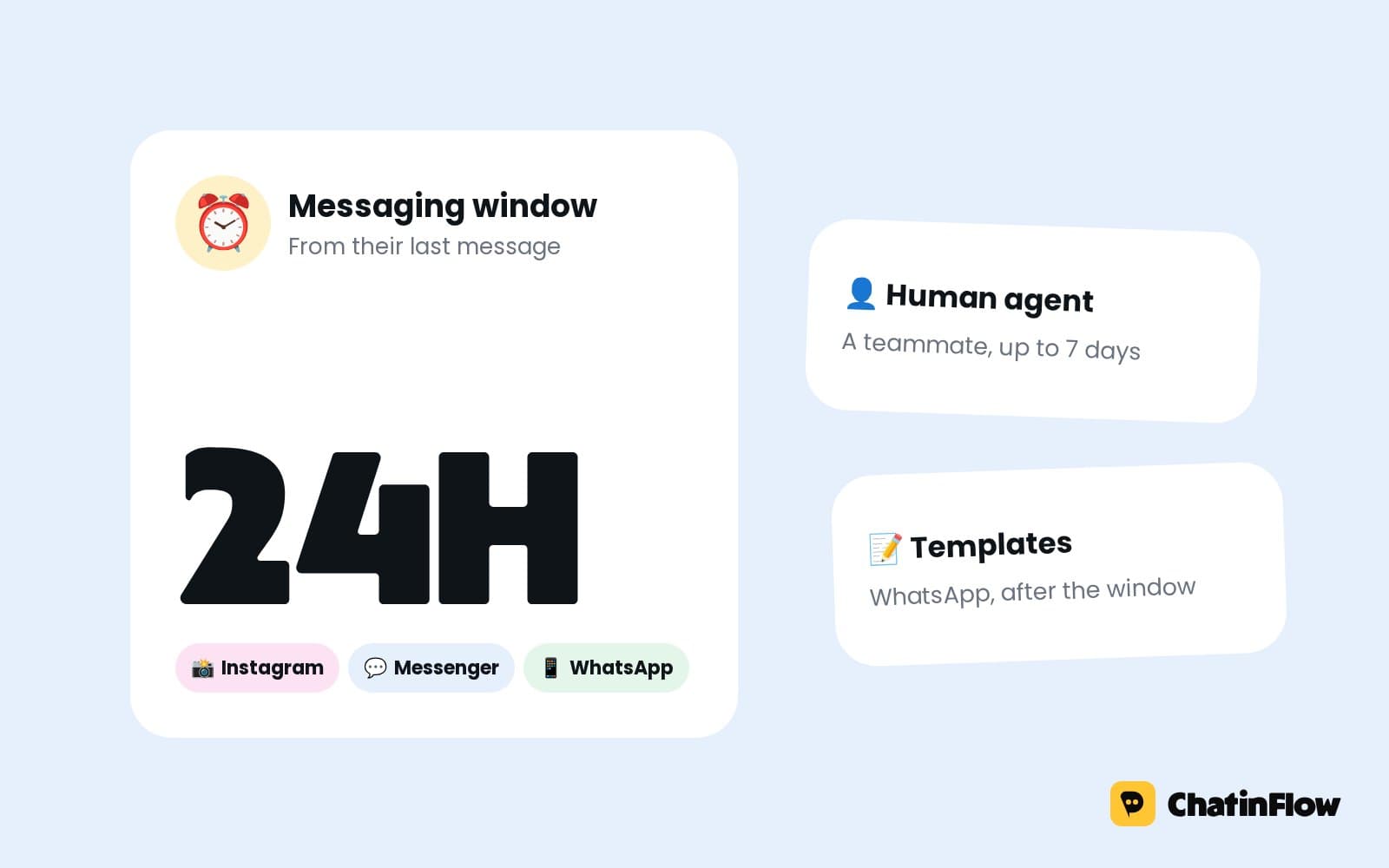
A business can message a person freely for 24 hours after their last message. What opens the window, what each app allows after it, and the 2026 changes to Messenger tags.
 E-ticaret6 dk okuma
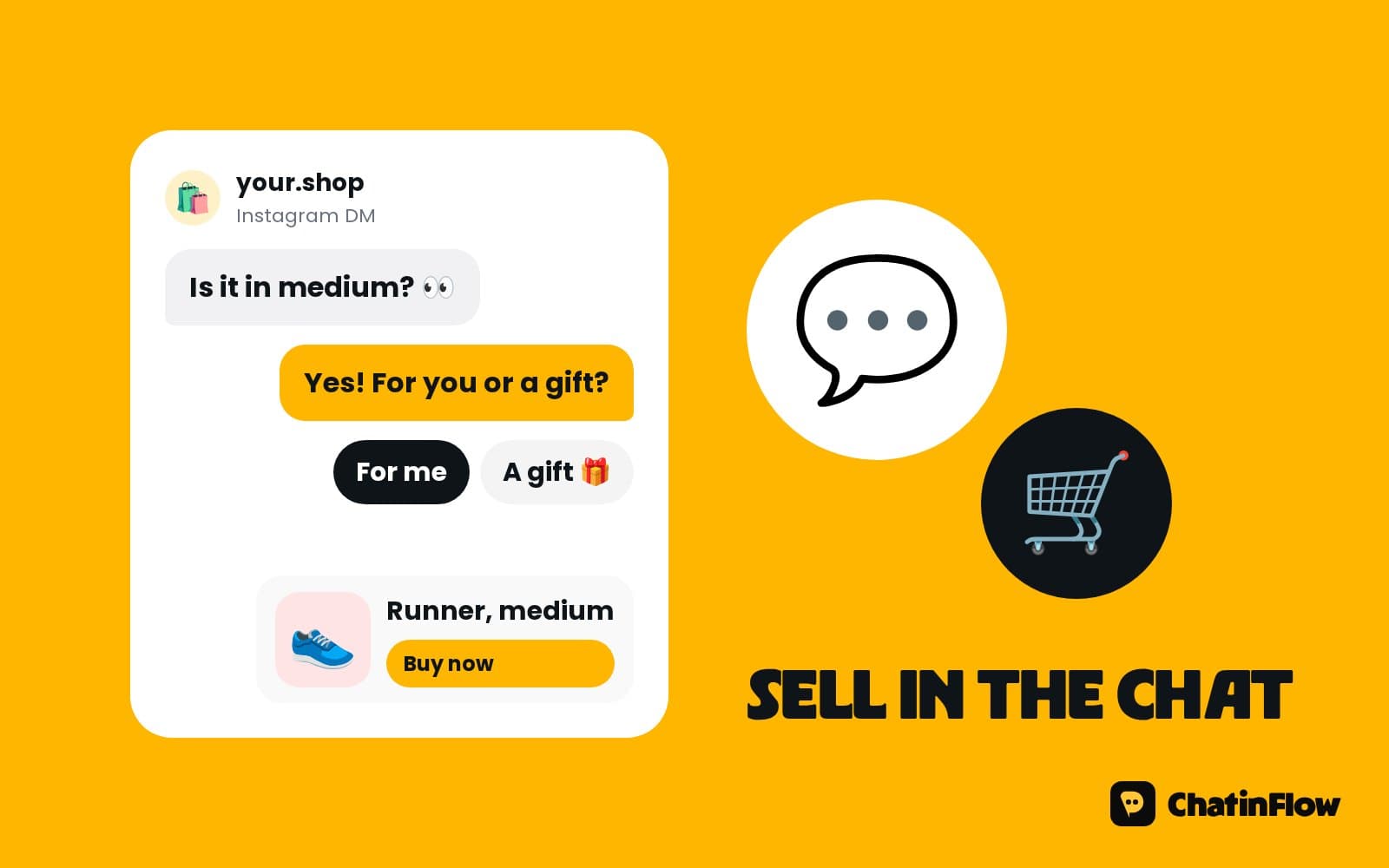
Conversational commerce is selling inside the chat. The five rules that turn Instagram, WhatsApp and Messenger questions into orders, in the order a customer meets them.
 Büyüme5 dk okuma
Most small businesses don't have a lead problem; they have a follow-through problem. Fifteen moves to increase sales, from answering faster and following up to easier checkout and repeat customers.
The full guide
Send a wa.me link with a message already typed inside Instagram's window, so the customer starts the WhatsApp chat themselves.
Instagram is where people find you; WhatsApp is often where they would rather talk. It is the app many customers check first, it keeps the conversation on their phone number, and an approved template can reach a customer there even after a quiet week, if they agreed to hear from you. Moving a chat by hand means typing your number, hoping they save it and starting again from "hi". The Instagram to WhatsApp flow does it in one message: inside Instagram's 24-hour window, it sends a wa.me link with a message already typed, and the person taps once to start the WhatsApp chat themselves. This guide sets it up step by step, explains when the move makes sense, and lists the rules that apply on both sides.
| Step | What happens | Built with |
|---|---|---|
| 1. The Instagram message | A keyword, a button or a question | A DM trigger or a button |
| 2. The window check | The flow confirms the 24-hour window is open | A condition, or the step's own check |
| 3. The invite | A DM with the wa.me link and a short reason to switch | Hand off to WhatsApp |
| 4. The tap | The person opens WhatsApp with your message already typed | WhatsApp on their phone |
| 5. Their first message | They press send, and the WhatsApp conversation starts |
Open Automations and search the gallery for "WhatsApp" or "hand". Move from Instagram to WhatsApp hands DM conversations over to your WhatsApp Business number with a ready link.
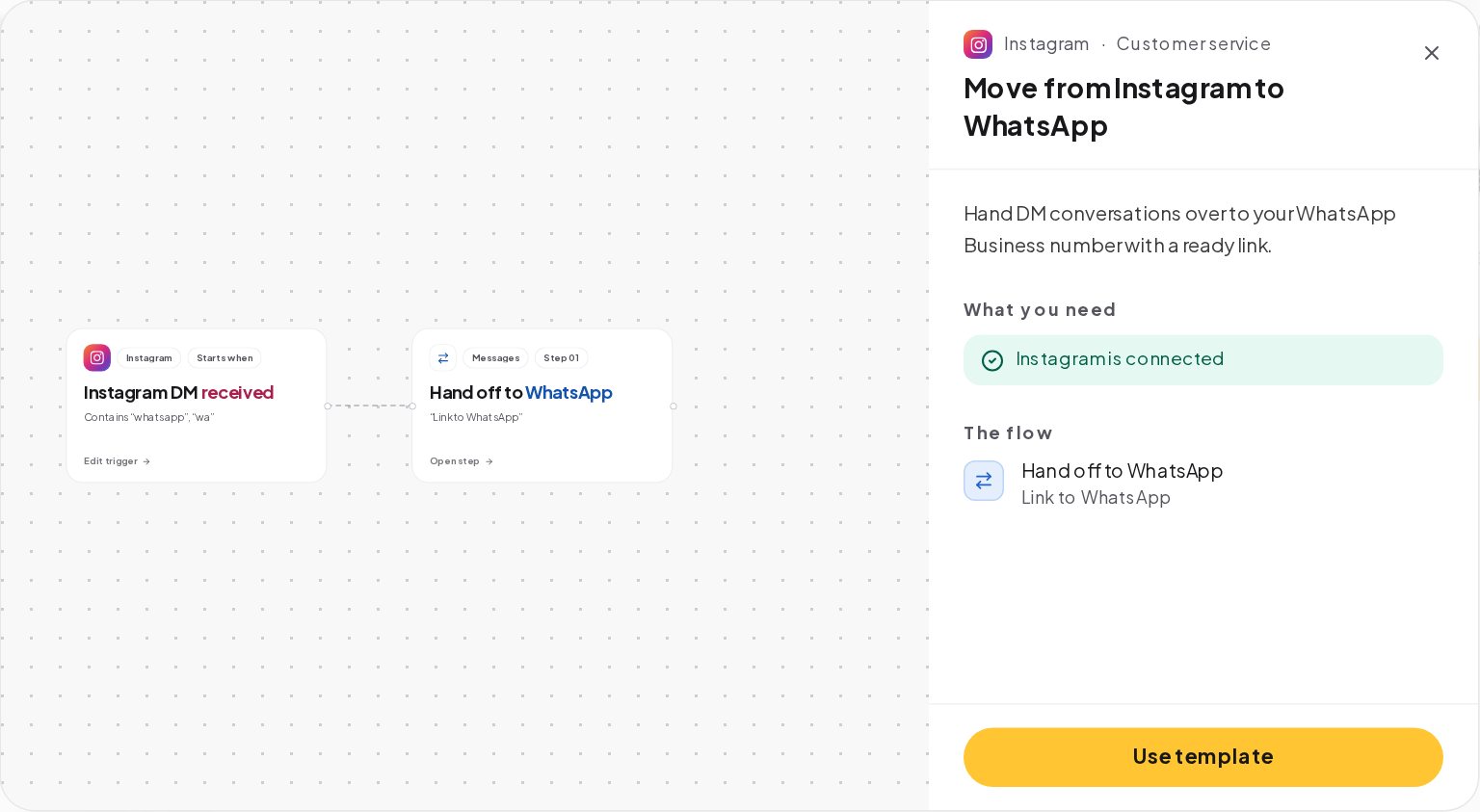
Press Use template and it opens as a draft. Decide what starts it before you publish: a keyword such as WHATSAPP, a button in your welcome message, or the end of a longer flow.
The link needs a number to point to. Open Channels and choose WhatsApp. The connect screen asks for two values from Meta.
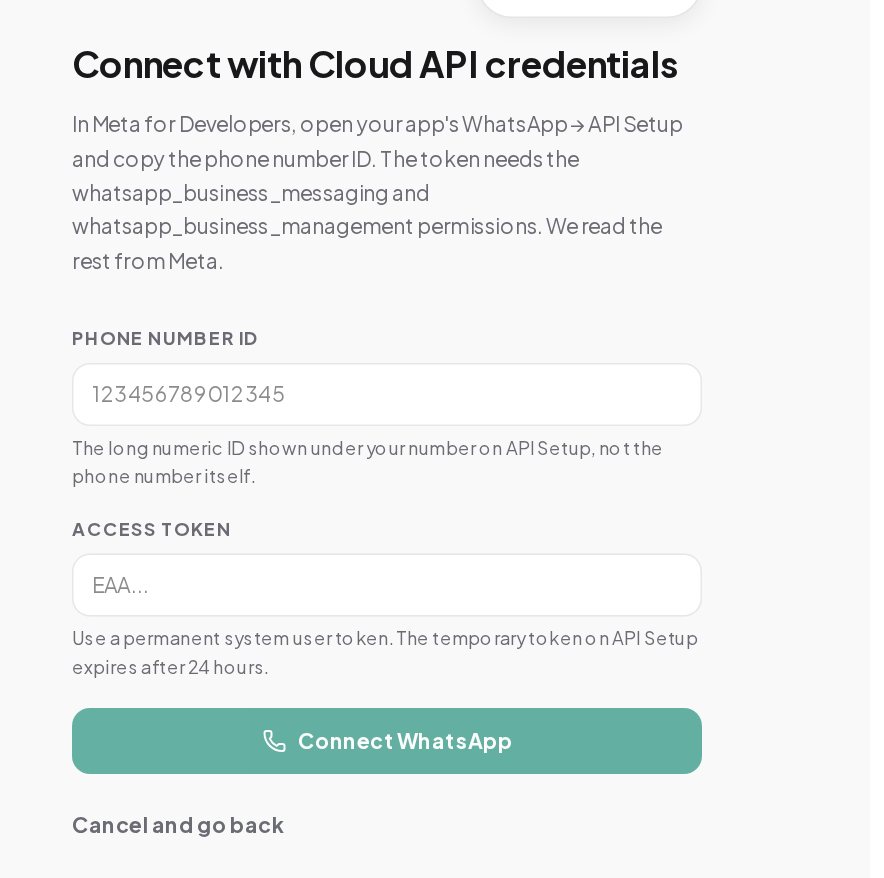
The Hand off to WhatsApp step uses the workspace's primary WhatsApp connection unless you enter another number in E.164 format, such as +44 20 7946 0000 written without spaces.
The step has three fields:
{{ wa_link }} where the link goes.A good invite gives a reason to switch, in one or two sentences:
The pre-filled text matters more than it looks. It tells your team on WhatsApp what the person came for, before anyone has to ask.
On Instagram, a business can message a person freely only within 24 hours of their last message. The invite is a message, so it follows the same rule: put it right after the person wrote, as an answer to their keyword or their button. A flow that tries to send the invite after the window has closed does not reach them.
Two common placements:
Once the person writes to your WhatsApp number, WhatsApp's own rules apply:
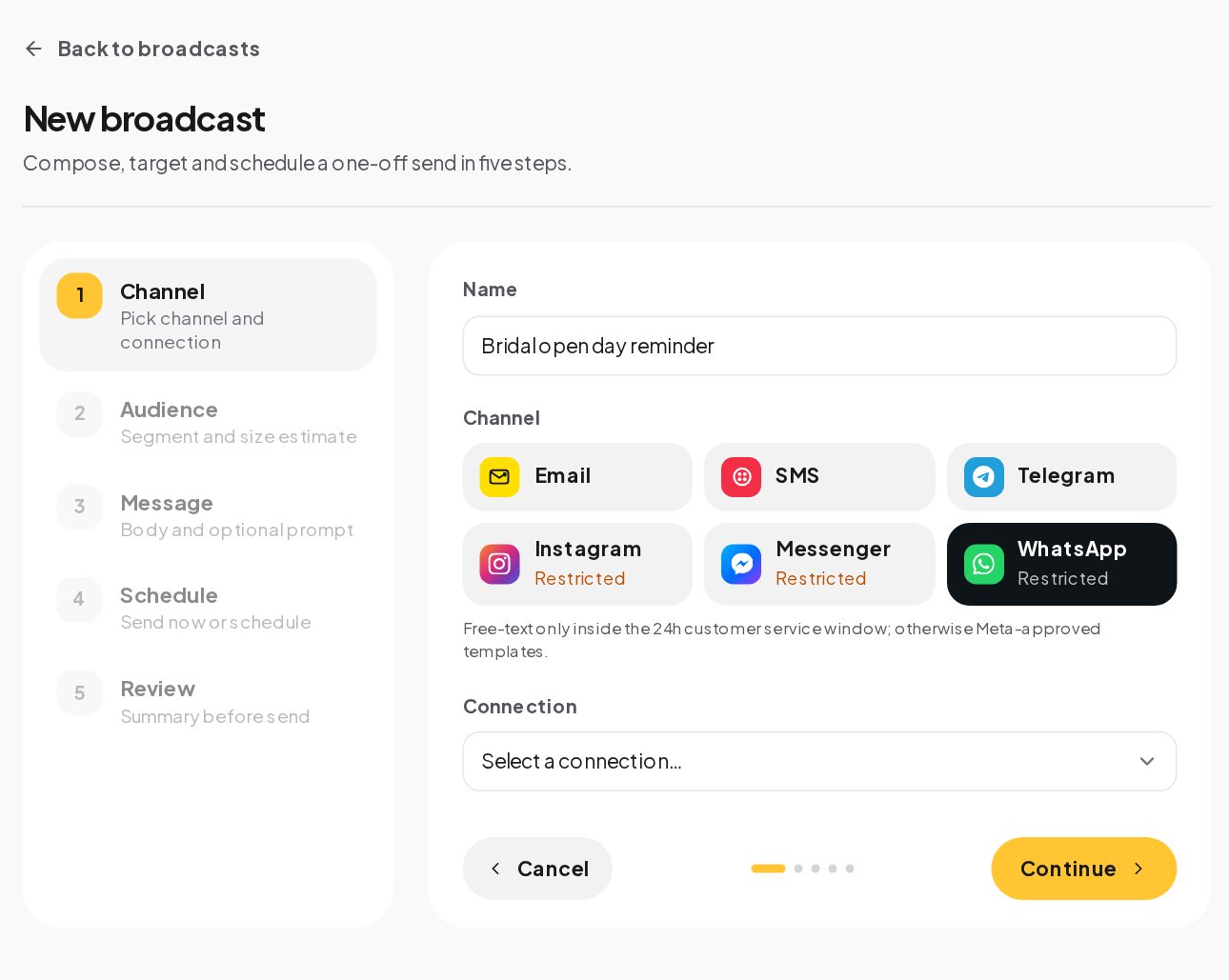
Not every conversation belongs on WhatsApp. Moving makes sense when:
Keep the conversation on Instagram when the answer is quick, such as opening hours or a price, or when the person is browsing your content and a switch would interrupt them. When in doubt, offer the switch as a choice, never as the only way forward.
The same step works in Messenger chats with your Facebook Page. A common use is a Page that gets order questions from older customers who prefer WhatsApp: a menu button "Continue on WhatsApp" in the Messenger welcome sends the link, with the pre-filled text "Order question from Facebook". The 24-hour window works the same way on Messenger, so the button has to be tapped inside it, which it always is when the person just tapped it.
Before you send people over, make the first impression on WhatsApp a good one:
Add a Tag contact step right before the invite, such as moved-to-whatsapp, so you can see in Audience how many people got the link from each flow. The automation's Activity tab lists every run and where it stopped, which tells you whether people reach the invite at all or drop off earlier in the questions. Compare two invites by putting them in two flows on two keywords, and keep the one that sends more people over.
A furniture maker gets Instagram DMs about custom tables. Quotes take a few days, with photos and measurements going back and forth.
The customer never types a phone number, and the maker knows from the first WhatsApp message what the quote is about.
Some people hesitate before moving to another app. Answer the three usual worries in the invite or the next message:
People who choose to switch are the ones who want the longer conversation, which is exactly who belongs on WhatsApp.
| Who writes first | The person, with a comment or a DM | The person, by tapping your link and pressing send |
| Free replies | 24 hours after their last message | 24 hours after their last message |
| After the window | No message until they write again | An approved template, to people who opted in |
| Account | A professional account | A WhatsApp Business number on the Cloud API |
Yes. The Hand off to WhatsApp step works in Instagram and Messenger chats, inside each channel's 24-hour window.
Yes. On a phone, the link opens WhatsApp; without it, WhatsApp's own page offers to install the app.
Yes. Enter the number in the step, in E.164 format; leave it empty to use your primary WhatsApp connection.
Setting up my first automation was easier than I expected. The whole dashboard feels really intuitive.
I used to spend way too much time answering the same Instagram questions. This makes things a lot simpler.
Love having everything in one place. It's made keeping up with customer messages much less stressful.
Honestly, the setup was pretty straightforward. Took me a little time to figure out the flows, but it's been smooth since.
Really handy for managing messages across different accounts. The interface is clean and easy to get around.
We're a small team, so anything that saves us time is a win. This has been genuinely useful.
We get so many repetitive questions through Instagram. Having those handled automatically makes a huge difference.
Getting everything connected was surprisingly simple. I really like how the automation builder works.
Clean interface, useful features, and no unnecessary complexity. Exactly what I was looking for.
The workflow builder is quite flexible. It took some experimenting, but now it fits our process really well.
I like how easy it is to organise customer conversations. Everything feels much more manageable now.
Simple to navigate and surprisingly powerful once you start building automations.
Managing Instagram messages used to take up a big part of my day. This has helped me get that time back.
The automation setup makes sense even if you're not particularly technical. That's a big plus for me.
I run a small online shop, and answering DMs was getting overwhelming. This makes things so much easier.
Really like the way everything is organised. The automations are easy to adjust when we need to.
Finally, a dashboard that doesn't feel complicated. I found what I needed without digging through endless menus.
Being able to manage conversations and automations together is really convenient for our team.
Pretty straightforward to get started. I especially like being able to see how the flows are organised.
We've tried a few different tools, and this one feels refreshingly simple to work with.
The dashboard is easy to understand, and creating an automation doesn't take much effort.
Nice to have our customer conversations organised without constantly switching between platforms.
I appreciate how simple the interface is. Even the more advanced settings are easy to find.
The automation features are useful, especially when you're dealing with similar customer questions every day.
The interface feels organised and easy to follow. Setting up basic workflows was very straightforward.
I like being able to manage everything from one dashboard. It makes our daily routine a lot easier.
Creating automated replies is really convenient. The dashboard is also much easier to navigate than I expected.
We needed a better way to handle incoming messages, and this fits nicely into our workflow.
The interface is clean, and managing different conversation flows feels straightforward.
I like that I can make changes to our automations without having to start everything from scratch.
This is really helpful for our Instagram shop. We can focus on orders instead of answering the same questions all day.
Easy to set up and practical for everyday use. The automation builder is my favourite part.
I manage messages for a few business pages, and having everything organised makes my day much easier.
The dashboard feels modern without being confusing. Getting started was pretty quick.
Really convenient for handling customer enquiries. I especially like how easy it is to manage automated responses.
It helps us keep conversations organised and respond to common questions without doing everything manually.
I wasn't sure how difficult setting up the flows would be, but the process was actually quite simple.
Super useful for a small business like ours. The dashboard makes managing customer messages much easier.
I like the simplicity. Everything I need for managing our conversations is easy to access.
Setting up automated replies was pretty painless. It's a practical tool for handling everyday customer messages.
What they get
Instagram is where people find you; WhatsApp is where many prefer to talk about orders, delivery and payment. The move takes one tap, and the conversation picks up where it left off.
The recipe
What to have ready, then the steps from an empty workspace to a live flow.
Ingredients
Yöntem
Perde arkasında
This is how the flow is set up in the builder, and the platform rules it plays by.
In the builder
Good to know
Make it yours
Change the word and the message, and the same steps do something else for you.