The full guide
How to add a chat window to your website that answers like your DMs
By the ChatinFlow product team · Updated October 17, 2026 · 9 min read
PDF'i indirin8 sayfalık PDF · 435 KBMost visitors leave a website without asking the one question that would have made them buy: does it come in my size, can I book for Saturday, do you ship to my city. A chat window catches that question while they are still on the page. The trouble with most website chat tools is that they are one more inbox, with their own canned replies, separate from the Instagram and WhatsApp conversations your team already handles. ChatinFlow's website chat runs on the same flows and lands in the same inbox as every other channel. You paste one line of code, and the keyword replies, menus, bookings and AI you built for your DMs answer on your site too. This guide covers creating the window, installing it, making it look like your brand, and the flows that turn a visitor into a lead or a booking.
Step 1: Create the chat window
Open Channels and choose Website chat. The setup asks for three things.
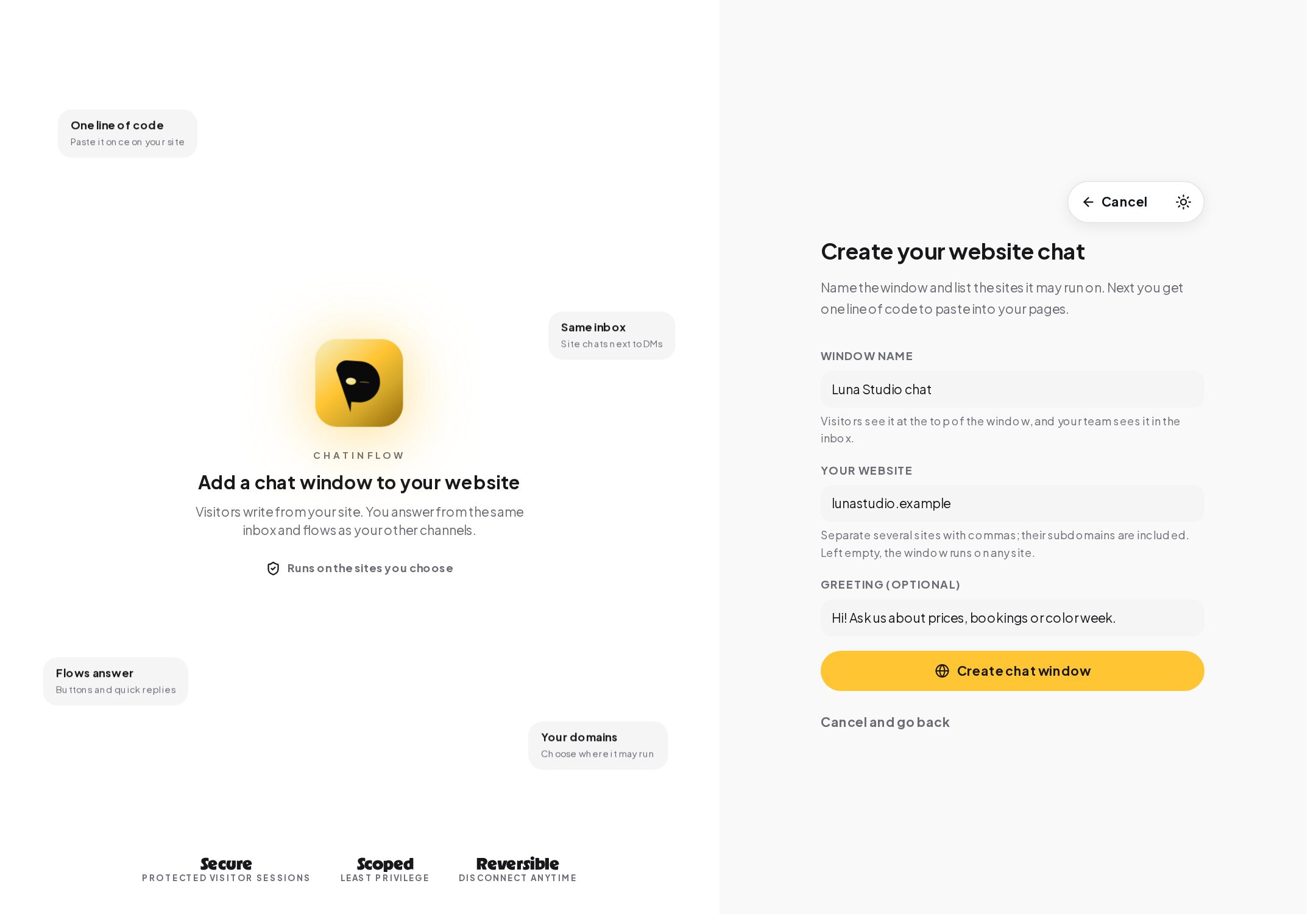
- Window name. Visitors see it at the top of the window, and your team sees it in the inbox, so it tells everyone which site a conversation came from.
- Your website. The sites the window may run on. Separate several with commas; their subdomains are included. Left empty, the window runs on any site, which is handy for a first test and worth tightening before you go live.
- Greeting. Optional. The first message a visitor sees when they open the window, such as "Hi! Ask us about prices, bookings or color week."
Press Create chat window. ChatinFlow creates the channel and shows its settings, starting with the embed code.
Step 2: Install the code on your site
The embed code is one line: a script tag that loads the window. Paste it into every page where the window should appear, just before the closing body tag. Most site builders have a setting for code in the header or footer of every page, which does the same in one place. You do not need a developer.
The window only runs on the domains you listed. Anywhere else, it stays silent, so a copied snippet cannot put your chat on someone else's site. Visitor sessions are protected, so one visitor cannot read another's conversation.
To check the install, open your site in a private browser window, open the chat and send a message. It should appear in your ChatinFlow inbox, marked with the window name.
Step 3: Make it look like your brand
Open Settings, Channels, Website chat to change how the window looks. Changes reach open windows the next time a visitor loads a page.
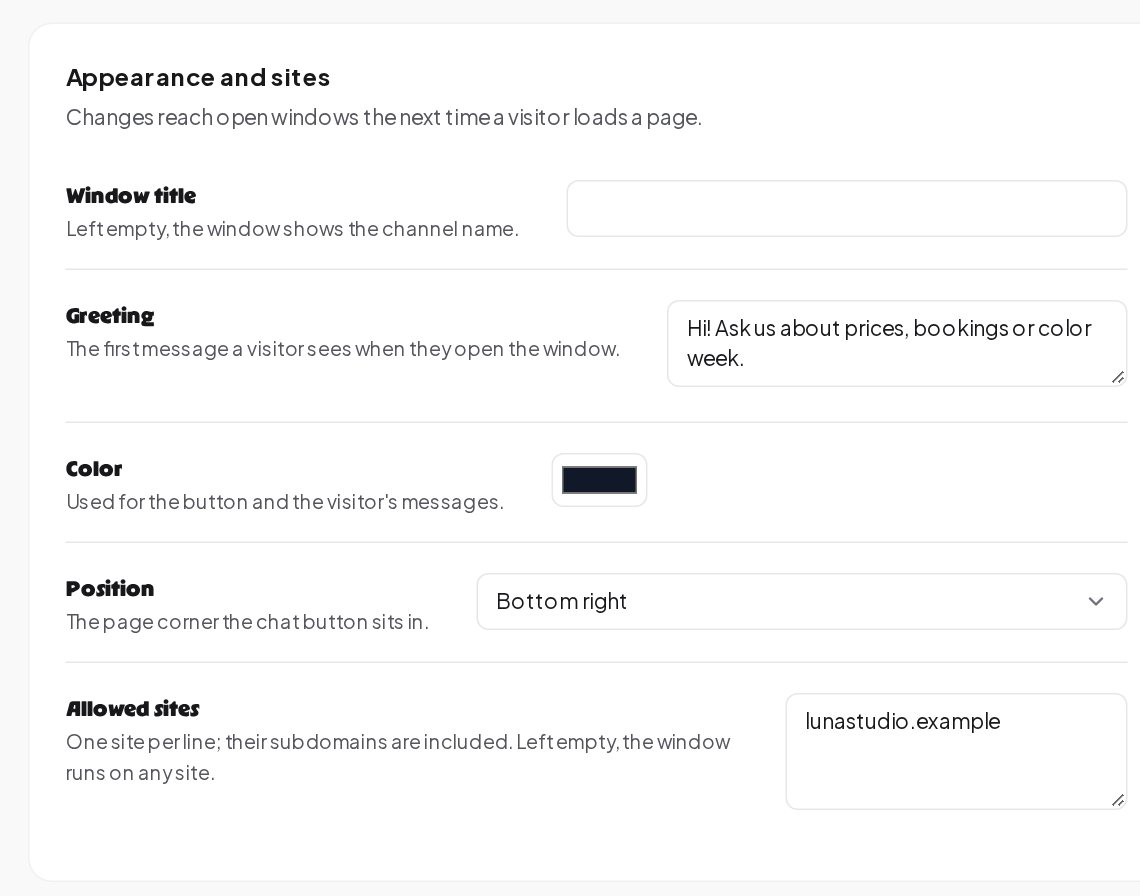
- Window title. Left empty, the window shows the channel name.
- Greeting. The first message a visitor sees when they open the window.
- Color. Used for the chat button and the visitor's messages. Pick your brand color, and check that the text on it stays readable.
- Position. The page corner the chat button sits in, bottom right or bottom left, whichever suits your layout.
- Allowed sites. One site per line; subdomains are included.
Step 4: Offer your other apps, page tracking and photos
The window can do more than chat. The Your other apps section lists your connected channels.
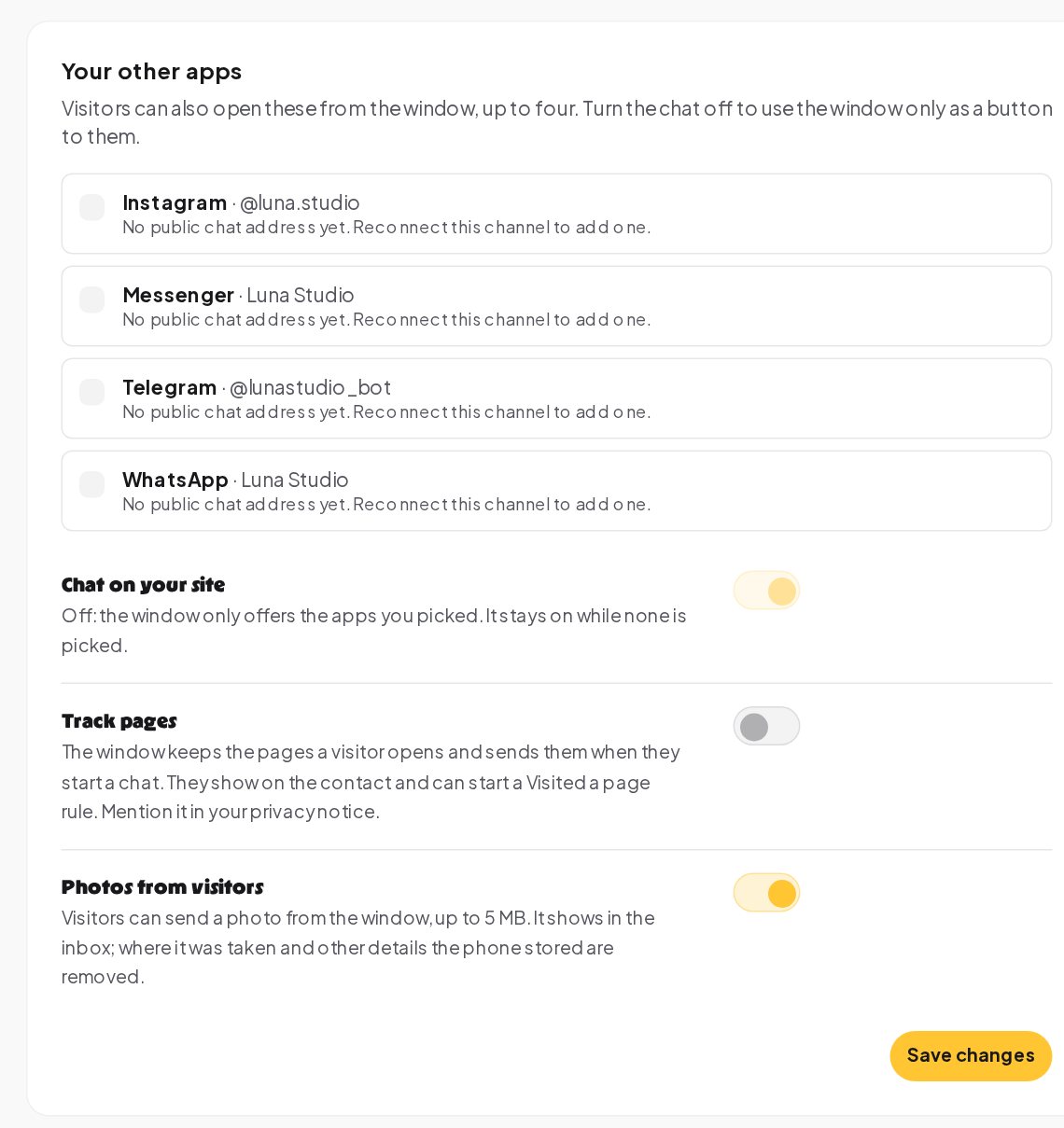
- Up to four other apps. Visitors can open WhatsApp, Instagram, Messenger or Telegram from the window, so the conversation can continue on the app they prefer after they leave your site. Each channel needs a public chat address, which comes from its connection.
- Chat on your site. Turn it off to use the window only as a button to your other apps. It stays on while none is picked.
- Track pages. The window keeps the pages a visitor opens and sends them when they start a chat. They show on the contact and can start a Visited a page rule. Mention it in your privacy notice.
- Photos from visitors. Visitors can send a photo from the window, up to 5 MB. It shows in the inbox, and where it was taken and other details the phone stored are removed.
Step 5: Build the flows for your site
Every flow you built for your DMs can answer on your site. A few are worth building specifically for website visitors.
Answers as cards. A visitor asks about a product while browsing. The answer comes as a card with a picture, a button to the page and the next questions as taps instead of a form.
After hours, still a lead. Outside your hours, the flow says when the team is back, asks for an email and asks again when it is mistyped, using a Reply check step. The quote request waits in your inbox for the morning.
Bookings without leaving the page. Free times as taps in the chat window, booked into your calendar with the details, and a confirmation with a link to change or cancel.
The same keyword replies. Prices, opening hours and links you set up for Instagram and Messenger answer on your site too, with quick replies and buttons.
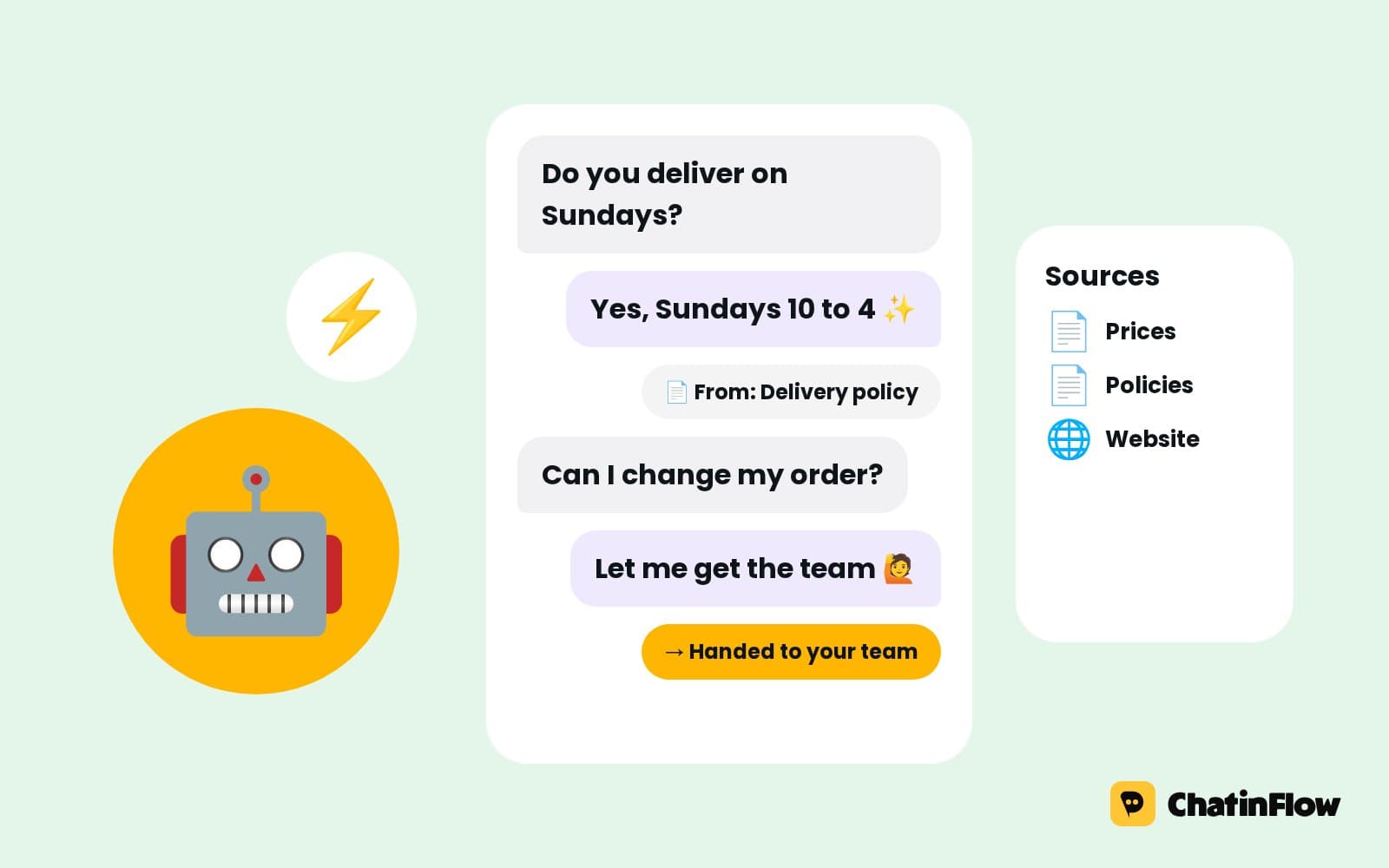
An AI agent for the long tail. The AI agent answers visitors from the sources you added, such as your website pages or a price list, and hands the chat to your team when it should not answer. It can run only after hours, so your team answers during the day.
Writing the first message
The greeting and the first buttons decide whether a visitor types anything at all. Write them for the page they are on and the question they probably have.
| Business | Greeting | First buttons |
|---|---|---|
| Hair salon | "Hi! Want to see prices or book a time?" | Prices, Book a time, Ask a stylist |
| Online shop | "Questions about sizes, shipping or returns? Ask here." | Size guide, Shipping, Track my order |
| Dental clinic | "Hello! We can help you book or answer a question." | Book a visit, Prices, Opening hours |
| Software product | "Hi! Looking for pricing, a demo or help?" | Pricing, Book a demo, Talk to support |
A few rules hold for every site:
- One sentence, one promise. Say what people can ask, not who you are; your logo already says that.
- Three buttons, then free text. Buttons get the first tap; free text catches everything else.
- Match the page. On a pricing page, lead with pricing; on a booking page, with free times. With page tracking on, a Visited a page rule can start its own conversation for visitors of one page.
- Say when a person is around. "We usually reply within the hour during opening times" sets expectations better than a promise of instant answers.
Step 6: Carry the conversation on after they leave
A message reaches a visitor only while they are on your site. That keeps website chat honest. Nobody is chased with messages after they close the tab. It also means a good flow plans for the moment they leave.
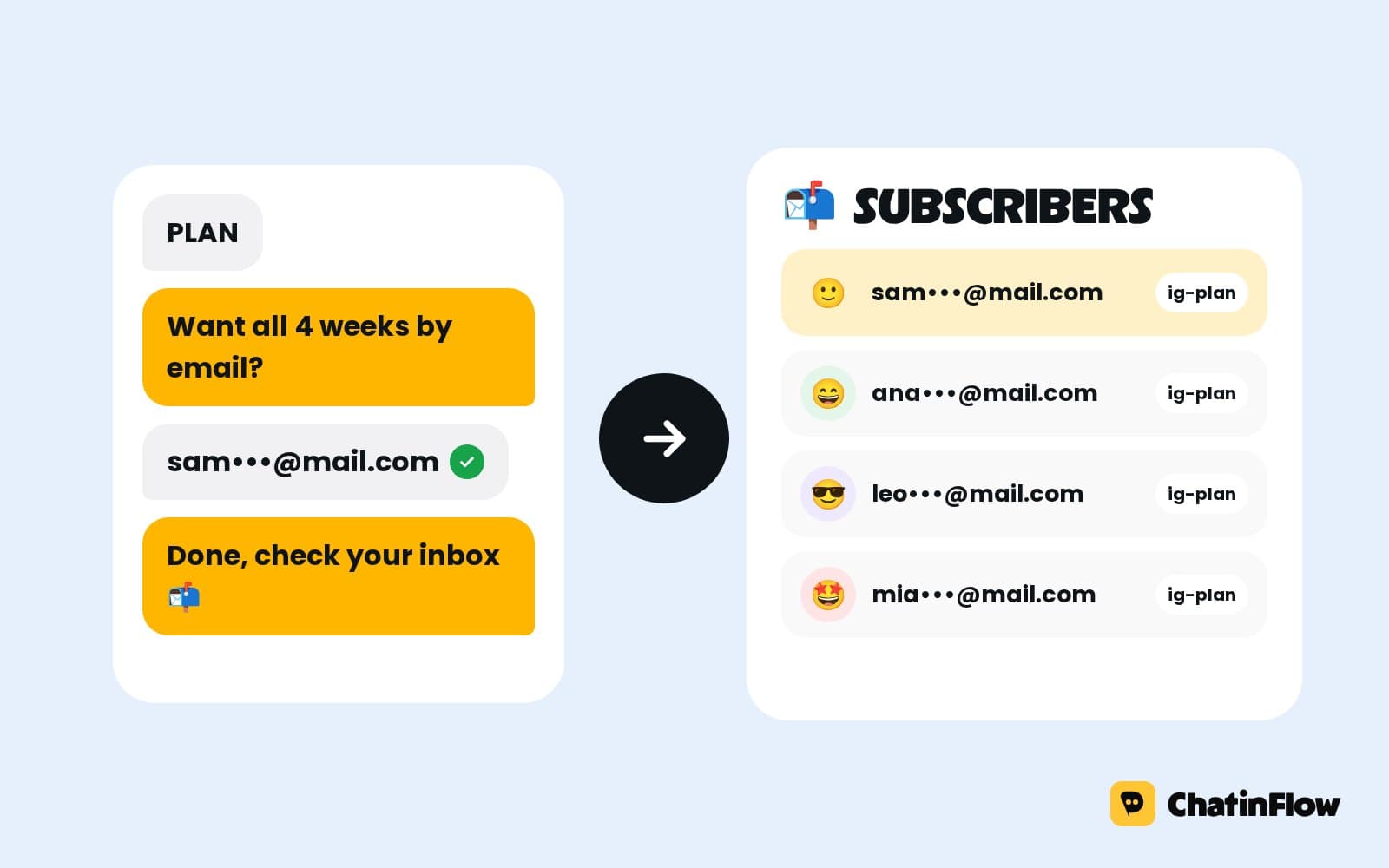
- Ask for an email or phone when the conversation needs a follow-up, and save it on the contact.
- Offer WhatsApp or Instagram in the window, so the visitor can continue on their phone.
- Send a confirmation for bookings and orders, with the details in the chat, before they go.
Website forms that start a conversation
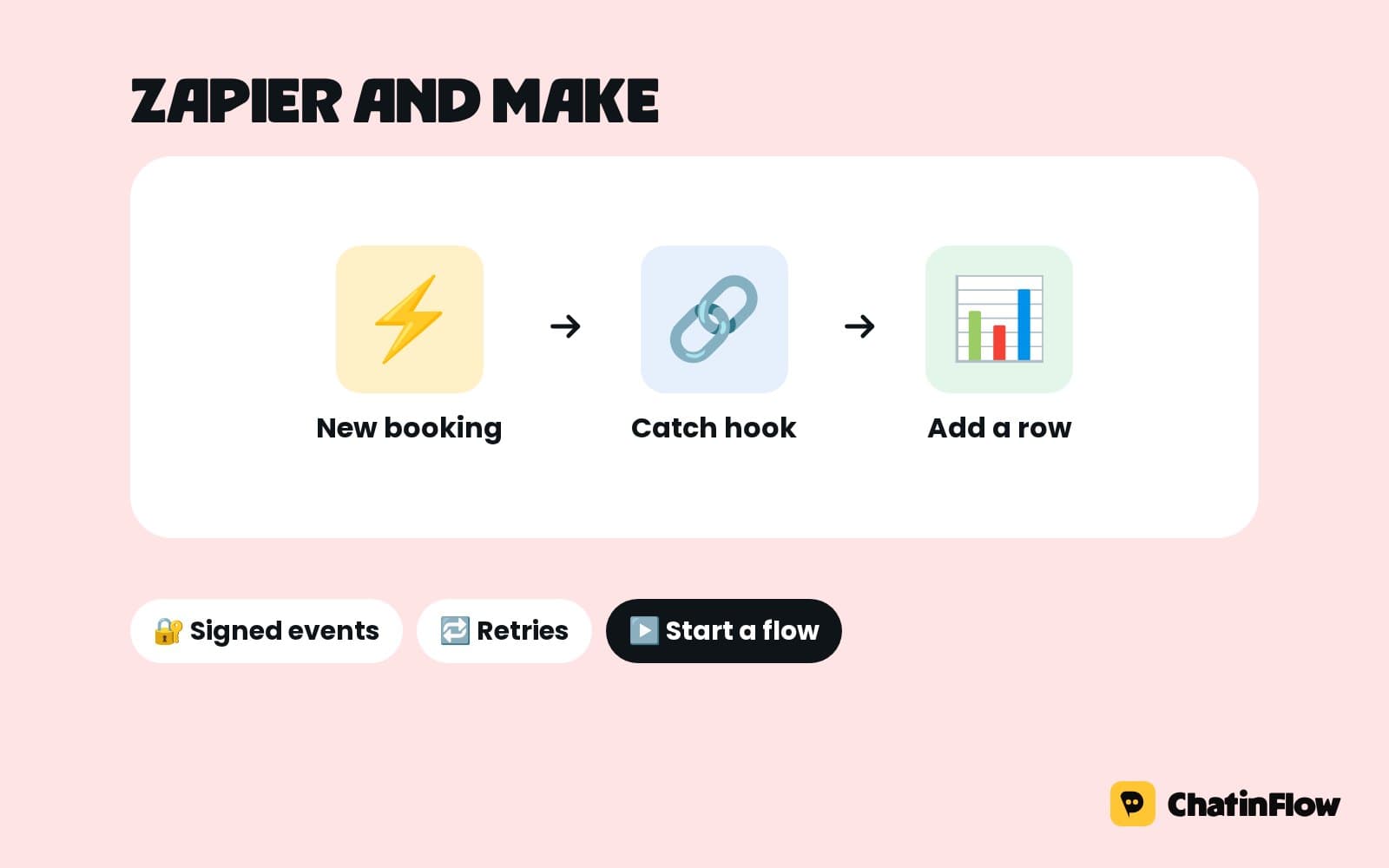
Chat is one way visitors reach you; forms are another. ChatinFlow treats them as one journey. A form on your site, Typeform, JotForm or a Google Ads lead form can create the contact, save every answer and start a follow-up flow in seconds, for example an alert for the team and the contact added to your CRM. Set them up under Automations, Web forms.
Working with your team
Website chats sit in the shared inbox next to every other channel, marked with the window name. Assign them, add internal notes, and when a teammate writes, the bot pauses for that chat. With page tracking on, your team sees which pages the visitor opened while chatting, which often answers the question before it is asked.
Pause Website chat channel in the settings stops sending and automations for a while, with a reason your team sees, without removing the window. Enable Website chat channel turns the window off without forgetting its settings.
Measuring the window
Website chat counts in Analytics like every other channel: messages, the time to the first answer and the busiest hours. The busiest hours chart tells you when someone should be watching the inbox, and the Automations tab shows which flows answer most. A rising number of chats on one page is a sign that the page leaves a question unanswered; add the answer to the page itself.
Terms in this guide
- Chat window. The chat bubble ChatinFlow adds to your site, with your name, greeting, color and side of the screen.
- Allowed sites. The sites the window may run on, one per line, with subdomains included.
- Install code. The one line of code you paste into your site, or into your site builder's header setting.
- Track pages. A switch that keeps the pages a visitor opens and sends them when the visitor starts a chat, so they show on the contact.
- Visited a page. A rule that starts its own conversation for visitors of one page, when page tracking is on.
- Other apps. Up to four of your other channels, such as Instagram, offered in the window for visitors who prefer them.
Common mistakes
- Leaving the sites list empty. It is useful for testing, but list your domains before you launch.
- A long greeting. One sentence that says what people can ask works best.
- No after-hours path. Visitors write at night; make sure the flow says when the team is back and takes their email.
- Expecting to message visitors later. The window reaches visitors only while they are on your site. Offer another channel for later.
- Page tracking without a privacy notice. Mention it before you turn it on.
Quick answers
Do I need a developer to install the chat window?
No. Paste one line of code into your pages, or into the header or footer setting most site builders have.
Can the window run on several websites?
Yes. List each site; their subdomains are included. Left empty, the window runs on any site.
Can I message a visitor after they leave my site?
Not through the window. A message reaches a visitor only while they are on your site, so ask for an email or offer WhatsApp or Instagram for later.
Can visitors send photos?
Yes, if you turn photos on. A photo can be up to 5 MB, and its location and other phone details are removed before it reaches your inbox.
Does it work with my site builder?
Almost certainly. The window is one line of code, and almost every site builder, from WordPress to Shopify, has a setting that adds code to the header or footer of every page. Paste it there once and the window appears on every page of the sites you listed.
Sources
- The script element, MDN Web Docs, on where a script tag goes in a page.
- General Data Protection Regulation, Article 13, on telling visitors what data you collect, relevant when page tracking is on.