The full guide
How to make a profile picture that works on every app
Your profile picture is the most seen image you will ever post. It sits next to every comment you leave, every story you share, every DM you send and every search result your account appears in. Most of the time it is shown smaller than a fingernail.
Your profile picture is the most seen image you will ever post. It sits next to every comment you leave, every story you share, every DM you send and every search result your account appears in. Most of the time it is shown smaller than a fingernail. A picture that looks great at full size on your camera roll can turn into an unreadable blob in a comment thread.
This guide covers the size to upload, how the circle crops a square photo, how to frame a face or a logo so it reads at every size, and how to make one picture that works on Instagram, TikTok, WhatsApp and Messenger.
The size to upload
Apps store profile pictures as squares and show them as circles. They scale every upload down, so the upload should be large and square.
| App | Shown as | A safe upload |
|---|---|---|
| Circle | Square, 1080 by 1080 px | |
| TikTok | Circle | Square, 1080 by 1080 px |
| Circle | Square, 1080 by 1080 px | |
| Facebook and Messenger | Circle | Square, 1080 by 1080 px |
Smaller uploads are accepted, but they are enlarged on larger screens and on the profile page itself, where they look soft. A square of 1080 pixels is sharp everywhere and still a small file.
What the circle hides
A circle inside a square leaves out the four corners: about a fifth of the picture. Anything in the corners of your photo disappears, and so does anything too close to the edge.
- Keep your face, or the main mark of your logo, in the middle.
- Leave a little room around the head; a forehead touching the circle looks cramped.
- Do not put words in the corners or along the edges of a logo version made for avatars.
The sizes people really see
The profile page is the largest view and the least frequent. Most impressions of your picture are tiny.
| Where | Shown at about | What has to read |
|---|---|---|
| Next to a comment | 32 px | The overall shape and color |
| In a chat list or a story row | 56 px | A face, or the main mark of a logo |
| On your profile | 150 px | Expression, details, small type |
Design for the 32 pixel view first. If people can still tell it is you, or your brand, when the picture is the size of a comment avatar, it will work everywhere else.
Framing a face
For creators, coaches, consultants and local businesses, a face usually beats a logo: people message people.
- Fill most of the circle. Head and the top of the shoulders, not the whole body. A small face disappears at comment size.
- Look at the camera. Eye contact reads even at small sizes.
- Use even light. A window in front of you works better than a ceiling light above you.
- Choose a plain background that contrasts with you. Dark hair on a light background, light hair on a darker one, or a solid brand color.
- Use a recent photo. People who meet you, or join your video call, should recognize you.
Framing a logo
A logo profile picture works for shops, brands and products people already know by name.
- Use the mark, not the full logo. A word mark with a long name becomes unreadable at 32 pixels. Most brands have a symbol or an initial for this.
- Give it space. The mark should fill about 60 to 70 percent of the circle's width, with even space around it.
- Use your brand color as the background. A solid color is recognizable from across a feed.
- Check it on dark mode. A dark logo on a transparent background vanishes on a dark app theme. Always use a solid background.
Rings, borders and backgrounds
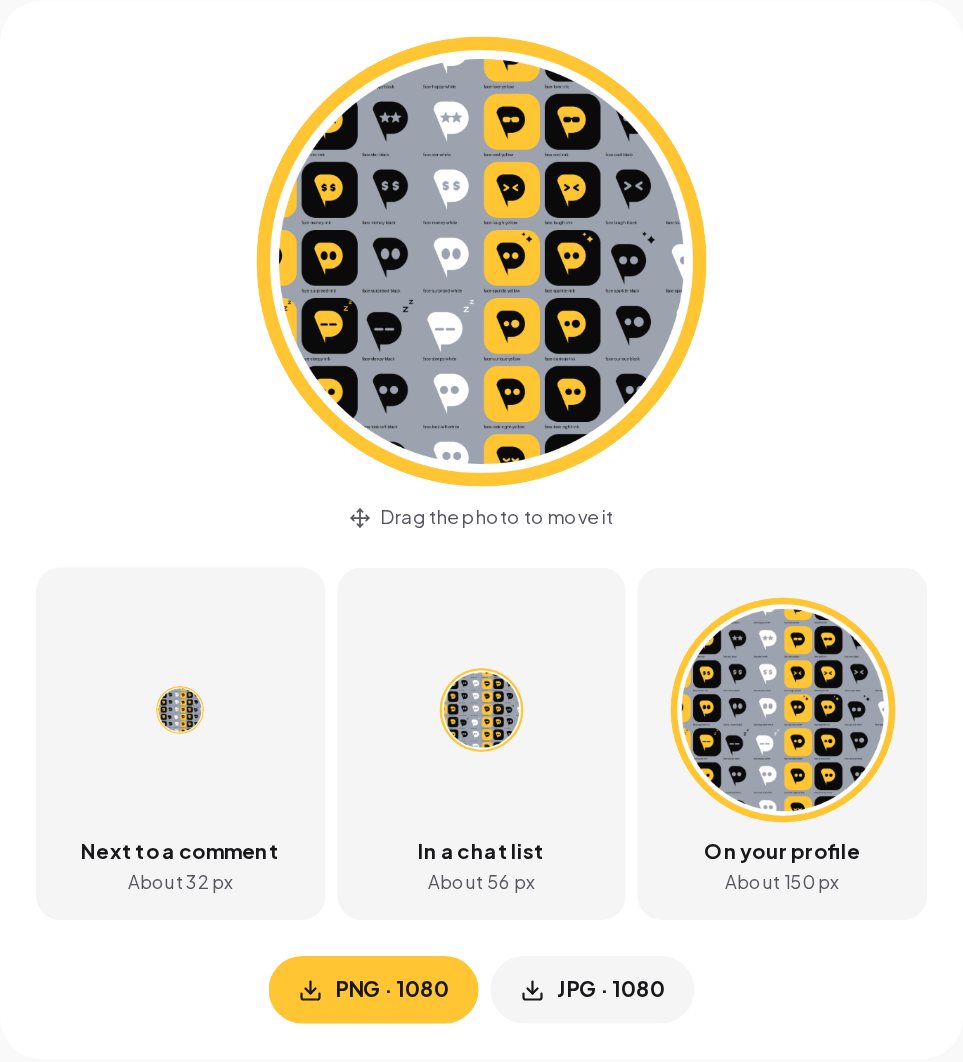
A thin ring in your brand color can help a picture stand out in a list, especially for a business. Keep it subtle: the apps already draw their own rings, such as the story ring on Instagram, and a thick ring of your own competes with them. A plain light or brand-colored background behind a cut-out photo also makes the face pop at small sizes.
Making the picture in a minute
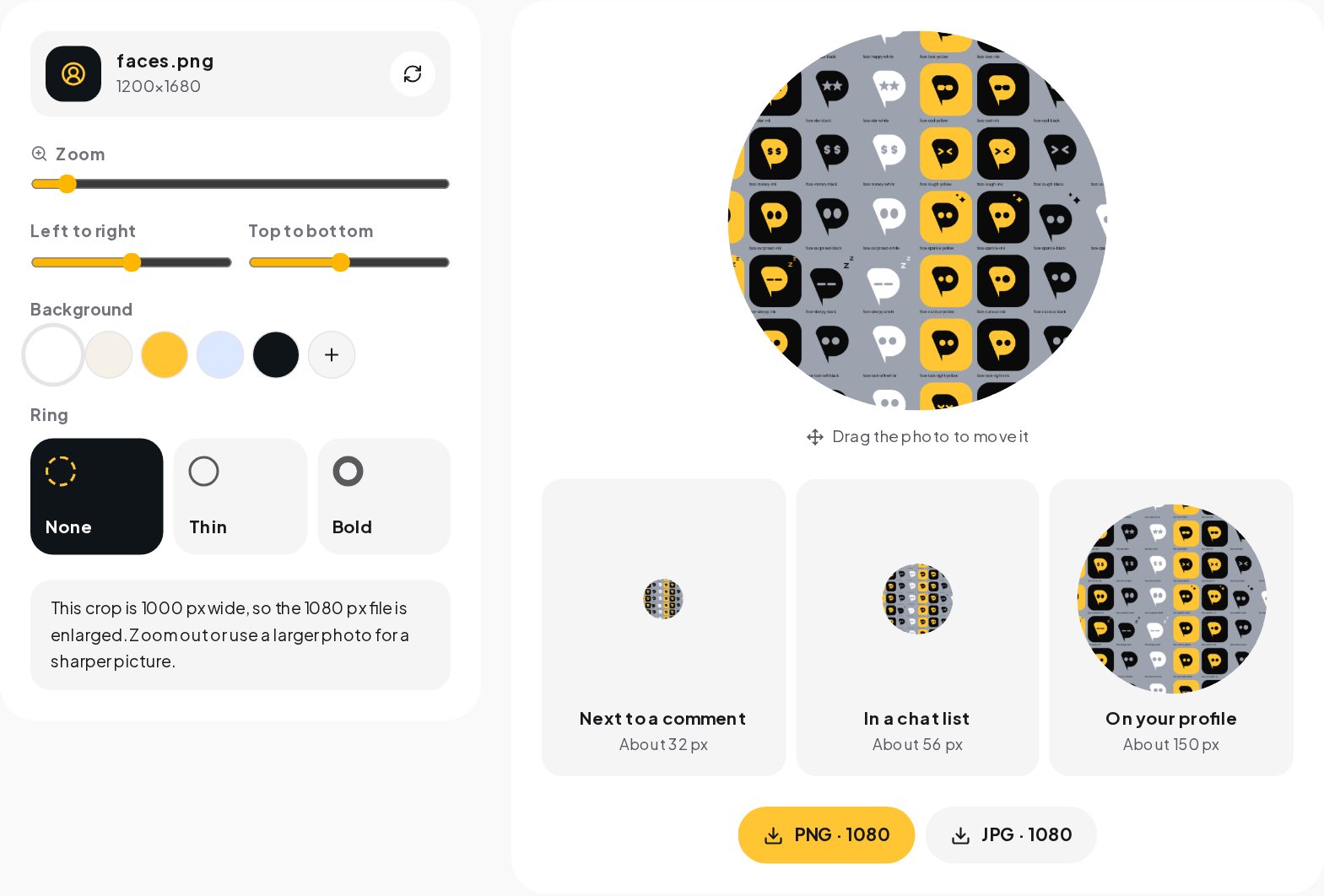
- Open the Profile Picture Maker and choose a photo or your logo.
- Zoom and drag the photo inside the circle until the face or mark sits in the middle.
- Pick a background color, and a thin or bold ring if you want one.
- Check the three previews: next to a comment, in a chat list and on the profile.
- Download the 1080 pixel PNG or JPG and upload it to each app.
The tool warns you if your crop is smaller than 1080 pixels, which means the photo would be enlarged and look soft. Zoom out a little or use a larger photo.
Profile pictures by account type
| Account | Best choice | Tips |
|---|---|---|
| Creator | Your face | Expression that matches your content, consistent across apps |
| Coach or consultant | Your face | Friendly, eye contact, plain background |
| Local service, salon, clinic | Face of the owner or the logo | A face for one-person businesses, a logo for teams |
| Shop | Logo mark | Brand color background, no small text |
| Restaurant or cafe | Logo or a signature product | Recognizable at 32 px, warm colors |
| Agency | Logo mark | The same mark you use on proposals and invoices |
Changing your picture without losing people
Sometimes a change is needed: a rebrand, a new photo, a new season. Make it easy for people to follow the change.
- Change it on every app on the same day, so the old and new versions do not compete.
- Keep something constant: the same background color, the same framing or the same ring color.
- Post a short story or a post about the change if your audience knows you by the old picture.
- Avoid frequent changes. Recognition builds over months; a new picture every few weeks resets it.
Dark mode, story rings and badges
The apps draw things around and over your picture. A story ring appears around it when you have a story, a verification badge sits at its corner, and in dark mode the space around it turns black. Check the 32 and 56 pixel previews against a dark background too: a dark logo on a transparent background vanishes in dark mode, which is why the maker always fills the background. Keep important details away from the bottom right corner, where badges and online dots usually appear.
One picture everywhere
Use the same picture on every app and on your website. When someone finds you on TikTok and then searches for you on Instagram, the same face or mark is the fastest way for them to know they found the right account. Changing your picture often has a cost too: people who know you by your avatar lose you for a while every time it changes.
Common mistakes
- A group photo. Nobody can tell who you are at 32 pixels.
- A full-body shot. The face becomes a few pixels.
- A logo with small text. The text turns into a line.
- A transparent PNG. It shows the app's background, which differs between light and dark mode.
- A photo that is too dark. Small images lose shadow detail first; brighten slightly.
From recognition to conversation
A clear profile picture builds trust before anyone reads a word, and trust is what makes people message you. When they do, answer fast. ChatinFlow's keyword automation replies to every DM that contains your word, such as PRICE or BOOK, with the information they asked for, at any hour. The picture earns the message; the automation makes sure it gets an answer.
Quick answers
Which apps show profile pictures as a circle?
Instagram, TikTok, WhatsApp and Messenger all crop the picture to a circle, which is why the maker previews all four.
Should I add a ring around my profile picture?
A thin ring can separate a photo from a busy background. Keep it thin, so it does not look like a story ring.
What background works best?
A plain background in one color, ideally one of your brand colors, so the face or logo stands out at a small size.