Flow template · AI
AI conversation
AI answers from your sources and hands off when it should.
Copy this flow
Open the template in your workspace, change the words to yours and publish when it looks right. It's free to start.
More recipes
AI answers from your sources and hands off when it should.
A comment with your word gets your link in their DMs.
One tap moves the chat to your WhatsApp number.
 Policy6 min read
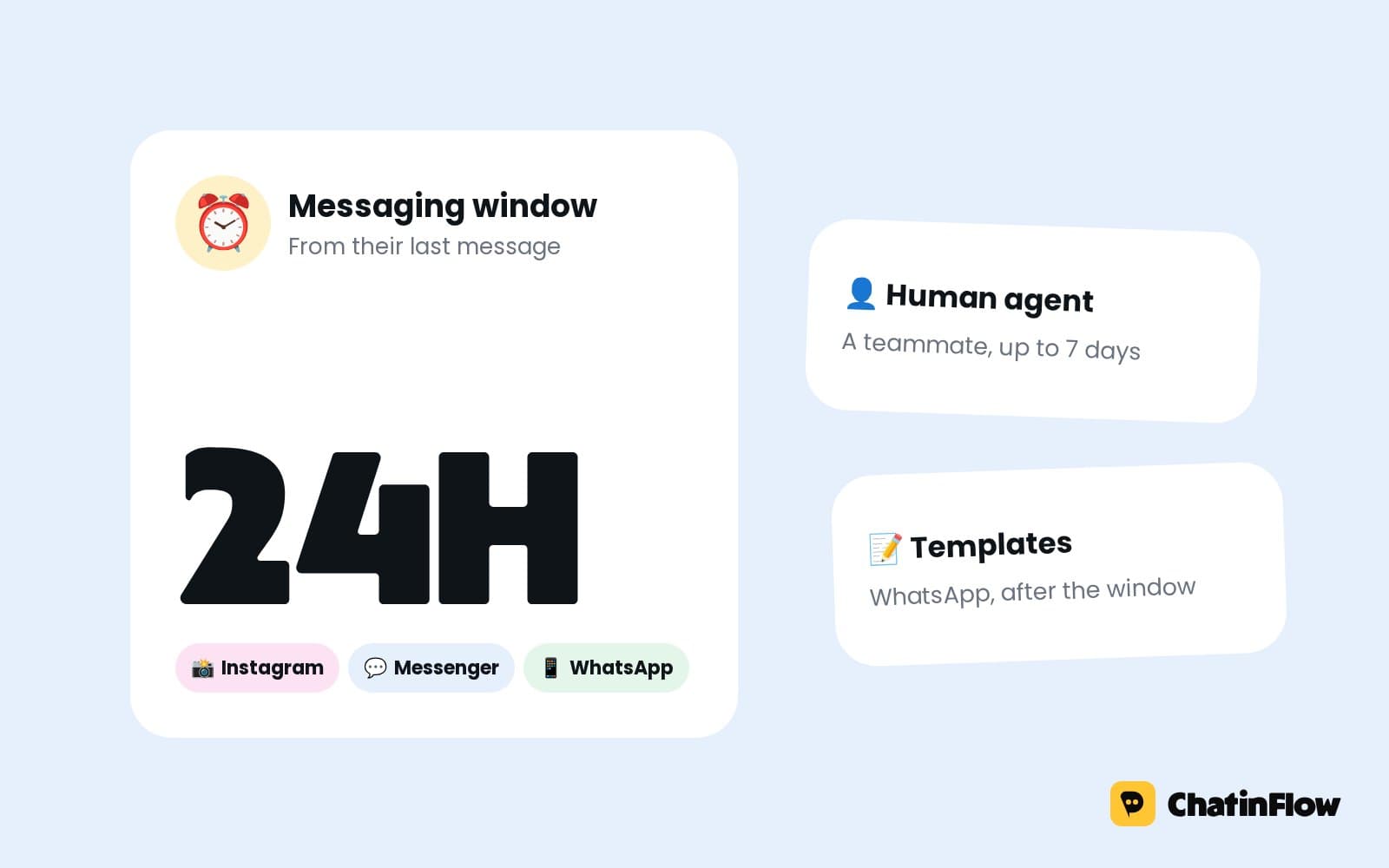
A business can message a person freely for 24 hours after their last message. What opens the window, what each app allows after it, and the 2026 changes to Messenger tags.
 Marketing5 min read
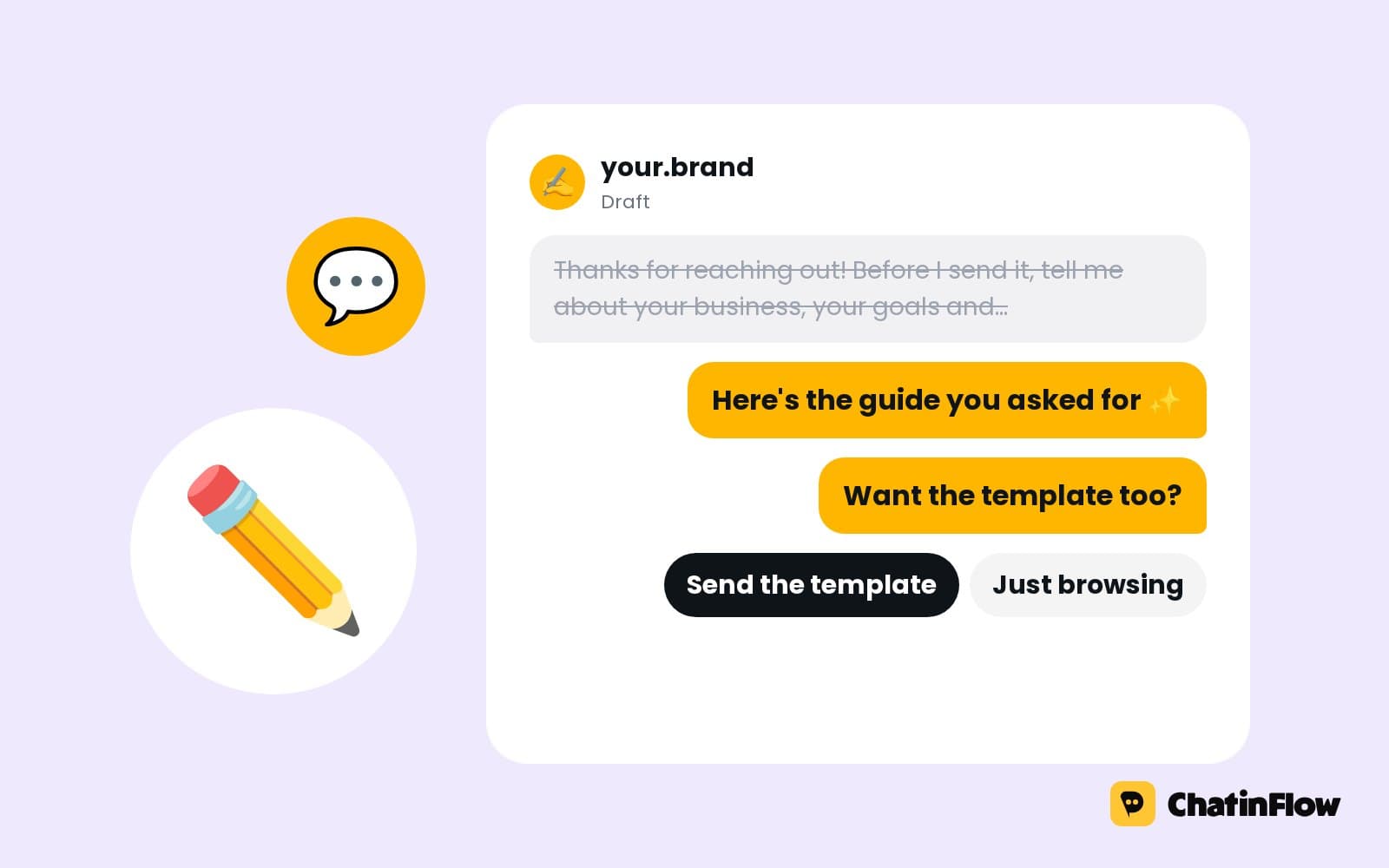
A DM is read on a phone, one thumb away from closing the app. How to write chat messages people answer: deliver first, one idea per bubble, one question with buttons.
 Growth5 min read
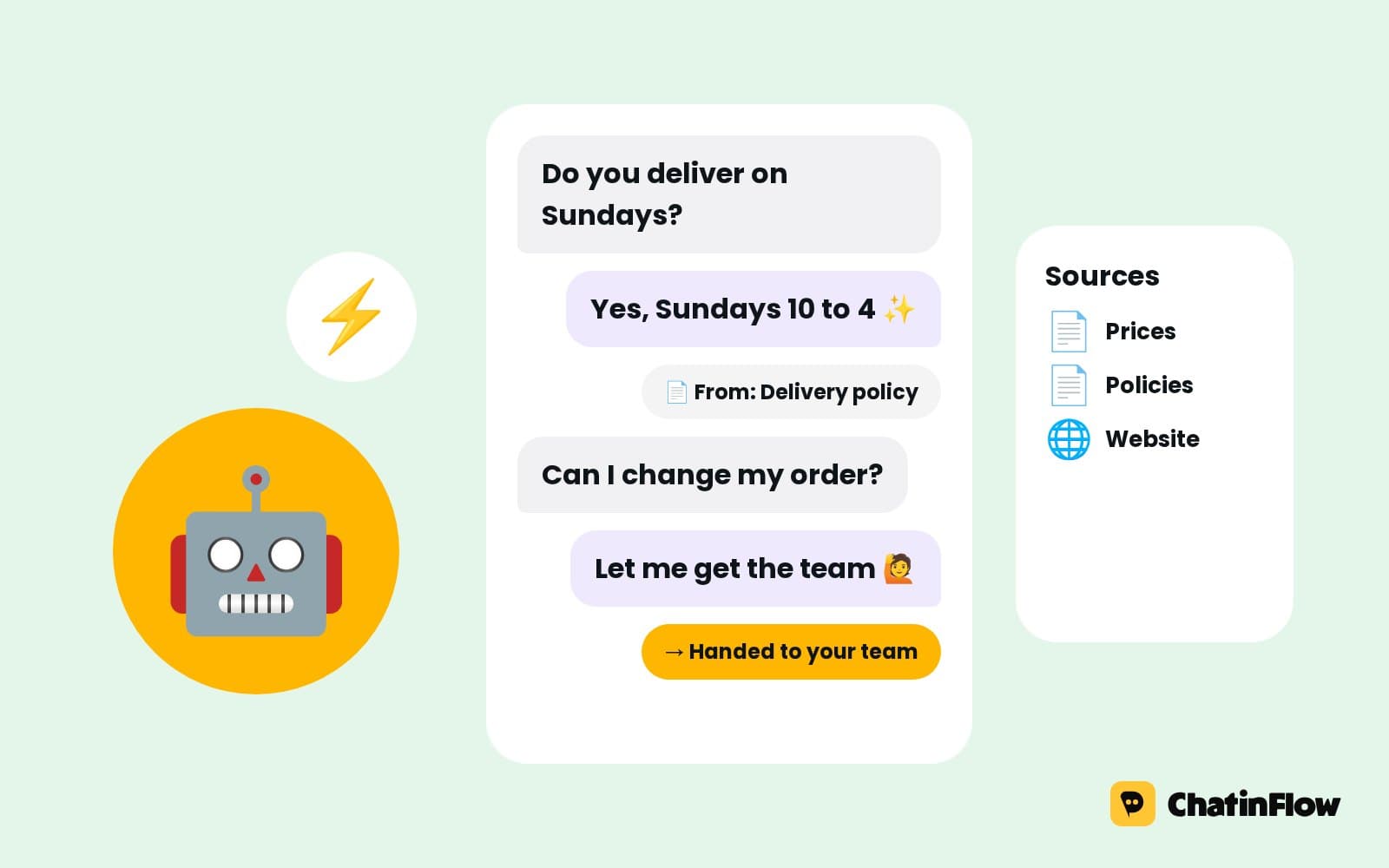
Hand AI the repetitive, language-heavy work and keep people on decisions and relationships. What to automate, where AI beats simple rules, how to set it up safely and how to tell whether it works.
The full guide
A default reply for messages nothing else answers, a welcome for first messages, a different answer when you are closed, and a clean handover to your team.
The worst reply a customer can get is none. A question about stock at 23:00, a price question on a Sunday, a "are you open today?" while the team is busy: each one waits, and some of them go to the business that answered first. An inbox auto-reply makes sure every message gets something useful at once, without stepping on the answers your team and your keyword automations already give. This guide sets one up step by step: the default reply for messages nothing else answers, a welcome for first messages, a different answer outside business hours, and the rules that hand the chat back to a person the moment they reply.
| Step | What happens | Built with |
|---|---|---|
| 1. The message | A DM nothing else answered | A DM trigger set to Any message |
| 2. Open or closed? | The flow checks your business hours | The Business hours condition |
| 3. The answer | The most useful reply for the moment | Send DM with buttons, or the AI agent |
| 4. The away message | When you are closed, when you will be back | Send DM on the closed path |
| 5. The team | A teammate replies, and the bot steps aside | The inbox |
Open Automations and search the gallery for "default". Default reply answers every DM no other automation answers, so no one waits for a reply.
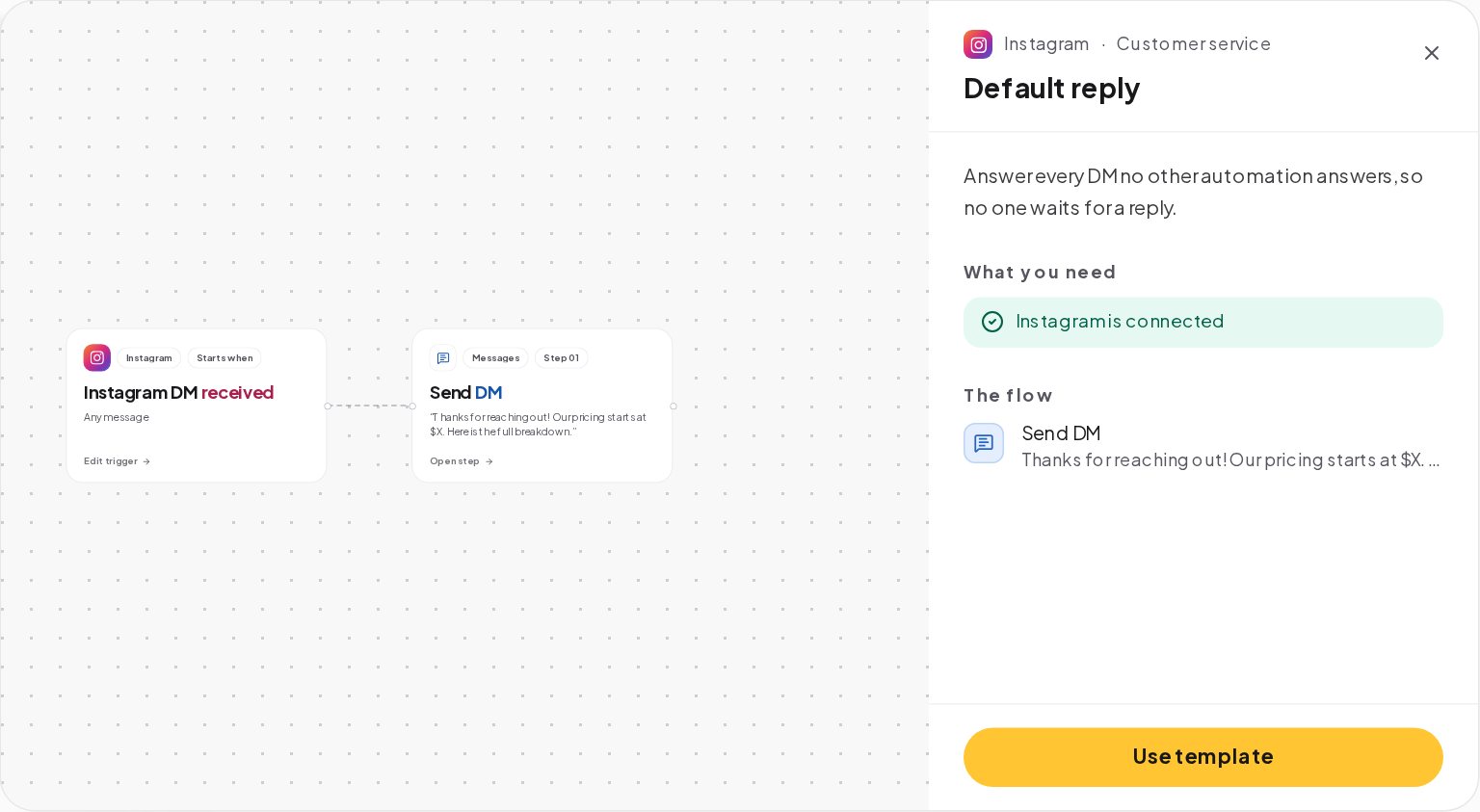
Press Use template and replace the example text with your own. A good default reply does three things: it thanks the person, it answers the question most people ask, and it offers the next step with buttons.
Open the DM trigger. Set to Any message, it works as your default reply: the panel says it answers only the messages that no other automation matches.
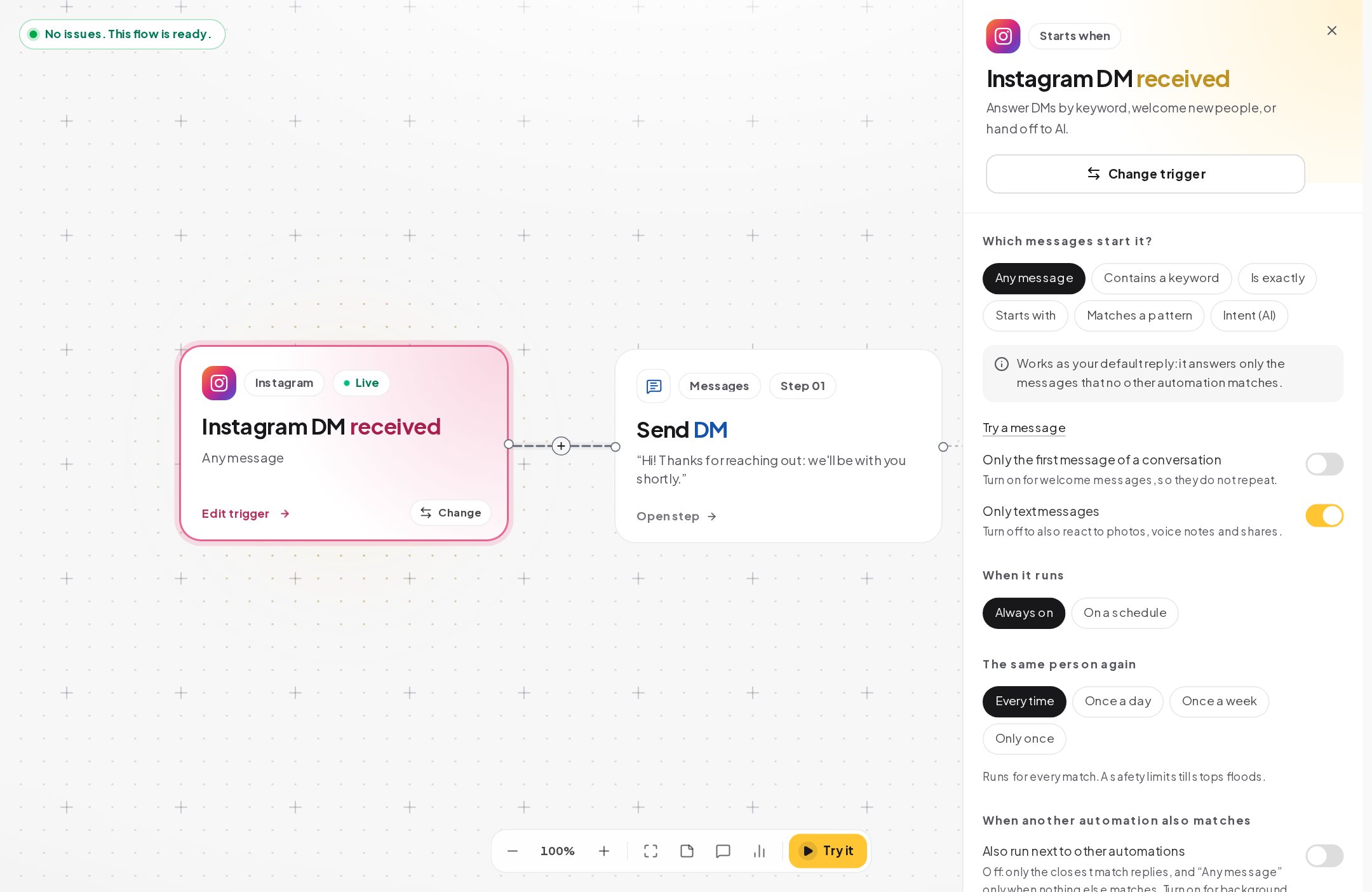
That order is what keeps the inbox sane:
Two switches change who it answers:
"Thanks, we'll get back to you" helps nobody at 23:00. A useful default reply answers before it promises:
with buttons such as Prices, Book a time and Talk to a person. Each button starts its own small automation, so the person gets an answer in one tap instead of waiting for a person.
There are two ways to change the reply outside your hours.
A schedule on the automation. Open the automation's settings and choose On a schedule instead of Always on. Set weekly hours in your business time zone, a start and end date if you like, and holidays: skip them, or run only on them. Your workspace's business calendar and up to 100 dates of the automation's own can be used.
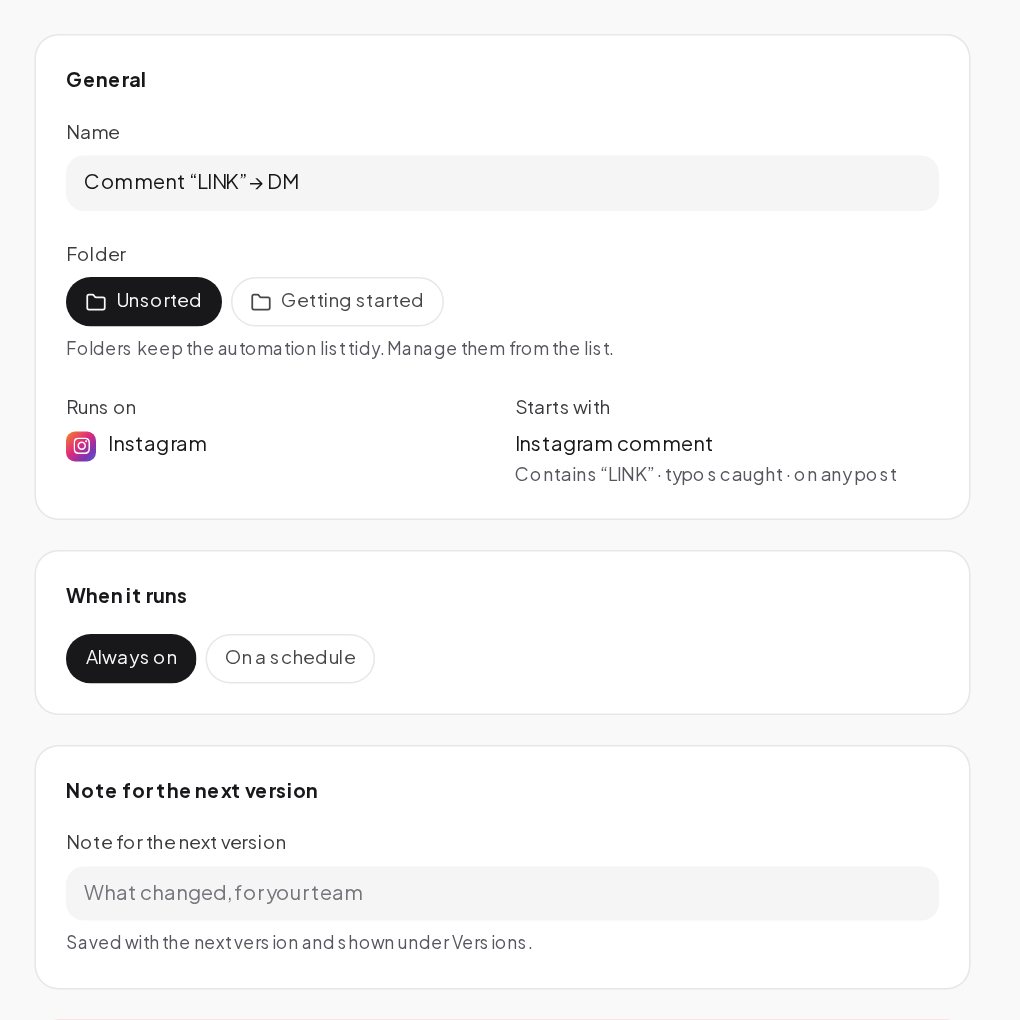
A condition in the flow. The Business hours condition checks whether you are open right now, using the hours in your workspace settings, and gives the flow two paths: open and closed. One automation then says "a teammate will reply shortly" during the day and "we're closed, we'll reply first thing at 9:00" at night.
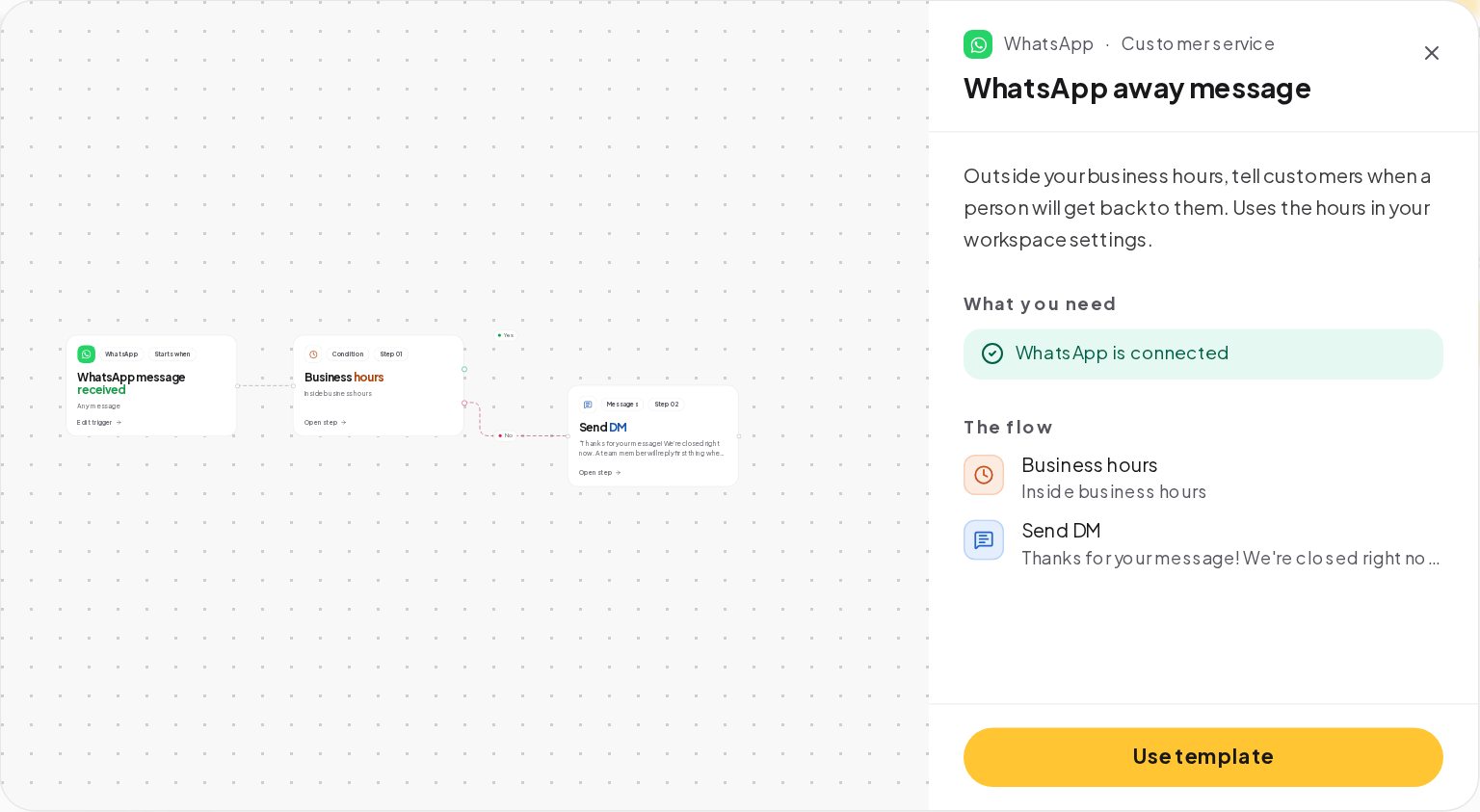
For WhatsApp, the WhatsApp away message template does exactly that: outside your business hours, it tells customers when a person will get back to them.
A fixed reply covers the common questions. For the rest, an AI agent step on a paid plan answers from the sources you add, such as your pricing page, your shipping page or a short text with the facts, on your own OpenAI, Anthropic, Google Gemini or Azure OpenAI key. When the answer is not in your sources, or the customer asks for a person, the agent takes its other path, which you connect to Notify the team.
Put AI after your keywords, not in front of them. A keyword answer costs nothing and says exactly what you wrote.
An auto-reply should never argue with a person. When a teammate replies in the inbox, the automation running in that chat stops, and the bot stays quiet for the time you set under Settings, Inbox, 30 minutes unless you change it. Pause the bot at the top of a conversation starts that quiet time before you type, for 30 minutes, 1 hour or 24 hours.
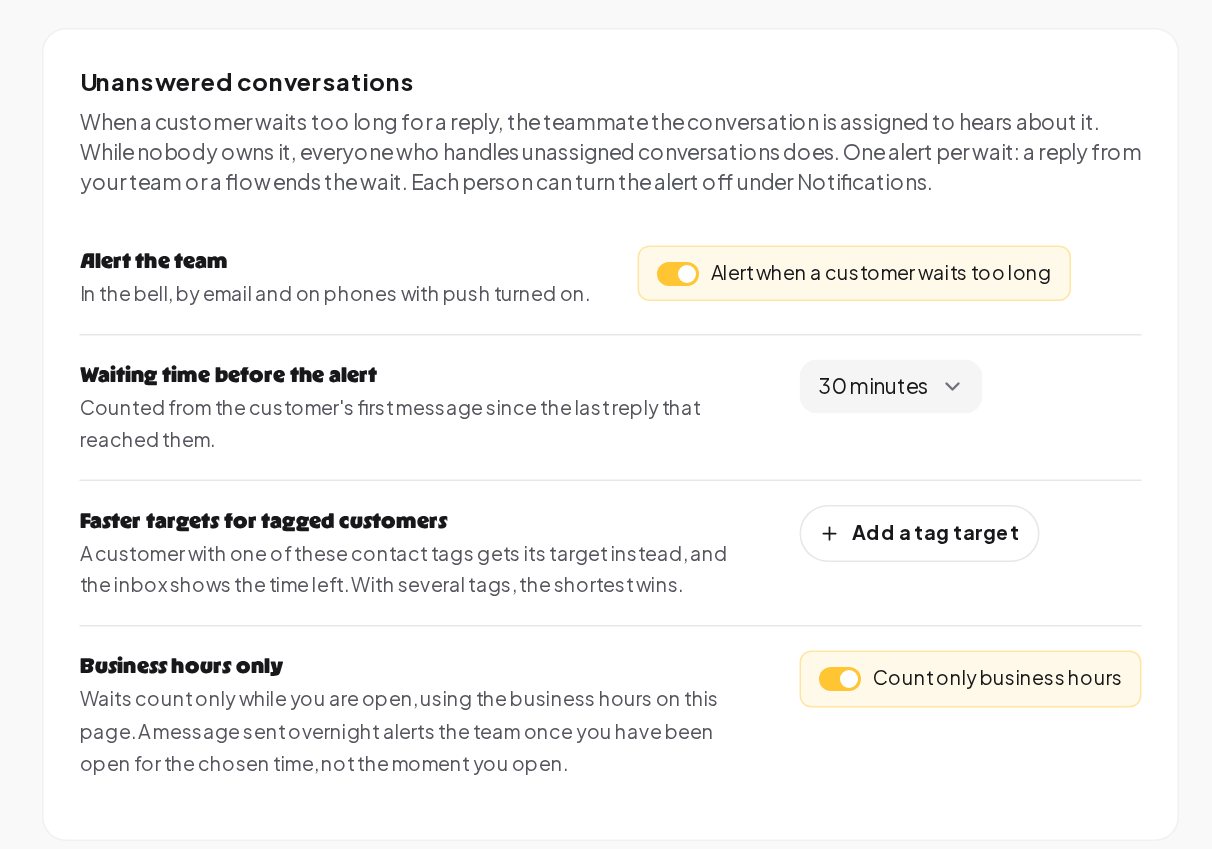
To make sure no one waits too long once the auto-reply has answered, turn on Unanswered conversations in the same settings: when a customer waits longer than the time you choose for a reply, the assigned teammate hears about it.
Each one answers before it promises, gives three choices and sounds like the business, which is what makes people keep reading. Rewrite the example in your own words; the person reading it knows your voice from your posts.
Holidays are where auto-replies earn their keep. A few habits:
Each automation's Activity tab lists every run: how it ended, how long it took and where it stopped. Read the messages that reached your default reply every week. Each one that keeps coming back deserves its own keyword automation with a precise answer, and your default reply gets shorter over time.
A bakery gets the same messages every day: are you open, do you have gluten-free bread, can I order a cake.
Messages at 22:00 get the hours and the cake form at once, and the morning shift starts with orders instead of questions.
| Channel | Free reply window | After the window |
|---|---|---|
| 24 hours after their last message | No message until they write again | |
| Messenger | 24 hours after their last message | No message until they write again |
| 24 hours after their last message | Only a template Meta has approved | |
| Telegram | No window for people who started your bot | Messages keep reaching them |
| Website chat | While the visitor is on your site | The request waits in the inbox |
Yes. Each automation belongs to one channel's trigger, so Instagram, Messenger, WhatsApp and Telegram can each have their own default reply.
No. While the quiet time runs after a teammate's reply, automations for that contact are paused.
No. A schedule decides when an automation can start; a flow already running finishes its steps.
Yes. Write it into the message, such as "Ana from our team replies on weekdays", and keep it true; when the team changes, change the reply.
Incoming voice notes are turned into text on our own servers, so automations can read their words. Turn on Only text messages if you would rather leave them to your team.
Setting up my first automation was easier than I expected. The whole dashboard feels really intuitive.
I used to spend way too much time answering the same Instagram questions. This makes things a lot simpler.
Love having everything in one place. It's made keeping up with customer messages much less stressful.
Honestly, the setup was pretty straightforward. Took me a little time to figure out the flows, but it's been smooth since.
Really handy for managing messages across different accounts. The interface is clean and easy to get around.
We're a small team, so anything that saves us time is a win. This has been genuinely useful.
We get so many repetitive questions through Instagram. Having those handled automatically makes a huge difference.
Getting everything connected was surprisingly simple. I really like how the automation builder works.
Clean interface, useful features, and no unnecessary complexity. Exactly what I was looking for.
The workflow builder is quite flexible. It took some experimenting, but now it fits our process really well.
I like how easy it is to organise customer conversations. Everything feels much more manageable now.
Simple to navigate and surprisingly powerful once you start building automations.
Managing Instagram messages used to take up a big part of my day. This has helped me get that time back.
The automation setup makes sense even if you're not particularly technical. That's a big plus for me.
I run a small online shop, and answering DMs was getting overwhelming. This makes things so much easier.
Really like the way everything is organised. The automations are easy to adjust when we need to.
Finally, a dashboard that doesn't feel complicated. I found what I needed without digging through endless menus.
Being able to manage conversations and automations together is really convenient for our team.
Pretty straightforward to get started. I especially like being able to see how the flows are organised.
We've tried a few different tools, and this one feels refreshingly simple to work with.
The dashboard is easy to understand, and creating an automation doesn't take much effort.
Nice to have our customer conversations organised without constantly switching between platforms.
I appreciate how simple the interface is. Even the more advanced settings are easy to find.
The automation features are useful, especially when you're dealing with similar customer questions every day.
The interface feels organised and easy to follow. Setting up basic workflows was very straightforward.
I like being able to manage everything from one dashboard. It makes our daily routine a lot easier.
Creating automated replies is really convenient. The dashboard is also much easier to navigate than I expected.
We needed a better way to handle incoming messages, and this fits nicely into our workflow.
The interface is clean, and managing different conversation flows feels straightforward.
I like that I can make changes to our automations without having to start everything from scratch.
This is really helpful for our Instagram shop. We can focus on orders instead of answering the same questions all day.
Easy to set up and practical for everyday use. The automation builder is my favourite part.
I manage messages for a few business pages, and having everything organised makes my day much easier.
The dashboard feels modern without being confusing. Getting started was pretty quick.
Really convenient for handling customer enquiries. I especially like how easy it is to manage automated responses.
It helps us keep conversations organised and respond to common questions without doing everything manually.
I wasn't sure how difficult setting up the flows would be, but the process was actually quite simple.
Super useful for a small business like ours. The dashboard makes managing customer messages much easier.
I like the simplicity. Everything I need for managing our conversations is easy to access.
Setting up automated replies was pretty painless. It's a practical tool for handling everyday customer messages.
What they get
Most DMs are the same questions: stock, prices, delivery, opening hours. Each one gets an answer the moment it arrives, in your words, whether you're open or not.
The recipe
What to have ready, then the steps from an empty workspace to a live flow.
Ingredients
Method
Under the hood
This is how the flow is set up in the builder, and the platform rules it plays by.
In the builder
Good to know
Make it yours
Change the word and the message, and the same steps do something else for you.