The full guide
Website chatbot and live chat widget: add Lobby to your site and answer like your DMs
Add a chat window to your site with one line of code, set its look, Home, greeting bubble, help articles and news in the Lobby studio, and let the same flows and inbox answer visitors.
Most visitors leave a website without asking the one question that would have made them buy: does it come in my size, can I book for Saturday, do you ship to my city. A chat window catches that question while they are still on the page. The trouble with most website chat tools is that they are one more inbox, with their own canned replies, separate from the Instagram and WhatsApp conversations your team already handles. ChatinFlow's website chat runs on the same flows and lands in the same inbox as every other channel. You paste one line of code, and the keyword replies, menus, bookings and AI you built for your DMs answer on your site too. This guide covers creating the window, installing it, making it look like your brand, and the flows that turn a visitor into a lead or a booking.
How to add a chatbot to your website: create the chat window
Open Channels and choose Website chat. The setup asks for three things.
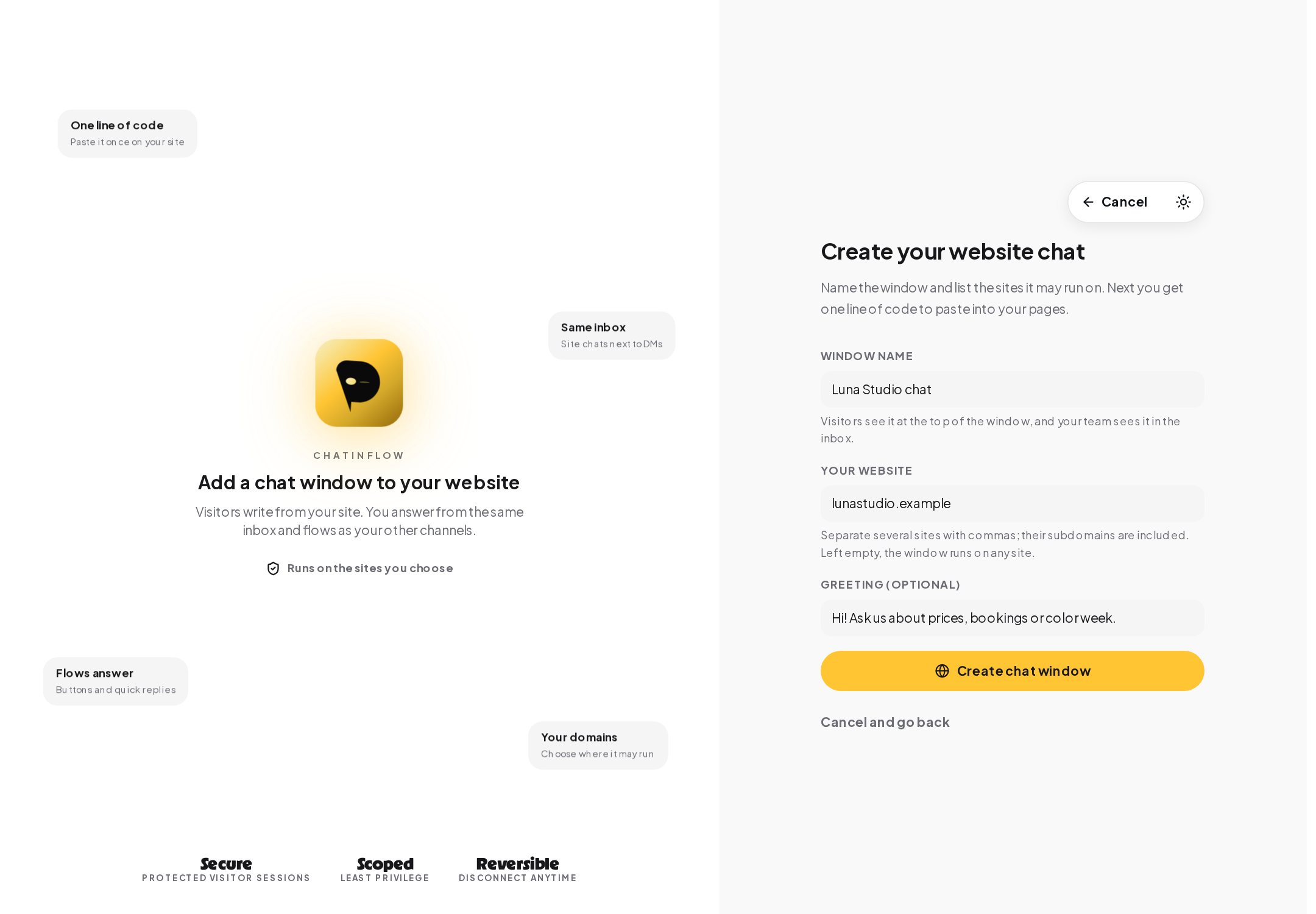
- Window name. Visitors see it at the top of the window, and your team sees it in the inbox, so it tells everyone which site a conversation came from.
- Your website. The sites the window may run on. Separate several with commas; their subdomains are included. Left empty, the window runs on any site, which is handy for a first test and worth tightening before you go live.
- Greeting. Optional. The first message a visitor sees when they open the window, such as "Hi! Ask us about prices, bookings or color week."
Press Create chat window. ChatinFlow creates the channel and shows its settings, starting with the embed code.
Install the live chat widget on WordPress, Shopify or any site builder
The embed code is one line: a script tag that loads the window. Paste it into every page where the window should appear, just before the closing body tag. Most site builders have a setting for code in the header or footer of every page, which does the same in one place. You do not need a developer.
The window only runs on the domains you listed. Anywhere else, it stays silent, so a copied snippet cannot put your chat on someone else's site. Visitor sessions are protected, so one visitor cannot read another's conversation.
To check the install, open your site in a private browser window, open the chat and send a message. It should appear in your ChatinFlow inbox, marked with the window name.
Customize the chat widget to match your brand
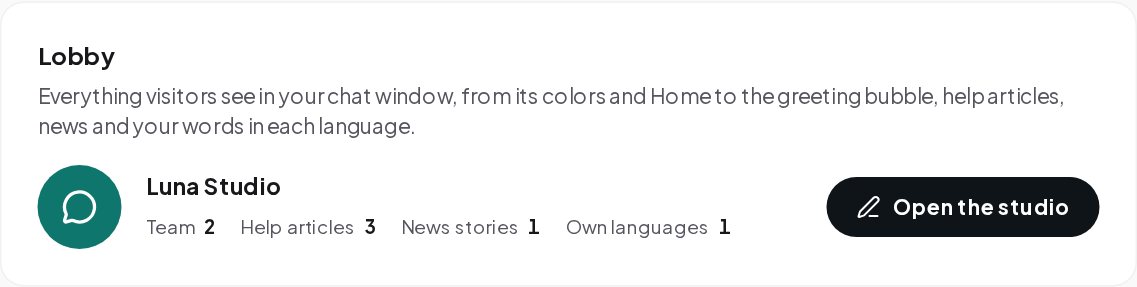
Open Settings, Channels, Website chat. The Lobby card shows the window's name and what it carries, such as its team, help articles, news stories and the languages you wrote your own words for. Press Open the studio.
The Lobby studio fills the screen. The settings sit on the left in six tabs: Look, Home, Bubble, Help, News and Languages. On the right is your window as visitors will see it, in the corner of a page, drawn again with every change you make. The bar above it switches the preview between Home, Chat, Help, News and the greeting bubble, and between a desktop screen and a phone. Nothing reaches visitors until you press Save changes. After that, open windows pick up the new settings the next time a visitor loads a page.
Chat widget colors, logo and font
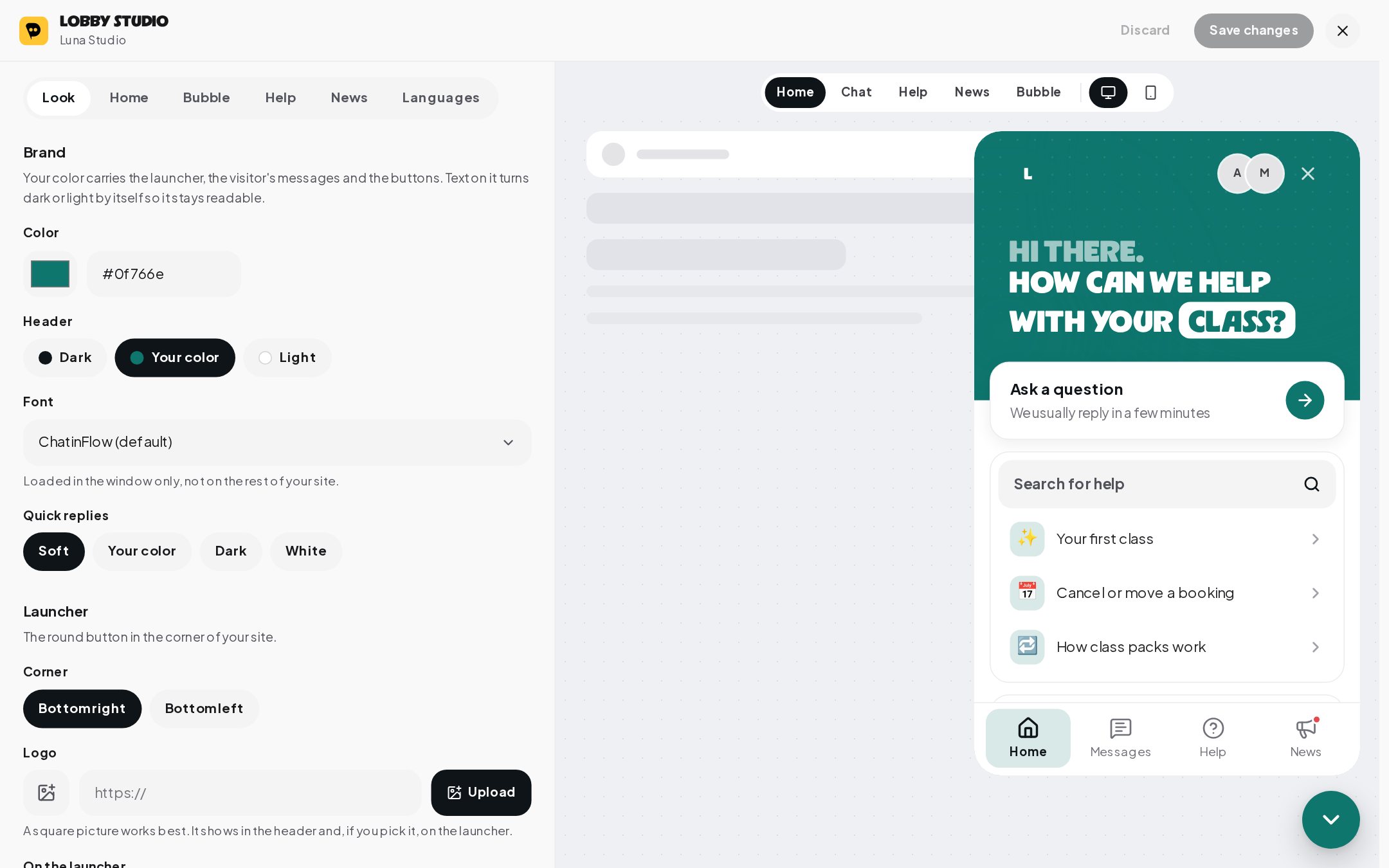
The Look tab is your brand in the window.
- Color. It carries the launcher, the visitor's messages and the buttons. Text on it turns dark or light by itself, so it stays readable on any color you pick.
- Header. Dark, your color, or light.
- Font. ChatinFlow's own type, the visitor's system font, or one of fifteen families from Google Fonts, such as Inter, Poppins or Montserrat. The font loads in the window only, never on the rest of your site.
- Quick replies. Soft, your color, dark or white, for the taps under messages.
- Corner and logo. Bottom right or bottom left, and a logo you upload or link. The launcher can show your logo instead of the chat icon.
- Line under the title. Your own words, or when you usually reply: in minutes, in an hour or in a day. The reply time shows in the visitor's language.
- Privacy policy. Before a visitor writes, the chat says that chatting means they agree to your privacy policy, with a link to the page you give.
- Sounds. A soft sound for new replies. Visitors can still turn it off in the window.
Pictures you upload are re-encoded before they are stored, so the location and other details a phone saves in a photo never reach your visitors. JPEG, PNG and WebP up to 2 MB work. An address you paste must start with https, because the window loads nothing else, and the studio marks it in red until it does.
Home screen with your team's faces
The Home tab sets the first screen a visitor sees: a short greeting, a headline such as "How can we help with your class?", and up to five teammates whose faces show on Home and in the chat header. Five styles set the greeting and headline: Bold, uppercase with the last word on a pill; Classic, in plain sentence case; Marker, with the last word underlined in your color; Minimal, small and quiet; and Centered. Every style keeps your colors. Use the names your visitors will actually talk to. The same tab holds the chat's first message, the one a visitor reads before they write.
Greeting bubble with quick replies
A greeting bubble is a short message over the closed window, a proactive chat invitation that asks before the visitor does. Write it on the Bubble tab, choose after how many seconds it appears, and add up to four quick replies above it.
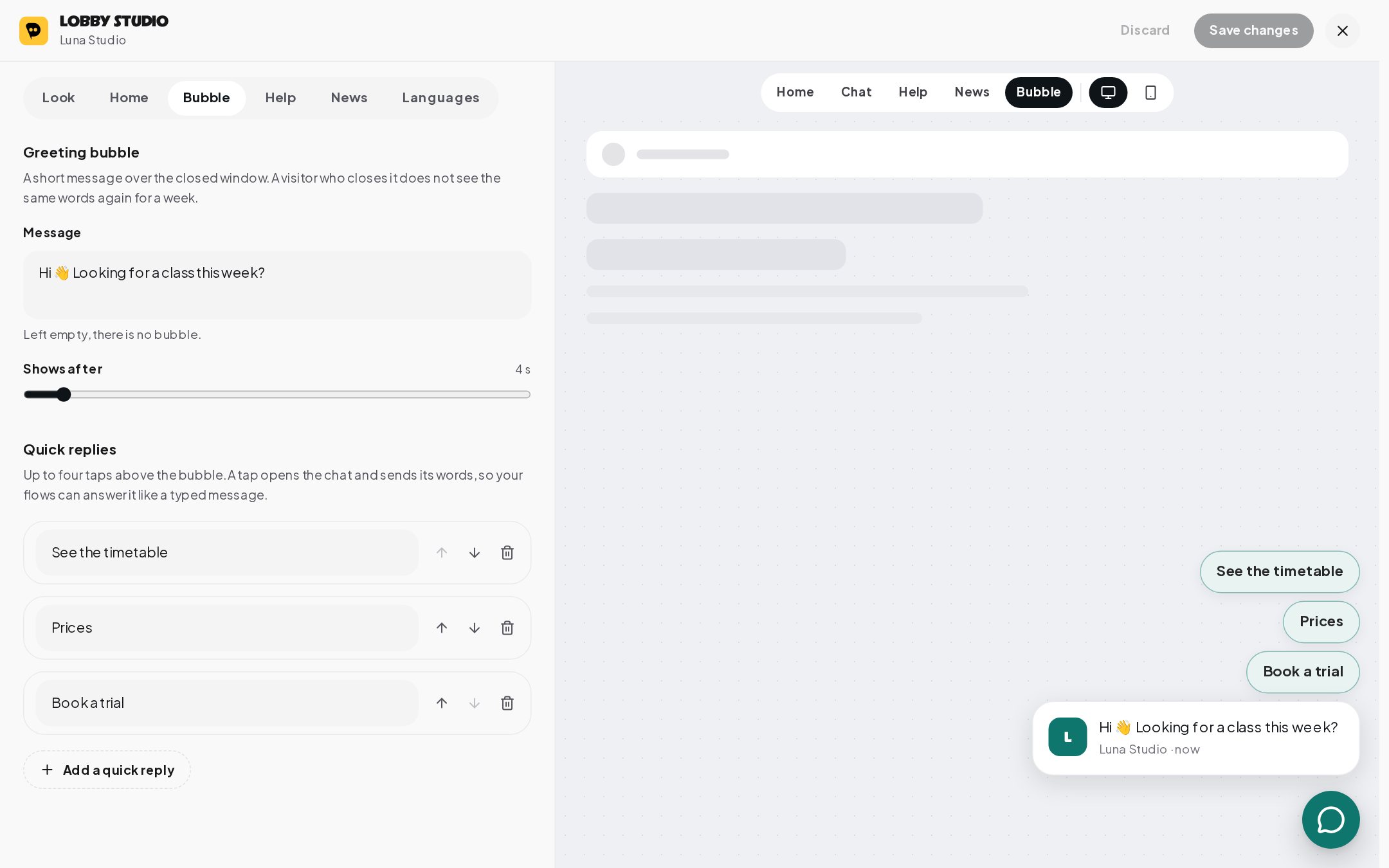
A tap opens the chat and sends its words, so your flows answer it like a typed message. A keyword rule for "Prices" answers the Prices tap. A visitor who closes the bubble does not see the same words again for a week, so it never nags. Leave the message empty and there is no bubble.
Help center articles inside the chat widget
The Help tab is a small help center inside the window. Group articles into collections, give each an emoji, a title and a short description, and write the articles themselves. Visitors browse and search them before they write, and the questions they answer for themselves never reach your inbox.
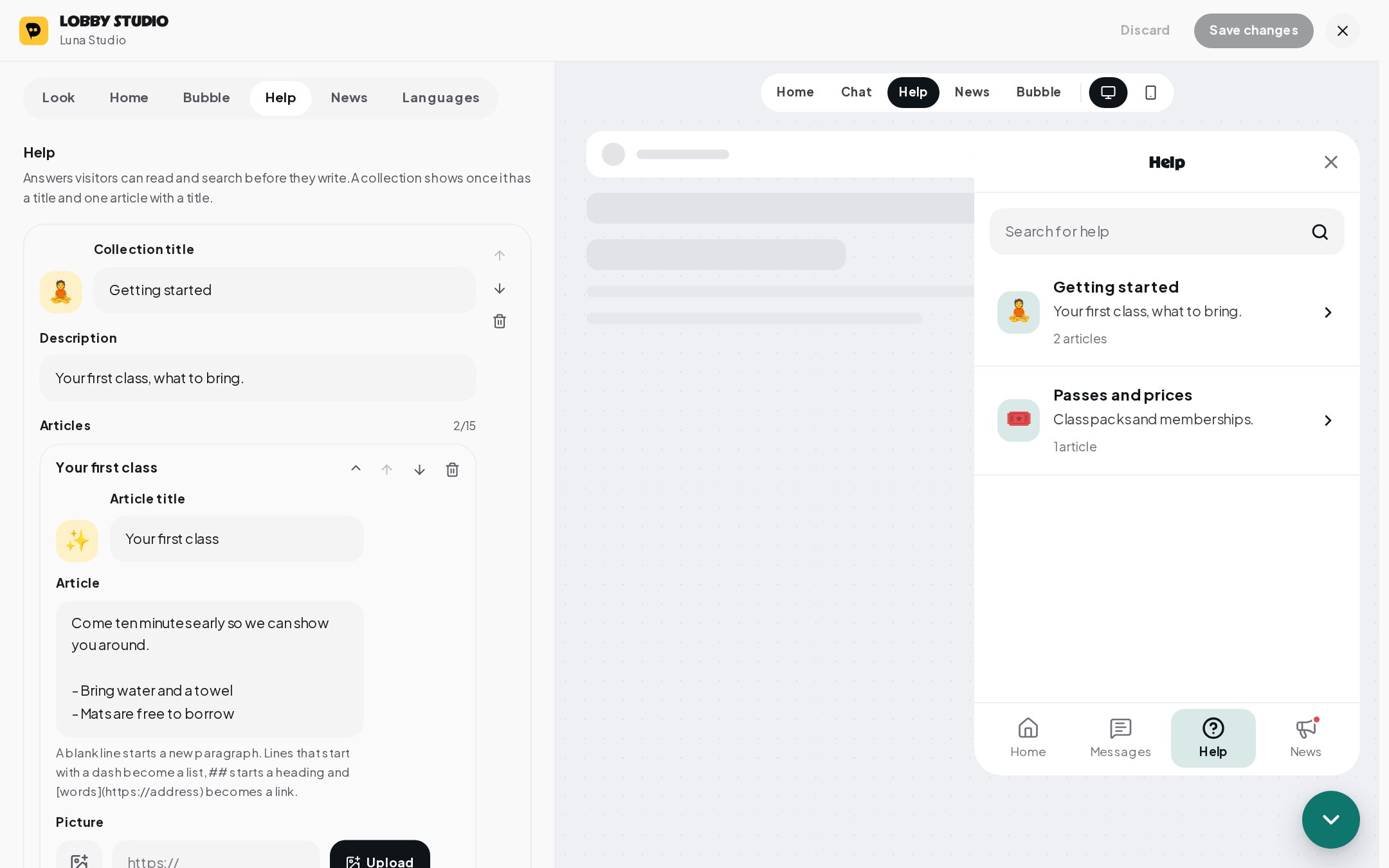
An article can carry a picture, and a little formatting goes a long way. A blank line starts a new paragraph, lines that start with a dash become a list, ## starts a heading, and words becomes a link. A collection shows in the window once it has a title and one article with a title. A window holds up to eight collections of fifteen articles each, as long as the whole window stays light enough to load with every page view. The studio tells you when it gets too heavy.
News and announcements in the chat widget
The News tab holds launches, offers and updates: a title, a summary for the card, the story itself, a picture, up to three tags, a date and a button to any https page. The window lists stories newest first by their date and marks the News tab until a visitor has seen them. A new course, a holiday timetable or a sale belongs here, where visitors who already chat with you will see it.
Chat widget in your visitors' languages
The window speaks the visitor's language by itself: its buttons, labels and reply times come translated. The Languages tab is for your own words. Pick a language and write its greeting, Home lines, first message, bubble and quick replies. Anything you leave empty shows your main words, and the preview switches to that language so you can read it the way a visitor will.
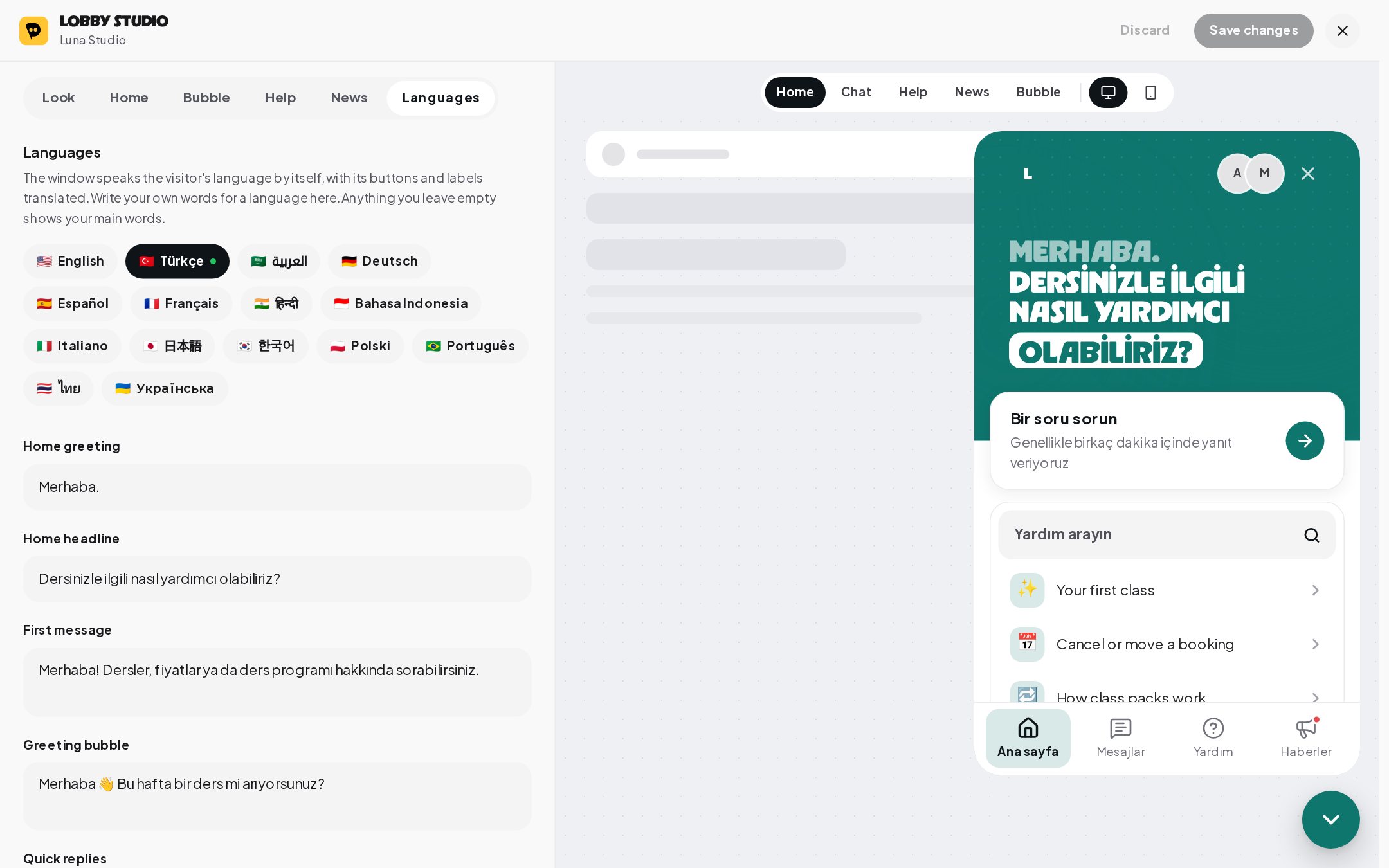
Help articles and news stories show as you wrote them in every language, so write them in the language most of your visitors read.
Choose where the chat widget runs
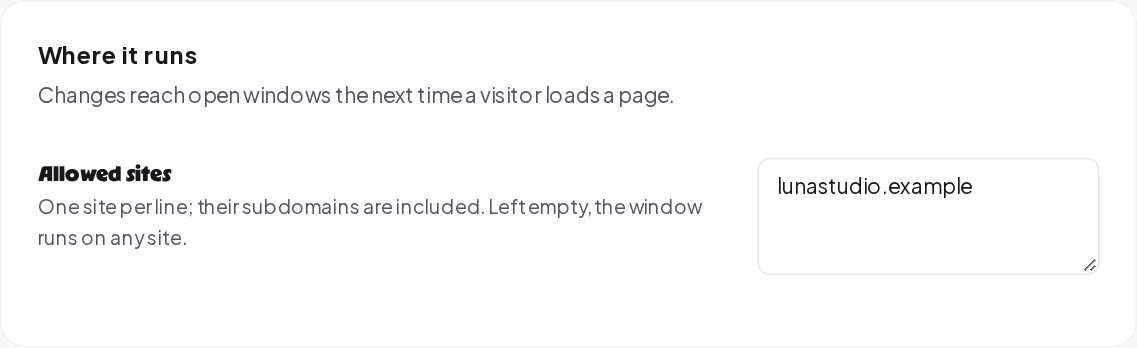
Below the Lobby card, Where it runs lists the sites the window may run on, one per line, with their subdomains included. Left empty, the window runs on any site, which is handy for a first test and worth tightening before you go live.
Offer WhatsApp, Instagram and Messenger from the chat widget
The window can do more than chat. The Your other apps section lists your connected channels.
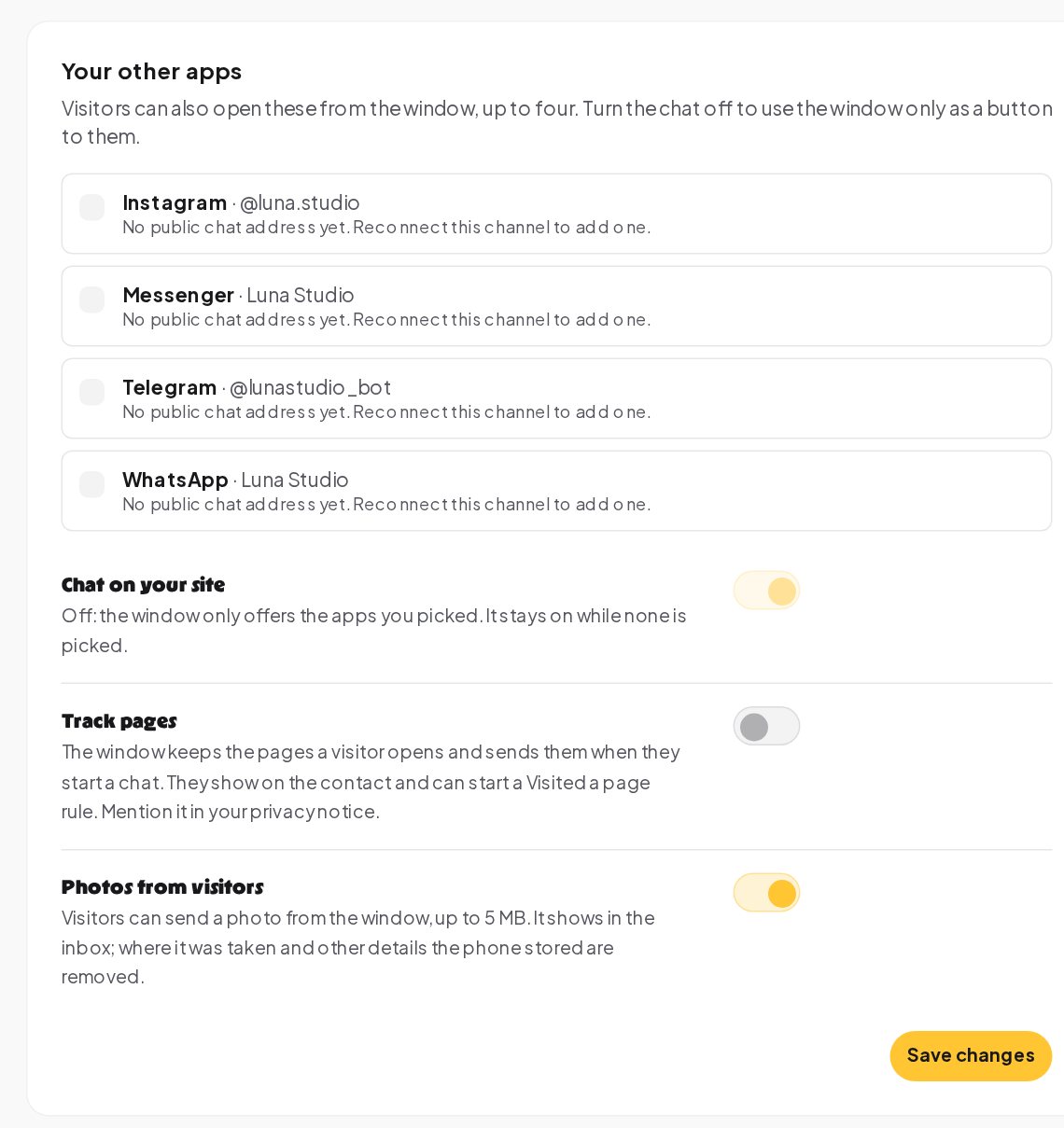
- Up to four other apps. Visitors can open WhatsApp, Instagram, Messenger or Telegram from the window, so the conversation can continue on the app they prefer after they leave your site. Each channel needs a public chat address, which comes from its connection.
- Chat on your site. Turn it off to use the window only as a button to your other apps. It stays on while none is picked.
- Track pages. The window keeps the pages a visitor opens and sends them when they start a chat. They show on the contact and can start a Visited a page rule. Mention it in your privacy notice.
- Photos from visitors. Visitors can send a photo from the window, up to 5 MB. It shows in the inbox, and where it was taken and other details the phone stored are removed.
Website chatbot flows: FAQ, lead capture and bookings
Every flow you built for your DMs can answer on your site. A few are worth building specifically for website visitors.
Answers as cards. A visitor asks about a product while browsing. The answer comes as a card with a picture, a button to the page and the next questions as taps instead of a form.
After hours, still a lead. Outside your hours, the flow says when the team is back, asks for an email and asks again when it is mistyped, using a Reply check step. The quote request waits in your inbox for the morning.
Bookings without leaving the page. Free times as taps in the chat window, booked into your calendar with the details, and a confirmation with a link to change or cancel.
The same keyword replies. Prices, opening hours and links you set up for Instagram and Messenger answer on your site too, with quick replies and buttons.
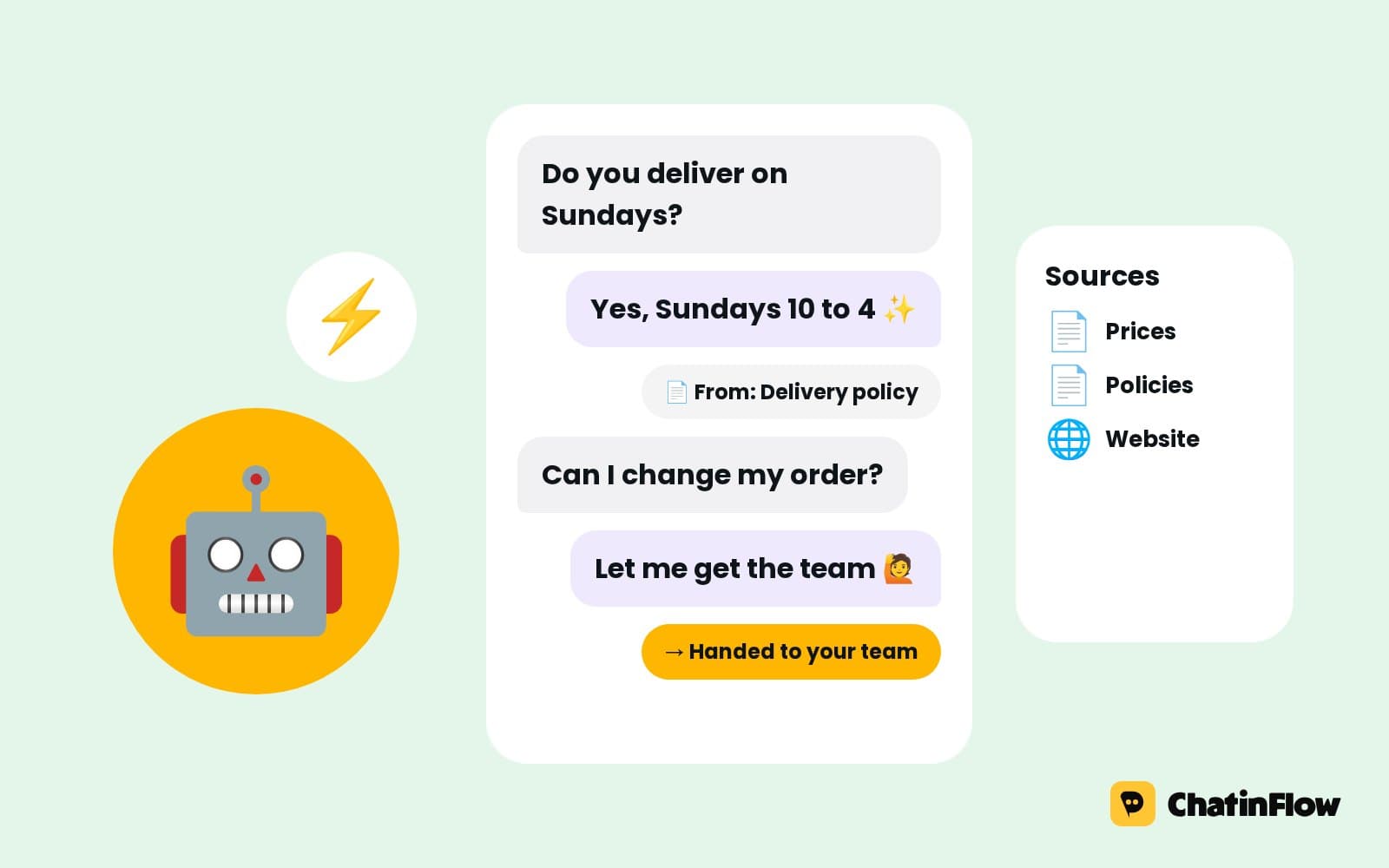
An AI agent for the long tail. The AI agent answers visitors from the sources you added, such as your website pages or a price list, and hands the chat to your team when it should not answer. It can run only after hours, so your team answers during the day.
How to write the chat widget's first message
The greeting and the first buttons decide whether a visitor types anything at all. Write them for the page they are on and the question they probably have.
| Business | Greeting | First buttons |
|---|---|---|
| Hair salon | "Hi! Want to see prices or book a time?" | Prices, Book a time, Ask a stylist |
| Online shop | "Questions about sizes, shipping or returns? Ask here." | Size guide, Shipping, Track my order |
| Dental clinic | "Hello! We can help you book or answer a question." | Book a visit, Prices, Opening hours |
| Software product | "Hi! Looking for pricing, a demo or help?" | Pricing, Book a demo, Talk to support |
A few rules hold for every site:
- One sentence, one promise. Say what people can ask, not who you are; your logo already says that.
- Three buttons, then free text. Buttons get the first tap; free text catches everything else.
- Match the page. On a pricing page, lead with pricing; on a booking page, with free times. With page tracking on, a Visited a page rule can start its own conversation for visitors of one page.
- Say when a person is around. "We usually reply within the hour during opening times" sets expectations better than a promise of instant answers.
Keep the conversation going after visitors leave your site
A message reaches a visitor only while they are on your site. That keeps website chat honest. Nobody is chased with messages after they close the tab. It also means a good flow plans for the moment they leave.
- Ask for an email or phone when the conversation needs a follow-up, and save it on the contact.
- Offer WhatsApp or Instagram in the window, so the visitor can continue on their phone.
- Send a confirmation for bookings and orders, with the details in the chat, before they go.
Website forms that start a chat
Chat is one way visitors reach you; forms are another. ChatinFlow treats them as one journey. A form on your site, Typeform, JotForm or a Google Ads lead form can create the contact, save every answer and start a follow-up flow in seconds, for example an alert for the team and the contact added to your CRM. Set them up under Automations, Web forms.
Answer website chat as a team
Website chats sit in the shared inbox next to every other channel, marked with the window name. Assign them, add internal notes, and when a teammate writes, the bot pauses for that chat. With page tracking on, your team sees which pages the visitor opened while chatting, which often answers the question before it is asked.
Pause Website chat channel in the settings stops sending and automations for a while, with a reason your team sees, without removing the window. Enable Website chat channel turns the window off without forgetting its settings.
Measure what the chat widget does
Website chat counts in Analytics like every other channel: messages, the time to the first answer and the busiest hours. The busiest hours chart tells you when someone should be watching the inbox, and the Automations tab shows which flows answer most. A rising number of chats on one page is a sign that the page leaves a question unanswered; add the answer to the page itself.
Website chat glossary
- Chat window. The chat bubble ChatinFlow adds to your site, with your name, greeting, color and side of the screen.
- Allowed sites. The sites the window may run on, one per line, with subdomains included.
- Install code. The one line of code you paste into your site, or into your site builder's header setting.
- Track pages. A switch that keeps the pages a visitor opens and sends them when the visitor starts a chat, so they show on the contact.
- Visited a page. A rule that starts its own conversation for visitors of one page, when page tracking is on.
- Other apps. Up to four of your other channels, such as Instagram, offered in the window for visitors who prefer them.
Website chatbot mistakes to avoid
- Leaving the sites list empty. It is useful for testing, but list your domains before you launch.
- A long greeting. One sentence that says what people can ask works best.
- No after-hours path. Visitors write at night; make sure the flow says when the team is back and takes their email.
- Expecting to message visitors later. The window reaches visitors only while they are on your site. Offer another channel for later.
- Page tracking without a privacy notice. Mention it before you turn it on.
Website chatbot and live chat widget: FAQ
Do I need a developer to install a chat widget?
No. Paste one line of code into your pages, or into the header or footer setting most site builders have.
Can one chat widget run on several websites?
Yes. List each site; their subdomains are included. Left empty, the window runs on any site.
Can I message a visitor after they leave my site?
Not through the window. A message reaches a visitor only while they are on your site, so ask for an email or offer WhatsApp or Instagram for later.
Can visitors send photos in the chat?
Yes, if you turn photos on. A photo can be up to 5 MB, and its location and other phone details are removed before it reaches your inbox.
Does the chat widget work with WordPress, Shopify and other site builders?
Almost certainly. The window is one line of code, and almost every site builder, from WordPress to Shopify, has a setting that adds code to the header or footer of every page. Paste it there once and the window appears on every page of the sites you listed.
Sources
- The script element, MDN Web Docs, on where a script tag goes in a page.
- General Data Protection Regulation, Article 13, on telling visitors what data you collect, relevant when page tracking is on.