The full guide
Facebook Messenger chatbot: automate Page messages and comments
Connect your Facebook Page, set the first impression, answer Messenger chats and Page comments with automations, and keep every send inside Meta's 24-hour window.
Facebook Messenger is still where a large share of customers write to a business, especially for local services, older audiences and anyone who found you through a Facebook ad or a post shared in a group. The messages are the same everywhere: prices, opening hours, availability, "is this still for sale". ChatinFlow connects to your Facebook Page and answers Messenger chats and comments on your Page posts with flows you build once, while your team takes over in a shared inbox whenever a person should. This guide covers connecting the Page, the first impression people see before they type, the ways a Messenger conversation starts, and the rules that keep your Page in good standing.
How to connect your Facebook Page to a Messenger chatbot
Open Channels and choose Messenger. Meta's login opens; sign in with a Facebook account that manages the Page, choose the Page and approve what ChatinFlow may do. The Page then appears on the Channels page as a card with its status, the date you connected it, a link to the channel's analytics and its automations.
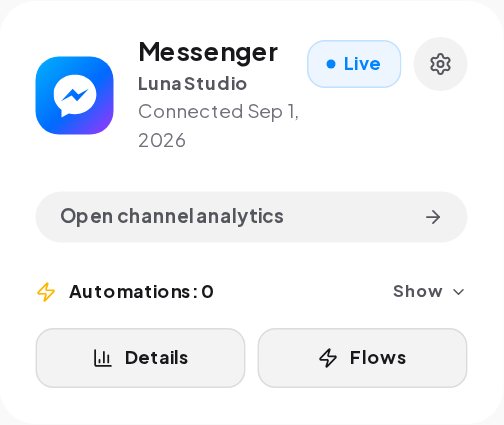
ChatinFlow watches its own signals for the connection: a token about to expire, a rising share of failed sends, Meta rate limits and policy blocks. When Meta blocks or throttles sending, ChatinFlow pauses the channel and alerts workspace owners and admins. It cannot see Meta's own assessment of your Page, so a healthy status is a good sign rather than a guarantee.
Messenger greeting, ice breakers and persistent menu
Messenger shows a few things before anyone writes: a Get Started button, a greeting above it, ready-made questions and a main menu. Set them in Settings, Channels, Messenger, in the First impression section.
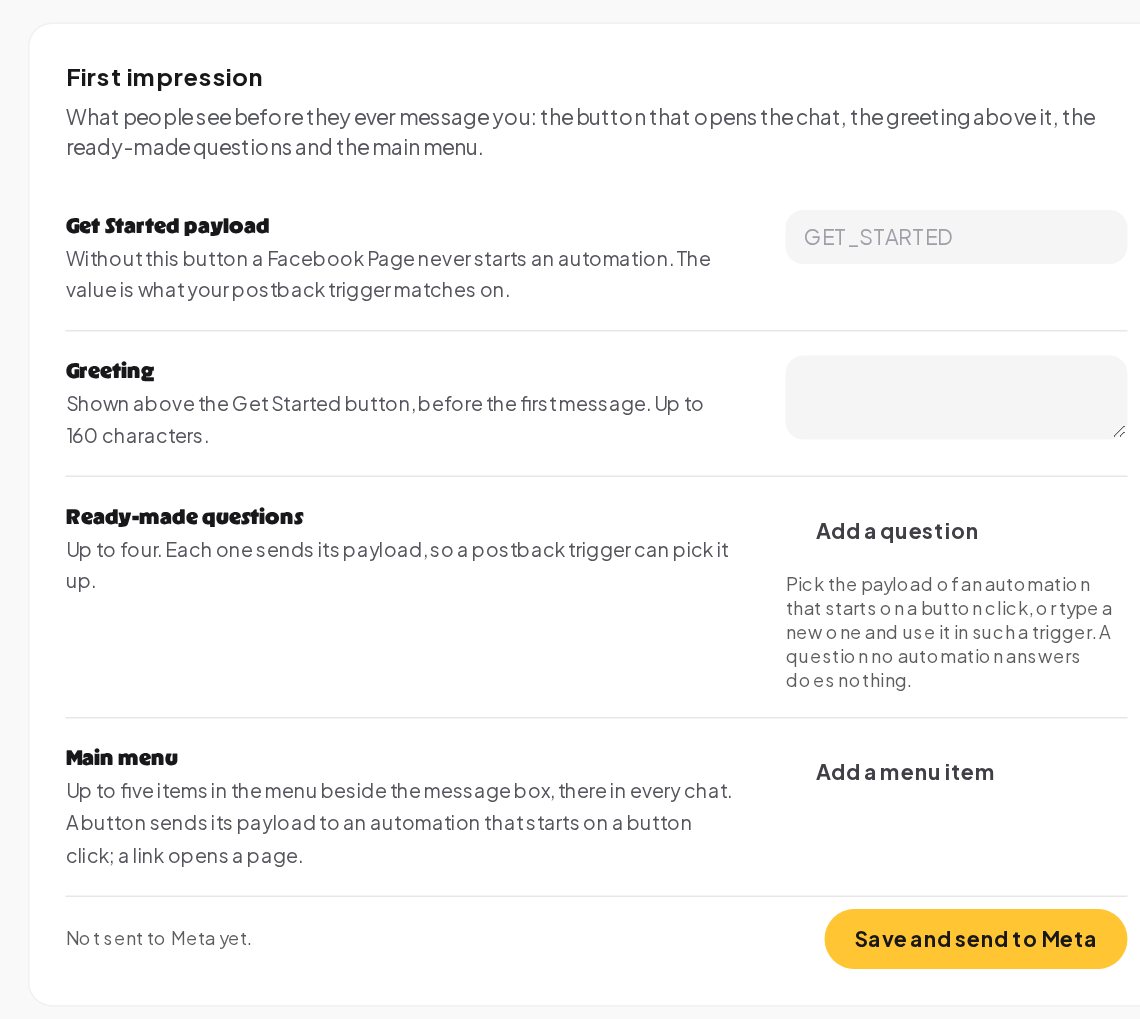
- Get Started payload. Without this button a Facebook Page never starts an automation for a new conversation. The value you set is what a button click automation matches on, so the classic welcome flow listens for it.
- Greeting. Shown above the Get Started button, before the first message, up to 160 characters. Say who you are and what people can ask.
- Ready-made questions. Up to four, each sending its own payload to the automation that answers it.
- Main menu. Up to five items beside the message box, in every chat. A button sends a payload; a link opens a page.
Press Save and send to Meta to publish them. A question or menu button that no automation answers does nothing, so build the answers first.
What starts a Messenger chatbot conversation
Open Automations, New automation and choose Messenger. The quick setup offers two starts.
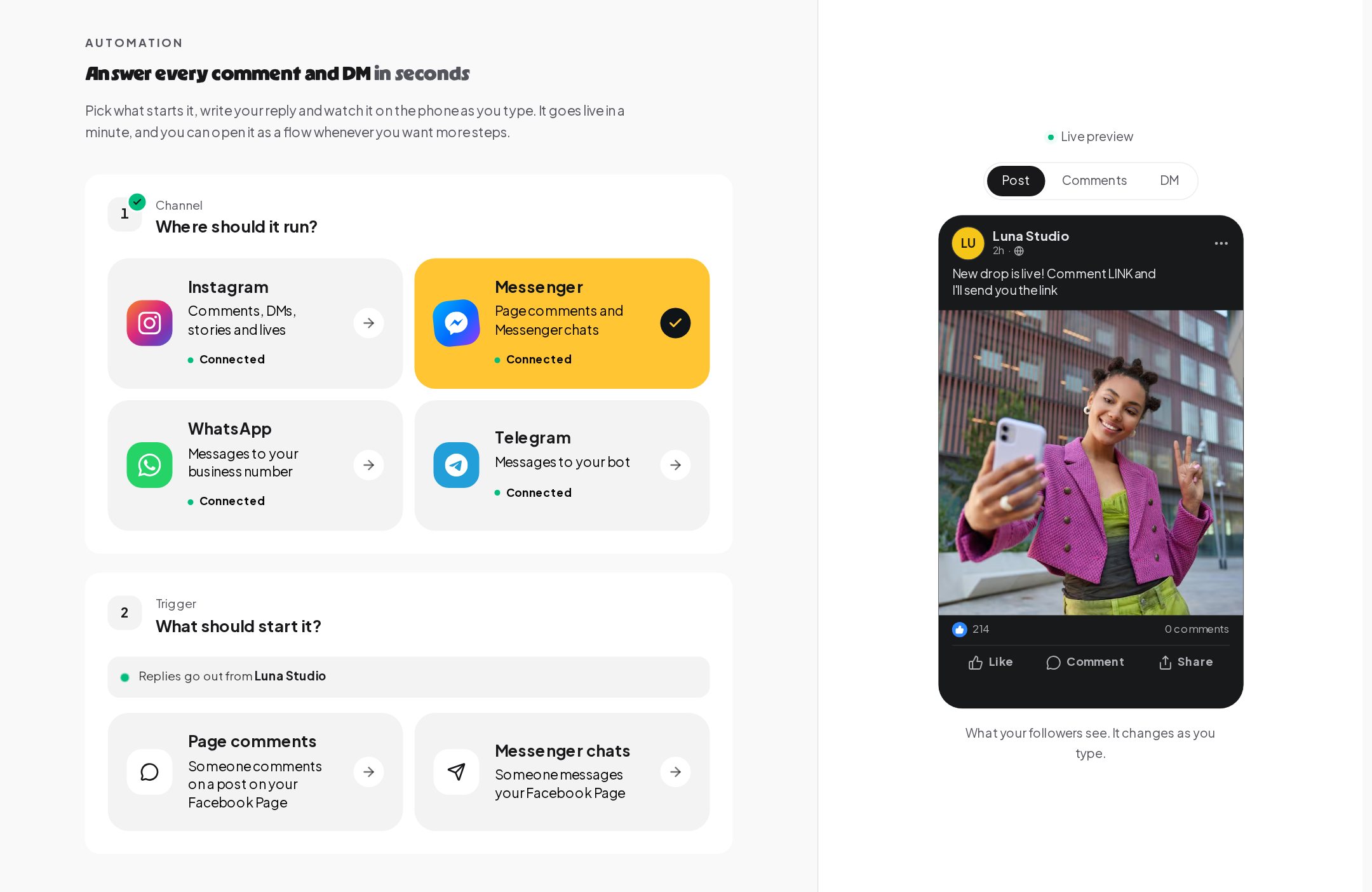
Messenger chats start when someone messages your Facebook Page: a keyword such as PRICE, the Get Started button, a ready-made question or any message. This is the trigger for welcome flows, FAQs, menus and booking.
Page comments start when someone comments on a post on your Facebook Page. Choose the post, your next Page post or any post, and the words to listen for.
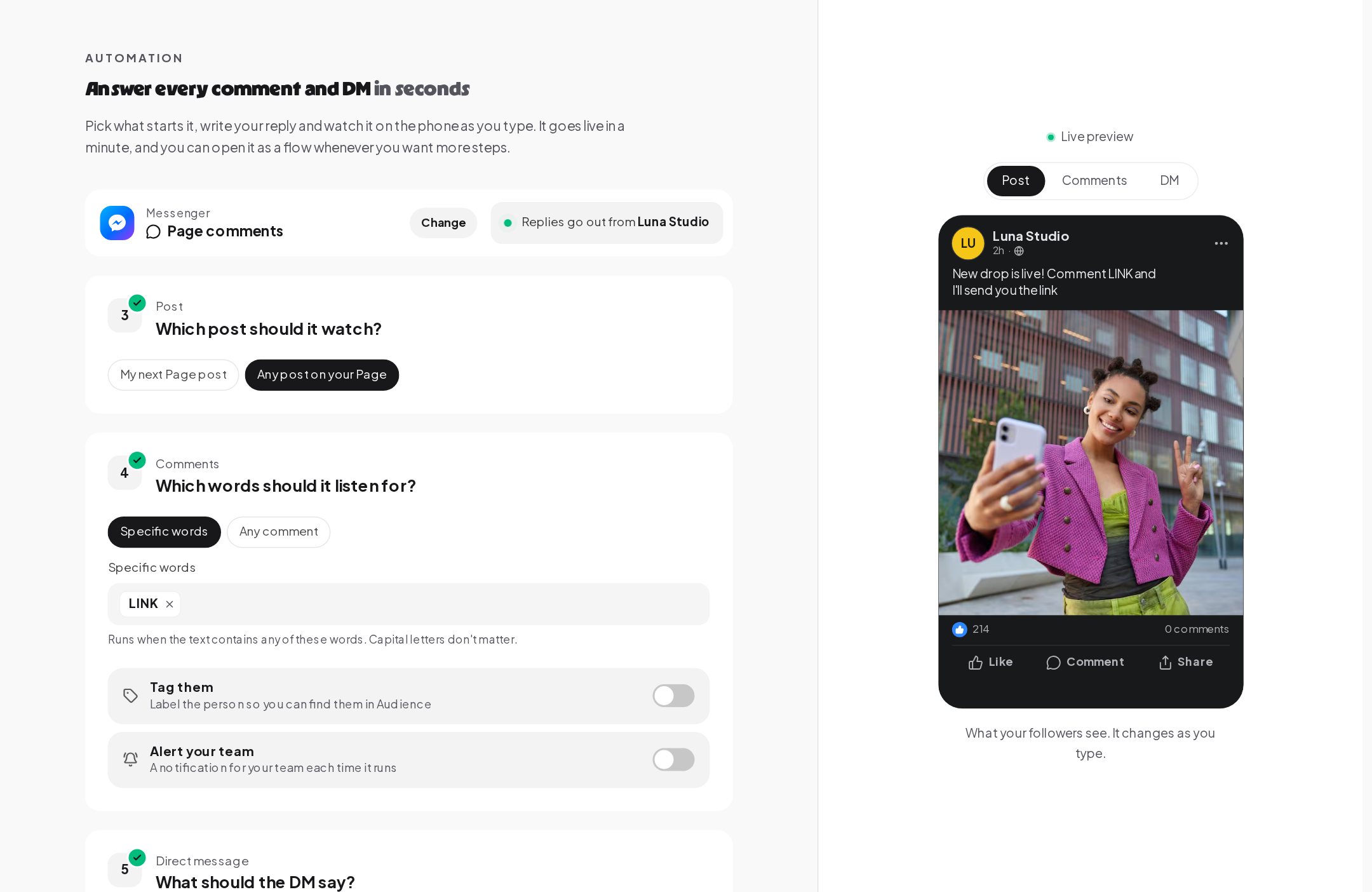
There is one difference from Instagram worth knowing. A Facebook Page comment gets a private reply in Messenger, but not a public reply under the comment; ChatinFlow does not post public replies on Facebook. On Instagram a comment automation can do both. If you run the same campaign on both platforms, write the Facebook version so the private message carries everything.
Messenger chatbot flows that matter
Most Pages need the same handful of Messenger flows. Each one is a template in the Flow Library.
- Welcome. Started by Get Started: a short hello, three buttons such as Prices, Book and Ask a person, and a tag that marks the contact as new.
- FAQ by keyword. HOURS, PRICE, PARKING answered the second they arrive, with a link or a carousel.
- Lead capture. Ask a question for the email or phone, check that the reply really is an email with a Reply check step, and save it on the contact.
- Comment to Messenger. "Comment INFO and we will message you": the private reply with your link and a tag.
- Handover. An "Ask a person" button that assigns the conversation and notifies the team.
- Booking. Offer times in the chat and book the one they pick.
An AI reply or the AI agent can answer what the buttons and keywords do not cover, on your own AI key, and hand the chat to your team when the answer is not in your sources.
Build a Messenger welcome flow in ten minutes
The welcome flow is the first Messenger automation most Pages need, and it shows how the pieces fit together.
- Set the payload. In Settings, Channels, Messenger, keep the Get Started payload, for example GET_STARTED, and write a one-line greeting such as "Hi! Tap Get Started for prices, bookings and opening hours."
- Create the automation. In Automations, start a Messenger flow whose trigger is a button click that matches the same payload.
- Say hello with buttons. A Send buttons step with a short message and three buttons: Prices, Book a time, Ask a person. Up to three buttons fit on one message; a question step can offer more quick replies.
- Give each button a path. Prices sends a carousel or a link; Book a time offers free times in the chat; Ask a person assigns the conversation and notifies the team.
- Tag the contact. A Tag contact step marks them as new, so a later broadcast or segment can find them.
- Try it, then publish. Try it walks through the flow as a customer would before anything goes live.
Once it works, add the same answers as ready-made questions, so people who skip Get Started still find them in one tap.
Track which m.me link, ad or flyer started the chat
An m.me link with a ref value tells ChatinFlow where a conversation started, and a Messenger referral trigger can answer each source differently. Growth links, under Automations, make these for you: name the place you share the link, give it a code and pick Messenger, and each link counts the unique people who came in through it.
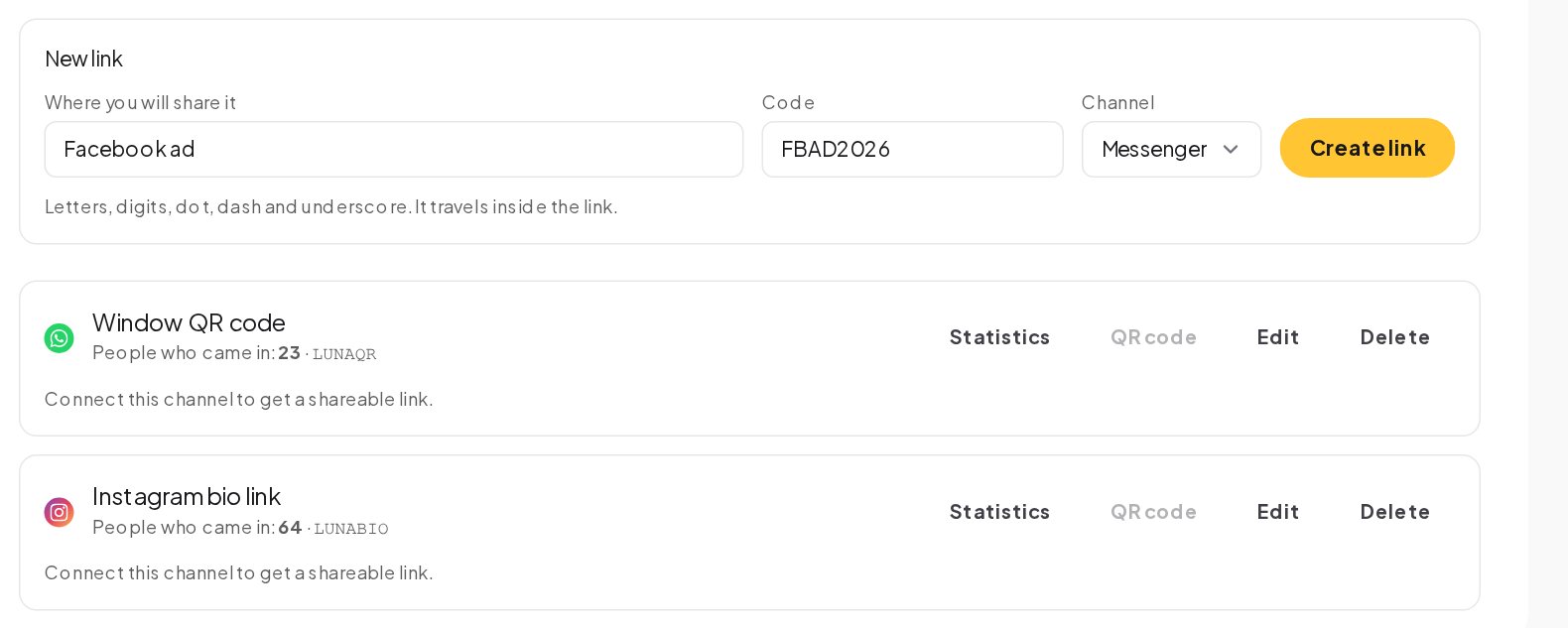
Use one link per place: the Page's About section, a printed flyer, a QR code at the counter, a Click-to-Messenger ad. Because the ref is part of the link, it works even when the person does not type anything.
Messenger's 24-hour rule and messaging policy
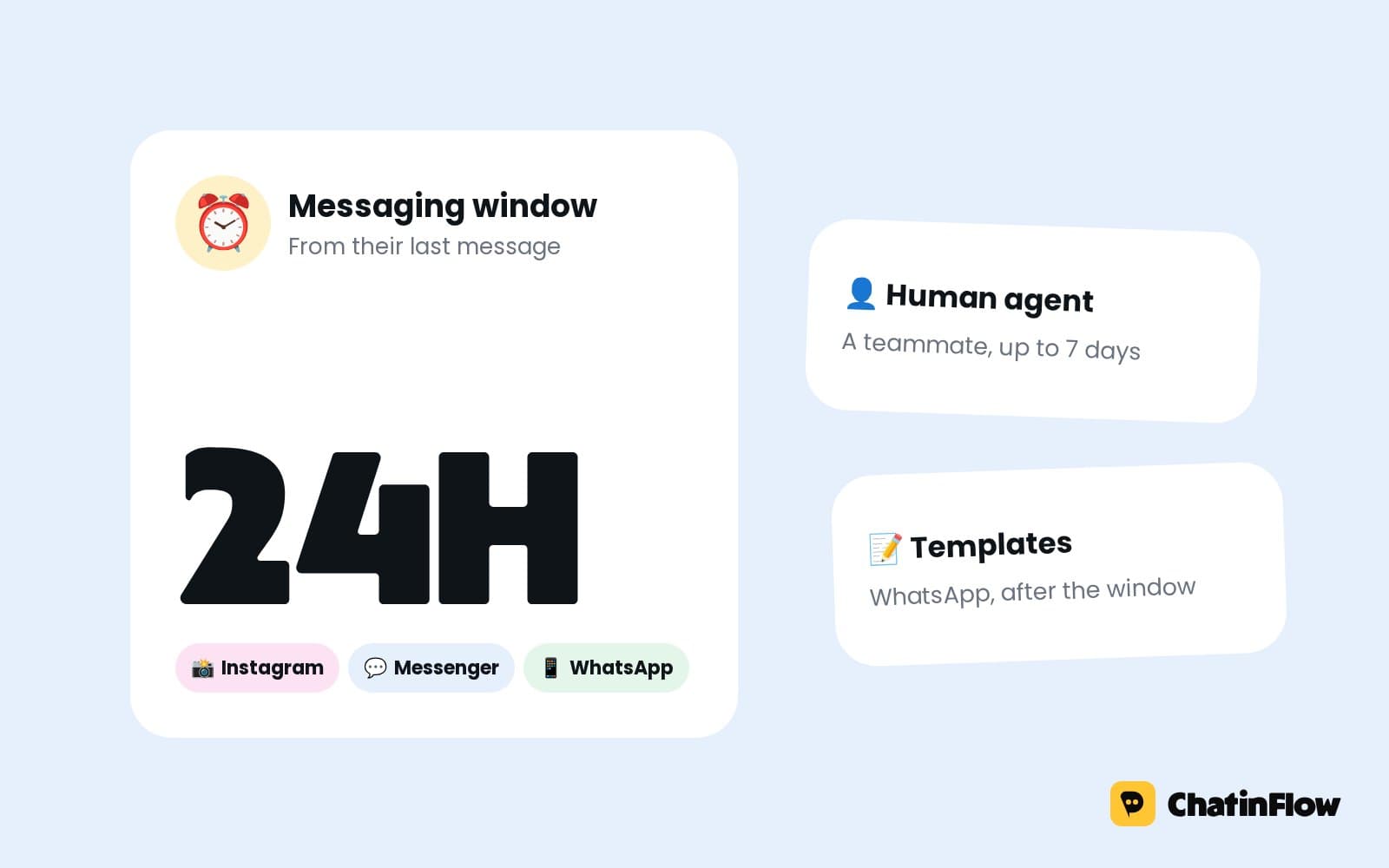
Messenger has the same core rule as Instagram: a business can send free-form messages to a person within 24 hours of their last message. ChatinFlow checks the window before every send, whether the message comes from a flow, an AI reply, a broadcast or a teammate. Once 24 hours have passed, nothing is sent; the message is marked as outside the window, and the conversation picks up again when the contact writes.
That shapes how you design flows:
- Follow up inside the window. A reminder two hours later works; one three days later will not send.
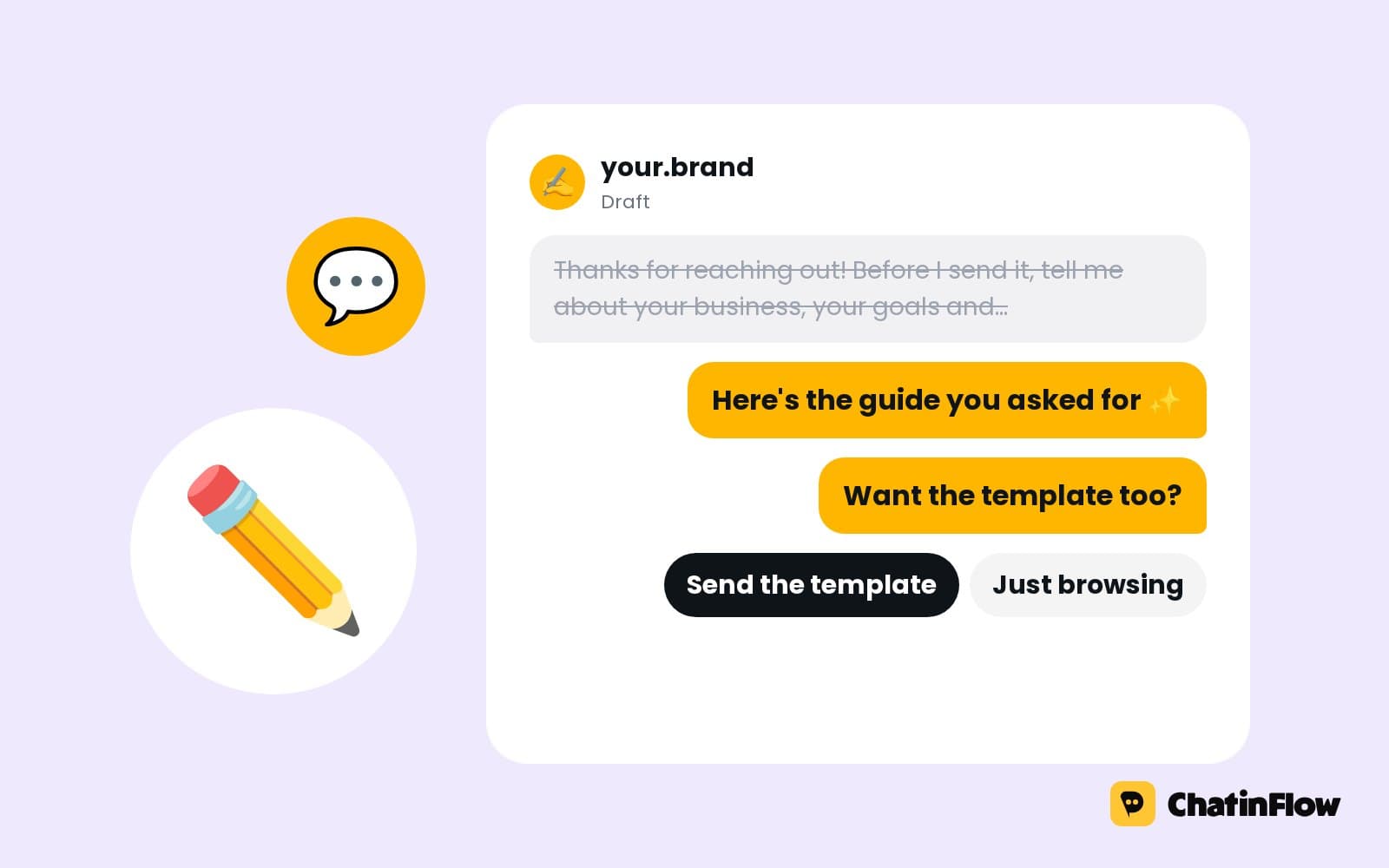
- Ask for a second channel. If the conversation needs to continue later, ask for an email, or offer a WhatsApp link with the Hand off to WhatsApp step.
- Marketing messages by topic. A Messenger flow can also send marketing messages to people who opted in to a topic, following Meta's own opt-in rules.
- Broadcasts reach recent writers. A Messenger broadcast reaches people who wrote in the last 24 hours; everyone else is skipped.
Answer Messenger as a team
Every Messenger conversation lands in the shared inbox next to Instagram, WhatsApp and Telegram, with its full history and the contact's tags and fields. A few settings make teamwork smooth:
- One voice at a time. When a teammate replies, the flow running in that conversation stops and the bot stays quiet, so the customer never hears two answers. Pause the bot in a conversation starts that quiet time before you type.
- Assign and notify. The Assign the conversation step gives the chat to a teammate or the next free agent; Notify the team alerts people when something needs a person.
- Tags and segments. Add or remove tags in flows, for example after a button tap, and build segments on them for broadcasts.
- Other tools. There is no built-in helpdesk sync, but a flow's HTTP request step can open a ticket or create a contact in another tool through its API.
Pause and maintain the Facebook Page connection
The channel settings page also holds the maintenance tools. Pause Messenger channel keeps the connection and history while sending and automations stop, for an hour up to until you turn it back on, with a reason your team sees. Change Messenger connection reconnects after an admin change or switches to a different Page. Refresh Messenger permissions restores messaging access when Meta revokes permissions or a token expires. Enable Messenger channel turns the channel off without forgetting the credentials, and Remove Messenger account removes the access token while the conversation history stays.
Messenger chatbot glossary
- Facebook Page. The business Page your Messenger chats belong to. ChatinFlow connects to it through Meta's login.
- Get Started. The button a person taps to open a first conversation with your Page. Its payload can start an automation.
- Greeting. The short text people see in a new chat before they write their first message.
- Ready-made questions. Up to four questions shown in a new chat, each starting the automation you connect to it.
- Main menu. Up to five items that stay available in every chat, as buttons that start an automation or links that open a page.
- Private reply. One Messenger message in answer to a comment on your Page post, sent within 7 days of the comment.
Messenger chatbot mistakes to avoid
- No Get Started payload. A new conversation never starts an automation without it.
- Expecting a public reply on Facebook. Page comments get a private reply in Messenger only.
- Follow-ups after the window. Plan reminders within 24 hours, or move the conversation to email or WhatsApp.
- A long greeting. 160 characters is the limit; one clear sentence works best.
- Menu buttons with nothing behind them. Build the automation for each payload before you publish the menu.
Facebook Messenger chatbot: FAQ
Why doesn't my Facebook Page start the welcome flow?
Check the Get Started payload in Settings, Channels, Messenger. Without it a Page never starts an automation for a new conversation, and the welcome flow must listen for the same value.
Can a chatbot reply publicly under a Facebook comment?
No. A Facebook Page comment gets a private reply in Messenger. Public replies are available on Instagram comments.
How long can the Messenger greeting be?
Up to 160 characters. It appears above the Get Started button before the first message.
Can I tell which ad or flyer a conversation came from?
Yes. A growth link carries a code in its m.me link, counts the people it brought in, and a referral trigger can answer each source differently.
Sources
- Messenger Platform and IG Messaging API policy, Meta for Developers, on the 24-hour window.
- Private Replies, Meta for Developers, on answering a Page comment in Messenger.
- The Welcome Screen, Meta for Developers, on the Get Started button and the greeting.