The full guide
WhatsApp, Telegram and Messenger broadcasts: how to send bulk messages people welcome
Send one message to a segment on Instagram, Messenger, WhatsApp or Telegram, inside each channel's rules. Covers audiences, A/B tests with an automatic winner, local time sending and approvals.
A broadcast is one message sent to many contacts at once, in the chat apps they already use. Done well, it is the fastest way to fill a class, announce a drop or bring regulars back for a seasonal offer, because a chat message is read on the phone the customer holds all day. Done badly, it is spam that gets your number or account restricted. The difference lies in the rules each channel enforces, the audience you pick and the timing. This guide walks through the broadcast wizard in ChatinFlow step by step and explains what each channel allows, how to target a segment, how A/B testing and local-time sending work, and how to read the results.
Broadcast rules on WhatsApp, Telegram, Instagram and Messenger
Every chat app has its own rules for messages a business starts. ChatinFlow checks them before a send begins, so a recipient the channel would refuse is skipped with a reason instead of failing later.
| Channel | Who a broadcast reaches | What you can send |
|---|---|---|
| Telegram | Everyone who started your bot | Any message, with no template approval |
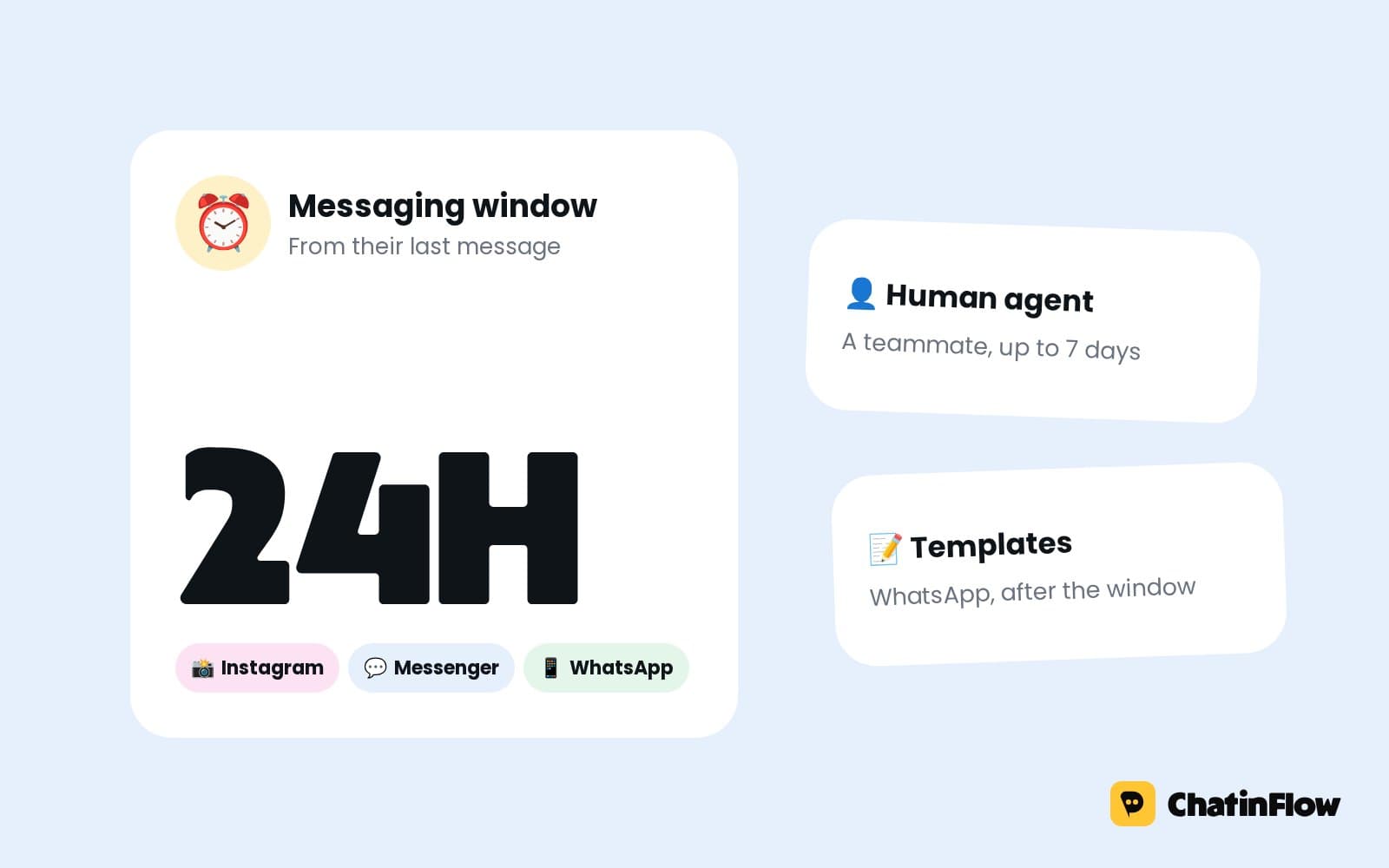
| Contacts on your business number | Free text inside the 24-hour window; a Meta-approved template outside it | |
| People who wrote to you in the last 24 hours | Any message; everyone else is skipped | |
| Messenger | People who wrote to you in the last 24 hours | Any message; a Messenger flow can also send marketing messages to people who opted in to a topic |
| Viber and website chat | Not used for broadcasts | Viber charges bots for messages they start |
The practical consequence: for Instagram and Messenger, a broadcast is a way to follow up with people who are already talking to you, not a newsletter. For a list you can message any time, Telegram and WhatsApp templates are the channels built for it. WhatsApp templates are created and approved in Meta Business Manager; once Meta approves one, you can pick it for a broadcast.
How to send a broadcast message, step by step
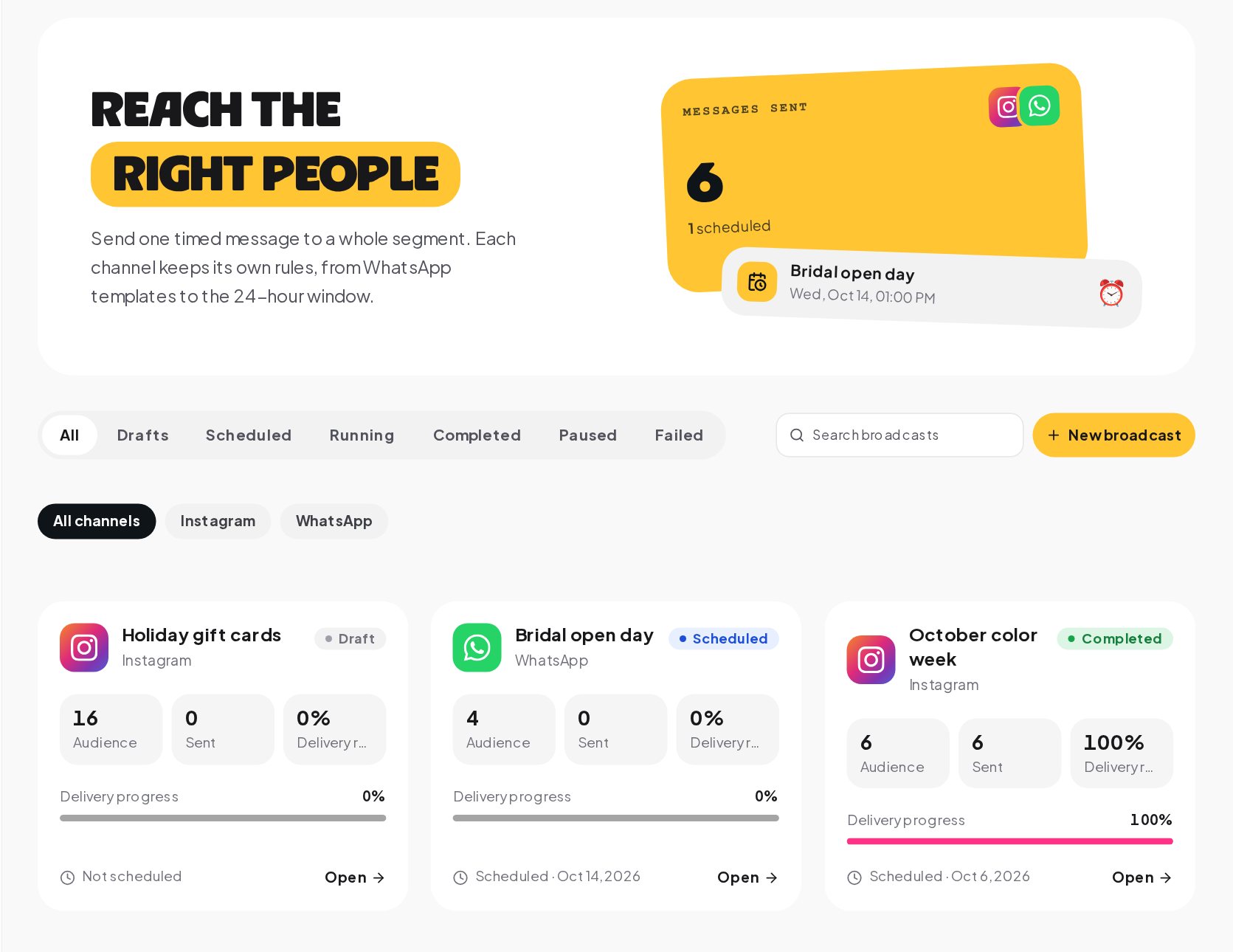
Open Broadcasts in the sidebar. The page lists every broadcast as a card with its channel, status, audience, messages sent and delivery rate, and a progress bar while it sends. Tabs filter by status: drafts, scheduled, running, completed, paused and failed. A channel filter and a search box help once the list grows. Press New broadcast to start the wizard.
Pick the channel for your bulk message
The wizard has five steps, shown on the left: channel, audience, message, schedule and review. Give the broadcast a name your team will recognize later, such as "Color week, VIP clients". Pick the channel and the connection it should send from, for example your Telegram bot or your WhatsApp business number. Each channel shows its rule under the buttons, so you see the 24-hour limit before you write a word.
Choose the audience: segments, tags and opt-outs
Choose All active contacts or one of your saved segments. Each option shows how many contacts it holds right now. Segments are built in Audience from tags, custom fields and other filters, and they are read again when the send starts, so a person tagged after you scheduled the broadcast is included, and one who opted out in the meantime is not.
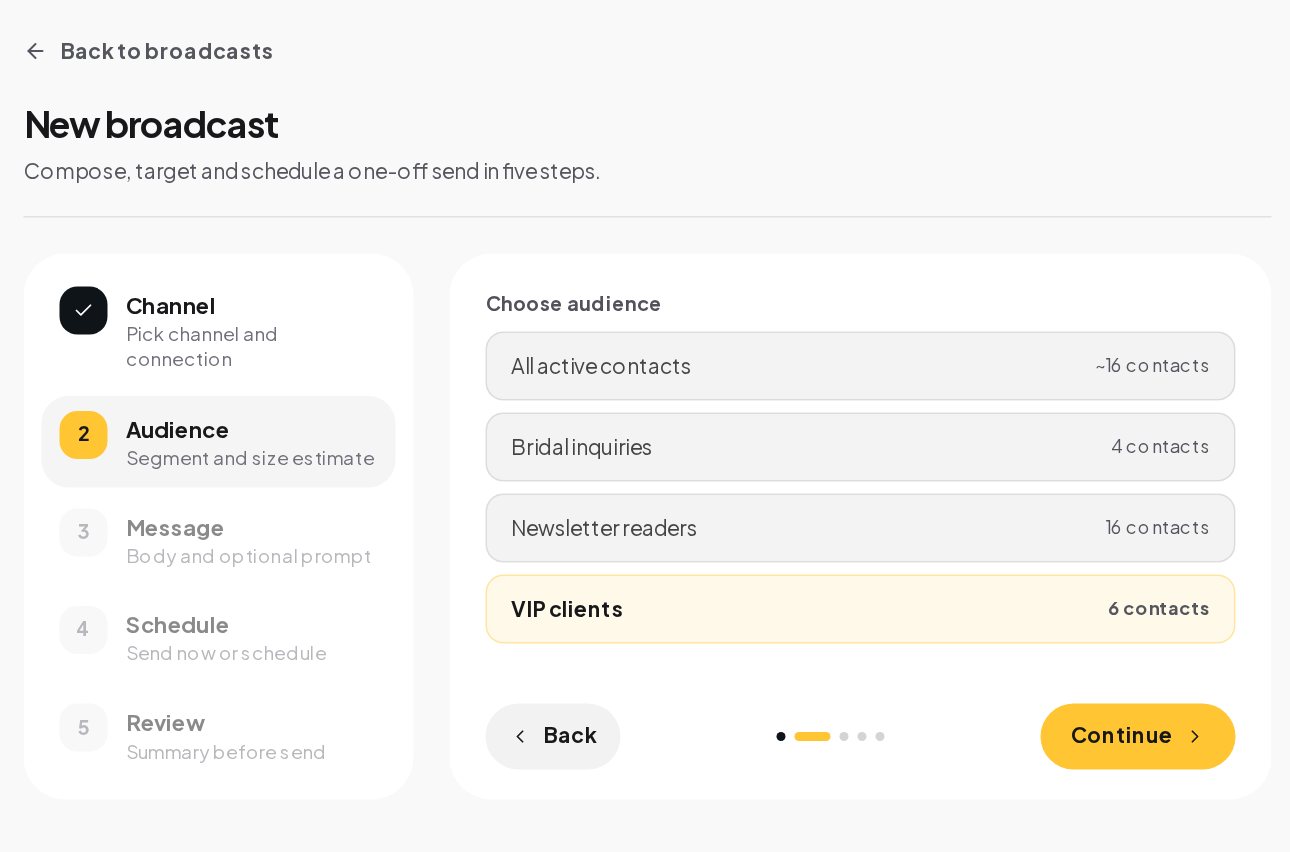
Smaller, sharper segments almost always beat one big list. A message to the people who booked a color service in the last six months, offering a color week discount, reads like a personal note. The same message to everyone reads like an ad.
Write the message and A/B test versions
Write the message in the box. Tokens in double curly braces, such as first_name, fill in for each recipient, so "Hi {{first_name}}" greets every person by name. Keep it short, lead with the reason you are writing, and end with one clear action, such as "Reply BOOK to pick a time". A reply keyword that starts an automation turns a broadcast into a conversation: whoever replies BOOK gets your booking flow at once.
Turn on A/B test to compare versions. Message A is the one you wrote; add message B and, if you like, message C. Then set three things:
- Test group. 10, 20, 30, 40 or 50 percent of the audience, split evenly between the versions. The panel shows how many people that is and how many get the winner.
- Pick the winner by. Replies, link clicks or purchases. A person counts once, when they act after getting their message.
- Wait before choosing. From 1 hour to 48 hours. When the wait is over, ChatinFlow sends the best version to everyone else, or lets you pick.
If nothing comes in to compare, message A goes out, and you get a notification either way.
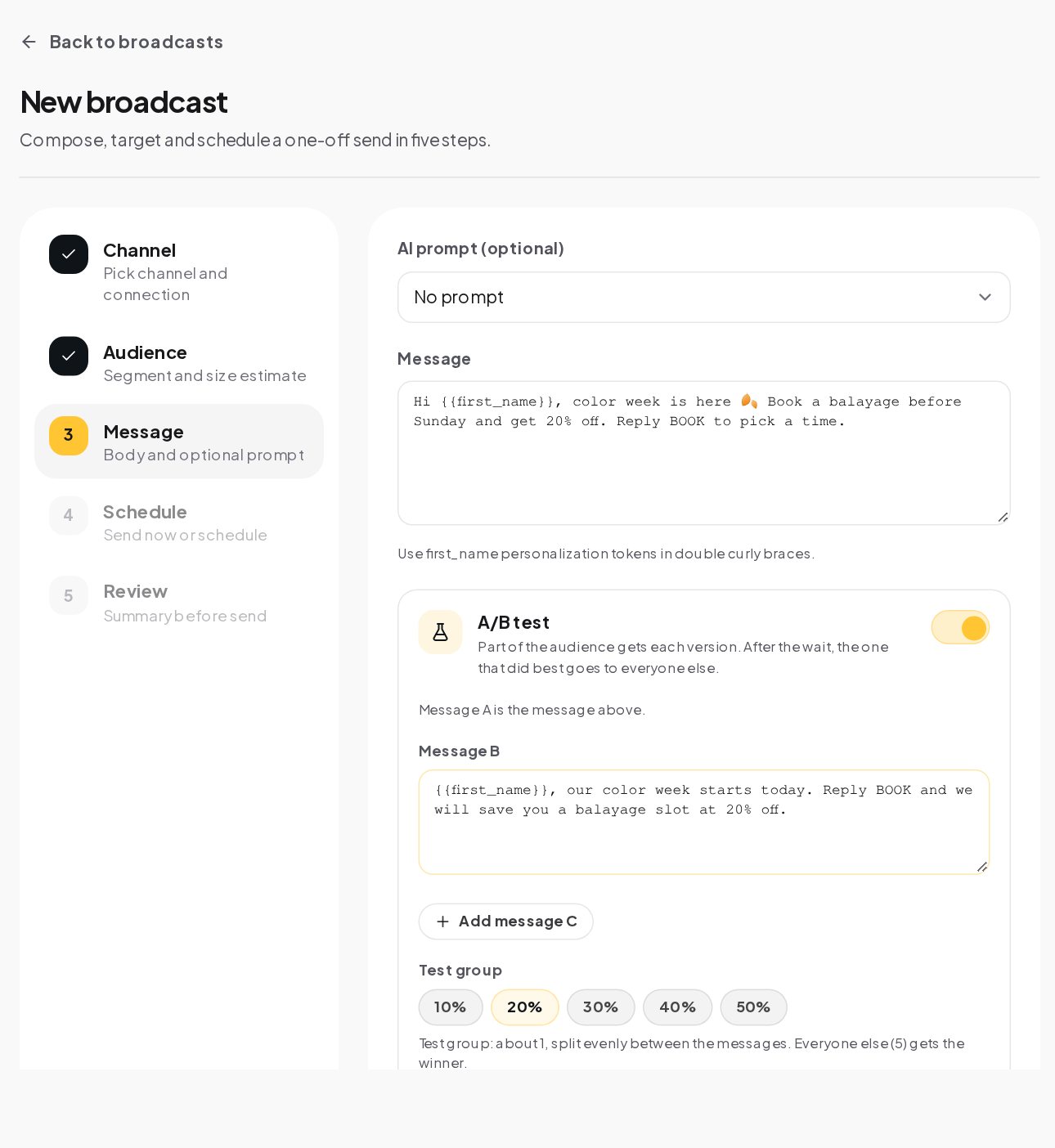
A test needs enough people to mean something. With a segment of a few dozen, one reply decides the winner by chance; keep A/B tests for audiences of a few hundred and more, and test one change at a time, such as the opening line or the offer.
Schedule a broadcast in each contact's time zone
Leave the date empty to send as soon as you launch, or pick a date and time. Two options make timing work for everyone:
- Send at each contact's local time. Each contact gets the message at the hour you picked in their own time zone, or in your business time zone when theirs is not saved. Sending starts up to a day early for time zones ahead of yours.
- Only send during set hours. Set a from and until time. A contact outside those hours in their time zone gets the message when the hours open, so nobody is woken at night.
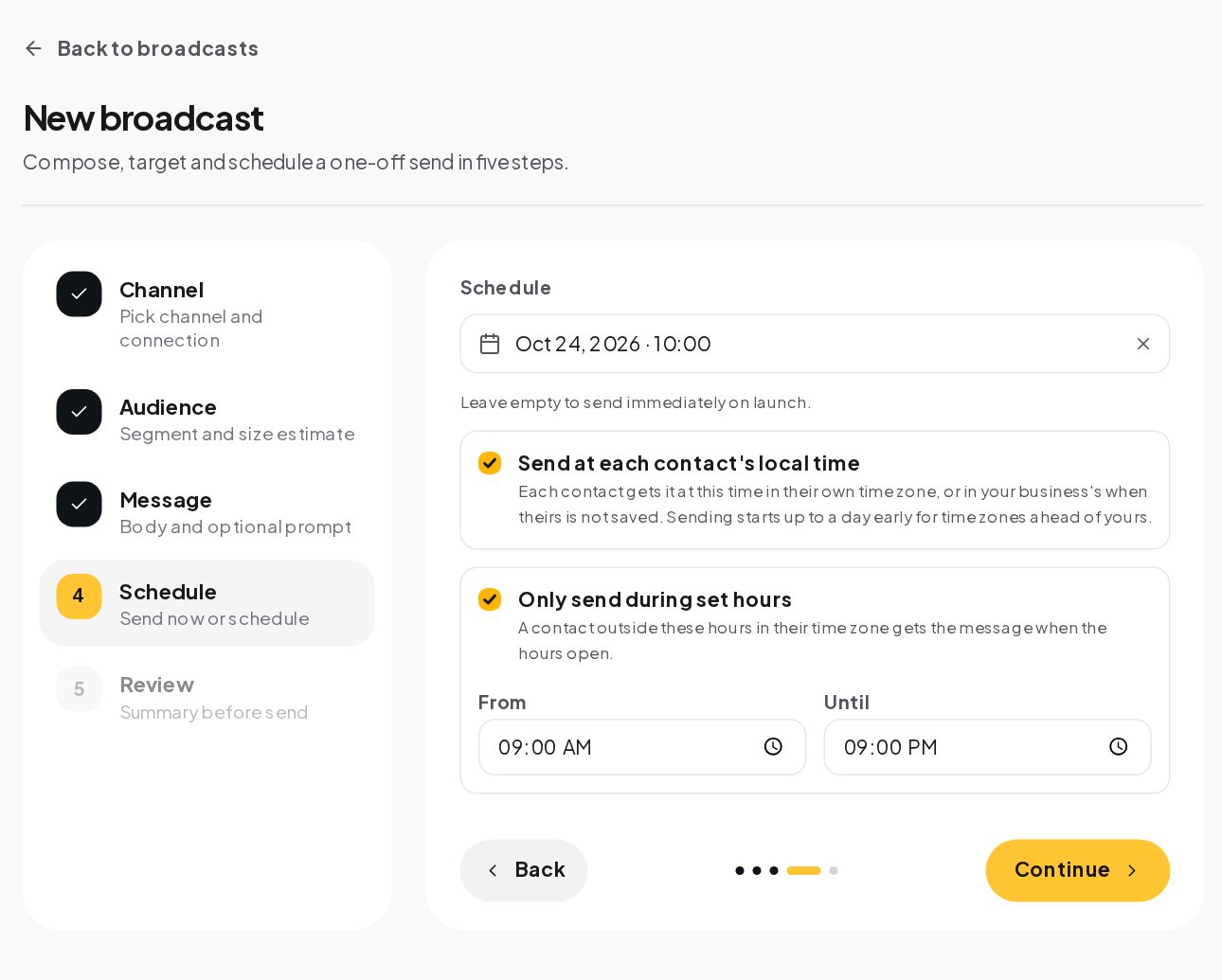
A scheduled broadcast waits in the queue and can still be paused or canceled until it starts.
Review and send the broadcast
The last step shows a summary: name, channel, connection, segment, schedule, delivery timing and the A/B setup, with a preview of the message. Read it once more as the customer would, then press Launch broadcast, or Schedule broadcast when you picked a time.
Large sends get a second pair of eyes. A broadcast whose audience reaches 1,000 people is scheduled or sent only after another manager approves it, or after a sole manager confirms their own request with a fresh second factor. The approval covers the channel, the audience, the message and the A/B setup, so changing any of them asks again. Only teammates with the broadcast permission can start one at all.
Broadcast analytics: delivered, read, replied and sold
Open a broadcast to see its detail. Overview shows the audience, how many were sent and how many failed, with the channel, segment, schedule and the message body. Deliveries lists every recipient with a status, pending, sent, failed or skipped, and the reason the provider gave for a failure. A retry never sends the same message twice.
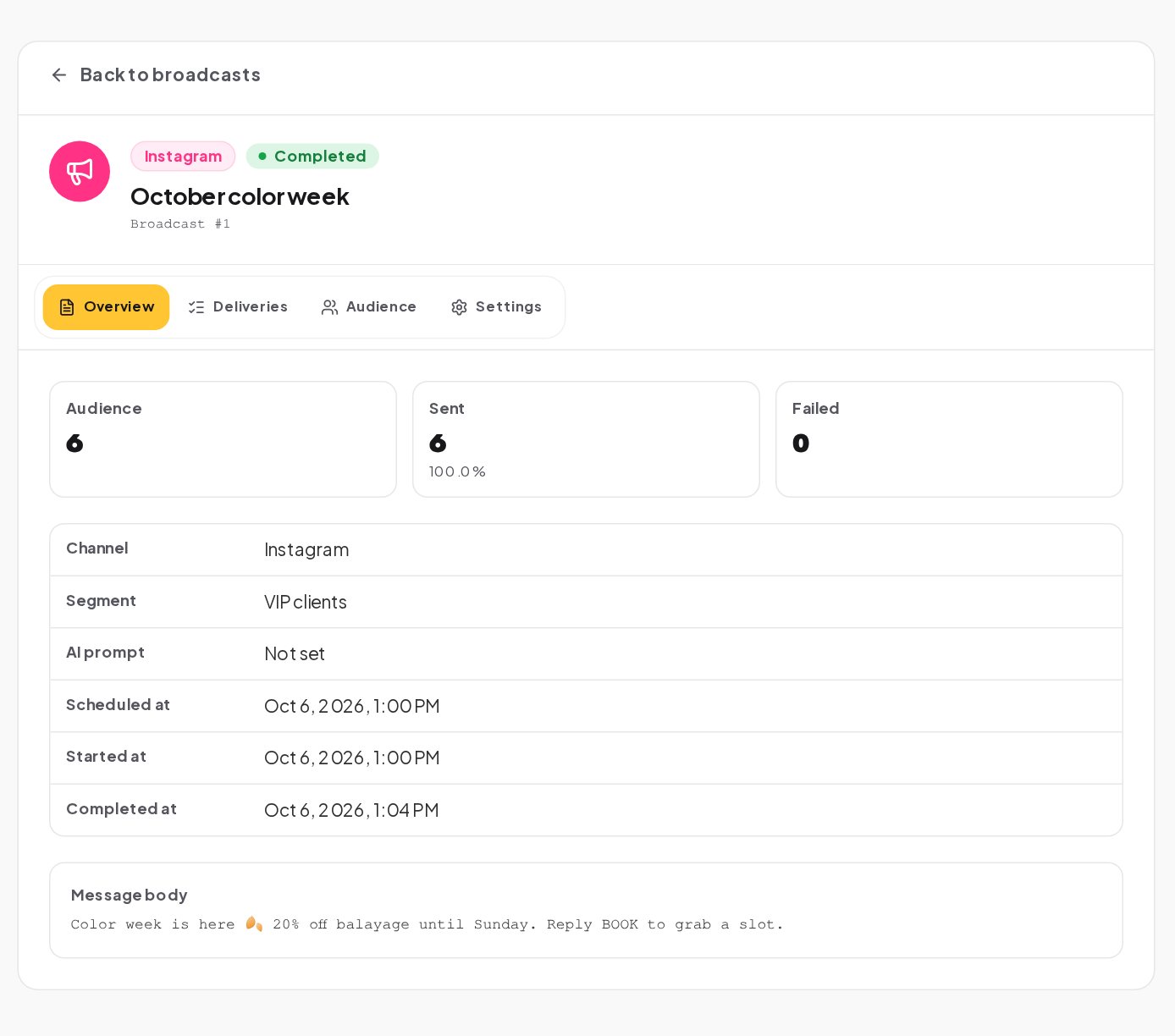
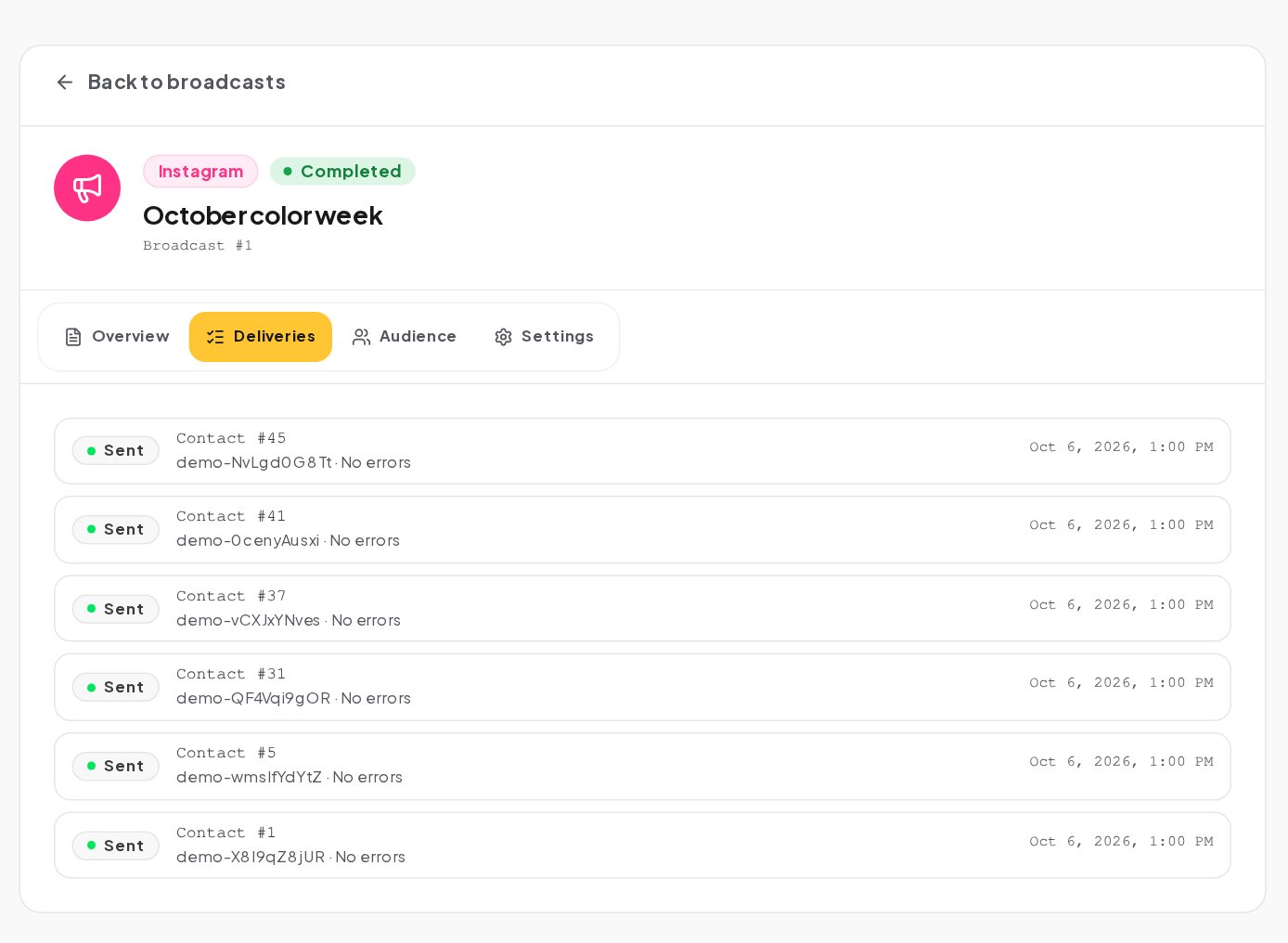
Delivery is only half of it. The replies a broadcast starts land in your shared inbox, any automation triggered by a reply keyword shows its runs in its own activity view, and sales from a Buy button or a connected store count toward your results in Analytics.
Broadcast consent and opt-outs: how to stay welcome
Contacts who unsubscribed are skipped on every channel, and every skip is written down with its reason. A contact who writes only STOP or UNSUBSCRIBE opts out and their running automations are canceled; START brings them back. That is the floor, not the goal. A few habits keep broadcasts welcome:
- Message people who asked to hear from you. A Telegram subscriber or a WhatsApp opt-in collected with a clear promise ("one tip a week") makes every send expected.
- Send less than you think. One useful message a week beats one a day. Watch the unsubscribes after each send.
- Make every message worth opening. A real offer, a useful reminder or news that affects the customer, never "just checking in".
- Respect quiet hours. Use set hours, even when you think nobody minds.
- Keep WhatsApp quality high. Meta tracks how people react to your messages. When Meta reports a quality change, ChatinFlow records it, and when Meta restricts the account, ChatinFlow pauses sending and alerts workspace owners and admins.
Broadcasts vs drip sequences vs automations
Broadcasts are for one moment: an announcement, a launch, a reminder that goes to many people at once. Two other tools cover what broadcasts should not do.
Sequences send a series of messages over days, in your business hours, to one person at a time, starting when they join. A reply or a purchase can take them out, so nobody gets a pitch after they buy. Add people with the Add to sequence step in a flow.
Automations answer when the customer acts: a comment, a DM, a story reply, a new order. They are the right tool for anything that should happen every time, not once.
A common pattern combines all three. A broadcast announces the offer, a reply keyword starts an automation that books the appointment, and a sequence follows up with the people who did not book.
Broadcast mistakes to avoid
- Treating Instagram like email. Only people who wrote in the last 24 hours can receive a broadcast there; the rest are skipped.
- One big list. Segments by interest or past purchase get more replies and fewer unsubscribes.
- No action at the end. Tell people exactly what to reply or tap.
- No automation behind the reply keyword. "Reply BOOK" with nothing listening for BOOK leaves people waiting.
- A/B testing a tiny audience. One reply should not decide the winner.
- Sending at your time, not theirs. Turn on local time and set hours for any audience across time zones.
Bulk messaging and broadcasts: FAQ
Can a broadcast message include a link or a button?
Yes. Put the link in the message, and on WhatsApp use the buttons of your approved template. Choose link clicks as the A/B winner metric when the link is the point.
How many versions can a broadcast A/B test compare?
Up to three: message A, B and C. The test group is split evenly between them, and the winner goes to everyone else after the wait.
What happens to contacts who opted out after I scheduled the broadcast?
They are skipped. The audience and opt-outs are read when the send starts, not when you scheduled it.
Who has to approve a large broadcast?
Another manager in the workspace, when the audience reaches 1,000 people. A sole manager can confirm their own request with a fresh second factor.
Sources
- Template fundamentals, Meta for Developers, on WhatsApp templates.
- Messenger Platform and IG Messaging API policy, Meta for Developers, on the 24-hour window.
- Bots: An introduction for developers, Telegram, on how bots reach users who started them.