The full guide
WhatsApp Business API automation: message templates, order updates and broadcasts
Connect your number on Meta's official Cloud API, write templates and send them for review in ChatinFlow, and send broadcasts and updates inside WhatsApp's rules.
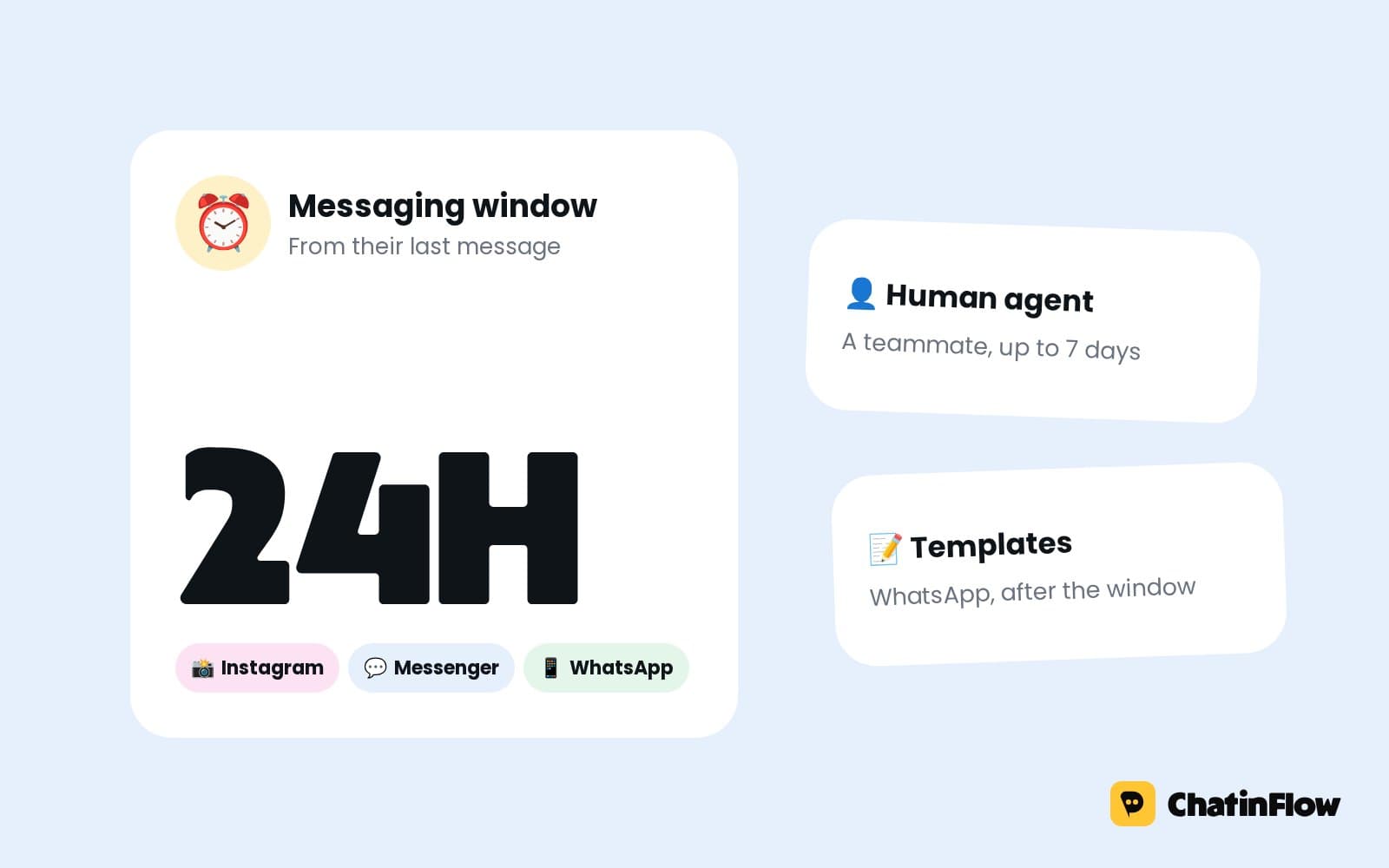
WhatsApp is the app people check first, which is exactly why Meta keeps business messaging on it tightly ruled. A business can write freely only within 24 hours of the customer's last message; after that, only a template Meta has approved can open the conversation again. Get the rules right and WhatsApp becomes the most reliable way to confirm an order, remind someone of an appointment or bring back a customer who left a cart. Get them wrong and messages silently fail or the number gets restricted. ChatinFlow works only through Meta's official WhatsApp Business Cloud API and checks the rules before every message. This guide covers connecting your number, the 24-hour window, writing templates and getting them approved, template broadcasts, and the automatic updates that run from your store, your calendar and your forms, along with the consent and account quality rules that keep your number in good standing.
How to connect your number to the WhatsApp Business API
WhatsApp business messaging runs through the WhatsApp Business Platform. You need a WhatsApp Business Account in Meta Business Manager, a phone number registered to it, and an app in Meta for Developers with WhatsApp added.
In ChatinFlow, open Channels and choose WhatsApp. The connect screen asks for two values from Meta.
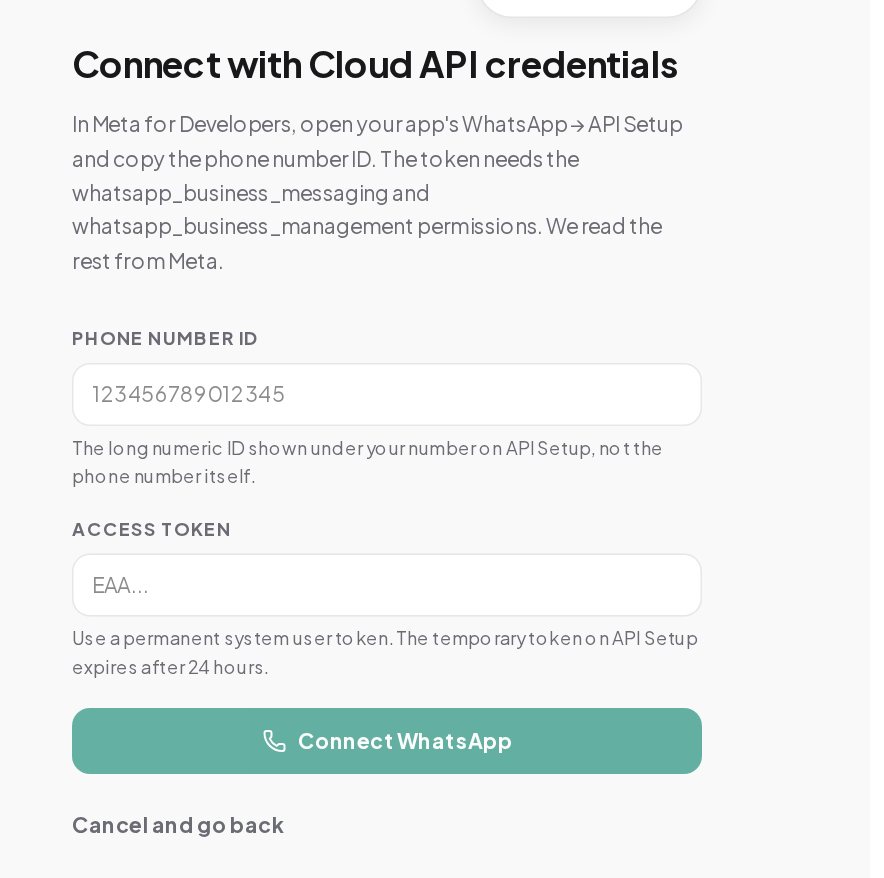
- Phone number ID. In Meta for Developers, open your app's WhatsApp, API Setup, and copy the long numeric ID shown under your number. It is not the phone number itself.
- Access token. Use a permanent system user token. The temporary token on API Setup expires after 24 hours. The token needs the whatsapp_business_messaging and whatsapp_business_management permissions.
ChatinFlow verifies the number with Meta, reads the rest from Meta and stores the token encrypted. There are no unofficial gateways. Nothing goes through a personal WhatsApp account or a phone left on a desk.
The WhatsApp 24-hour customer service window, explained
Every WhatsApp business conversation is governed by one rule.
| Situation | What you can send |
|---|---|
| The customer wrote to you in the last 24 hours | Any message: text, images, buttons, a reply from a flow, AI or a teammate |
| More than 24 hours have passed | Only a Meta-approved template |
| You have never talked | Only a Meta-approved template, to someone who agreed to hear from you |
ChatinFlow checks the window before every message, whether it comes from a flow, an AI reply, a broadcast or a teammate. A free-form message after the window is never sent; it is marked as outside the window instead of failing quietly at Meta. A template sent from a flow step or a broadcast is the way back in, and unsubscribed contacts are skipped.
How to create a WhatsApp message template and get it approved
A template is a message Meta approves in advance. You can write one without leaving ChatinFlow: in the message step of a WhatsApp broadcast, press New template.
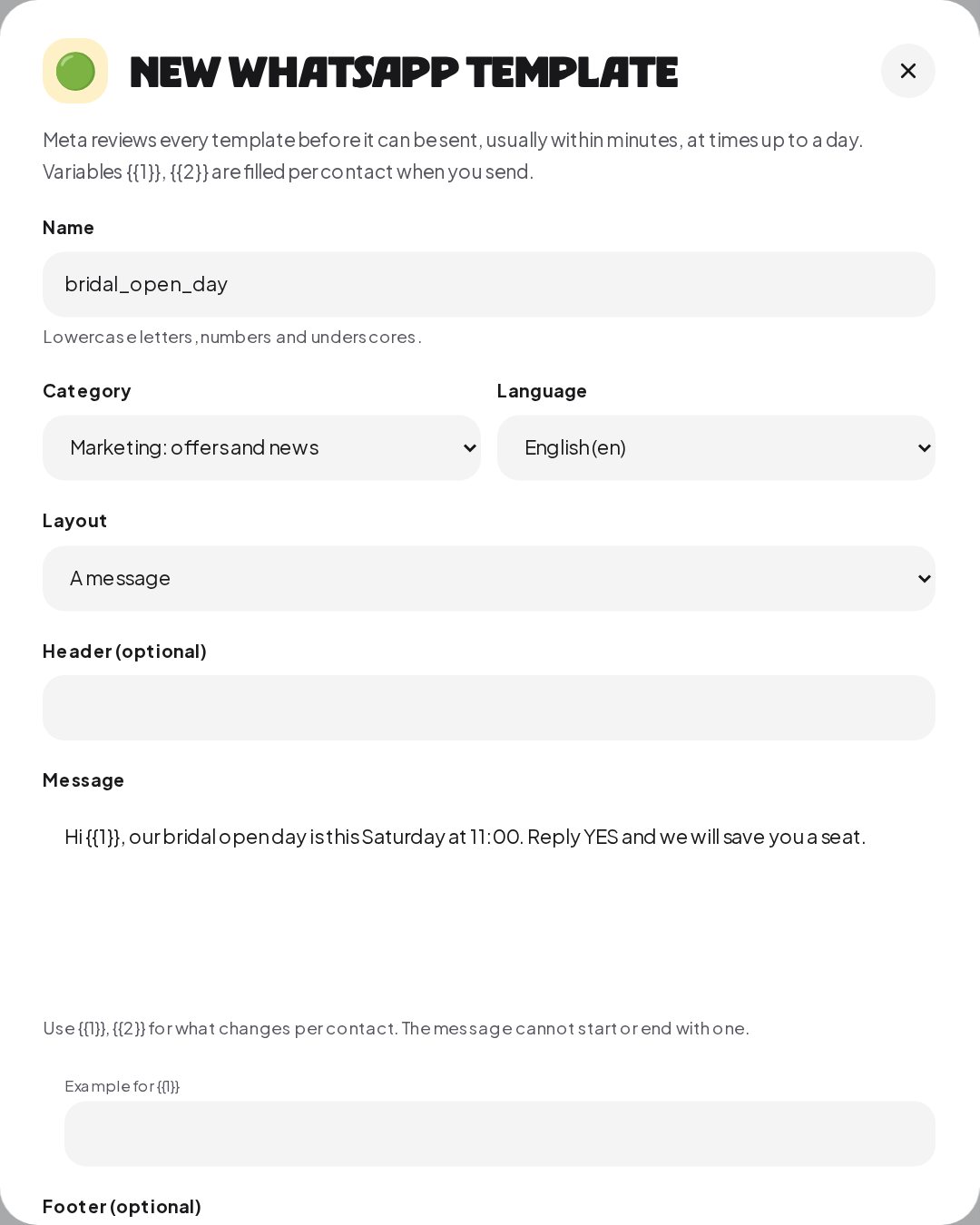
- Name. Lowercase letters, numbers and underscores, such as order_confirmation.
- Category. Utility, for updates the contact asked for, such as an order or a booking; Marketing, for offers and news. Pick honestly; Meta reviews the category too.
- Language. The language the template is written in. Add one template per language you serve.
- Layout. A message, or a message with a carousel of 2 to 10 cards.
- Header, message and footer. The message can use variables, {{1}}, {{2}}, for what changes per contact, such as a first name or an order number. It cannot start or end with a variable, and each one needs an example so Meta can review it.
- Buttons. Quick reply buttons, a link button with its text, or a call button with a phone number.
Press Send to Meta for review. Meta reviews every template before it can be sent, usually within minutes and at times up to a day. Once approved, it appears in the template picker, ready for broadcasts and for the Send WhatsApp template step in flows.
WhatsApp template examples that pass review
Most rejections come from a few avoidable patterns.
- Say why you are writing. "Your order 1042 is confirmed" is clear; "Hi {{1}}" alone is not.
- Give real examples. Each variable needs an example, such as a real-looking first name or order number, so the reviewer can read the finished message.
- Match the category. An update the customer asked for is Utility; anything that sells is Marketing.
- Keep links and buttons honest. A button should open what it says, on your own site.
- One template per job. Separate templates for confirmations, reminders and offers are easier to approve and easier to measure.
How to send a WhatsApp broadcast with templates
A WhatsApp broadcast follows the same five steps as any broadcast in ChatinFlow, with WhatsApp's rule shown under the channel.
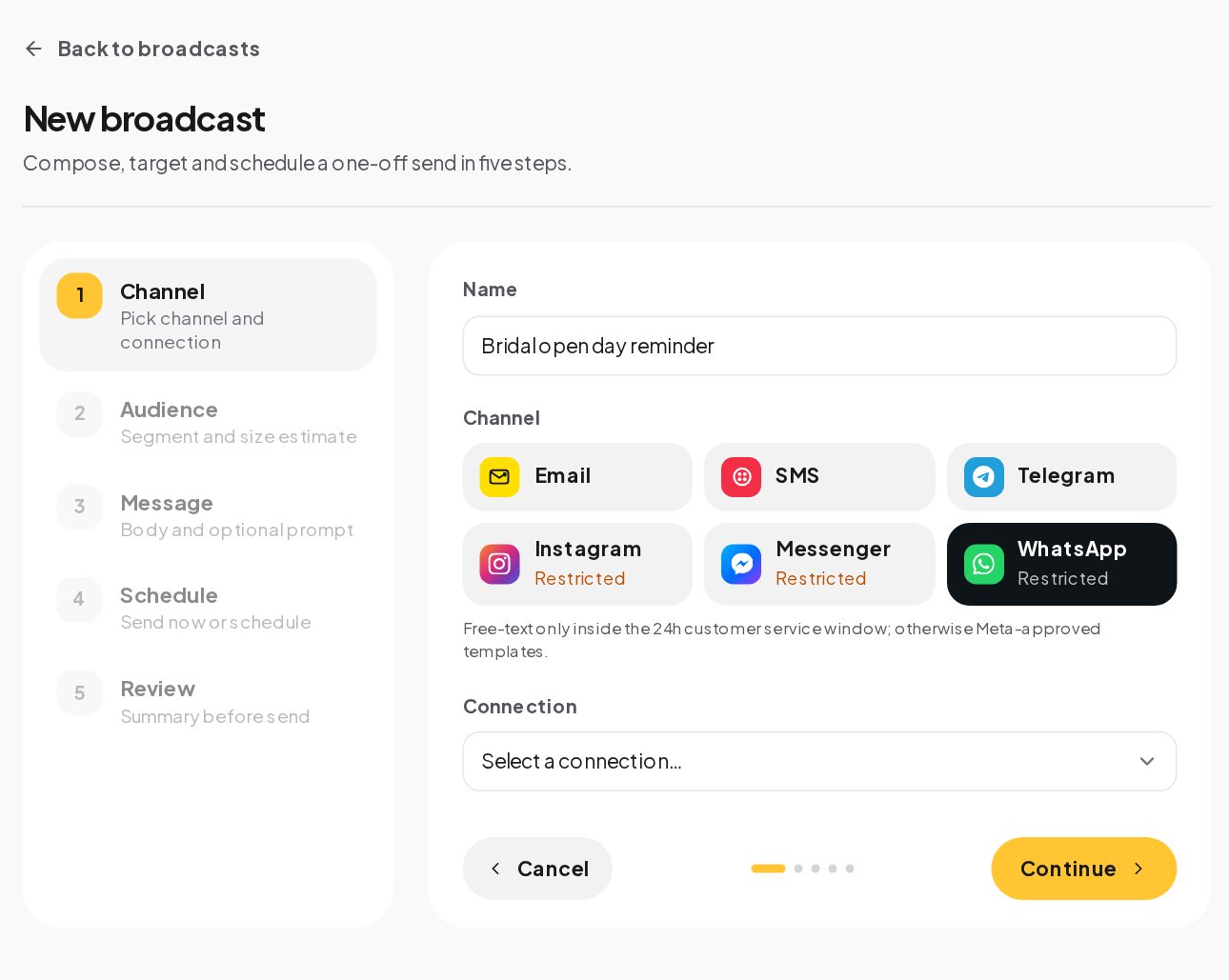
Pick an Audience segment, choose an approved template and fill its variables, then send now or on a schedule. A broadcast can reach each contact at the hour you pick in their own time zone and stay out of the quiet hours you set. Free text in a WhatsApp broadcast reaches only contacts who messaged you in the last 24 hours; the template reaches everyone else. Anyone who opted out is skipped, and every recipient gets a delivery row marked pending, sent, failed or skipped, with the reason the provider gave.
WhatsApp marketing messages: how they are sent
Meta offers a separate route for promotions, the Marketing Messages API. In Settings, Channels, WhatsApp, Use Marketing Messages sends your marketing templates through it. Other templates and your replies go as before.
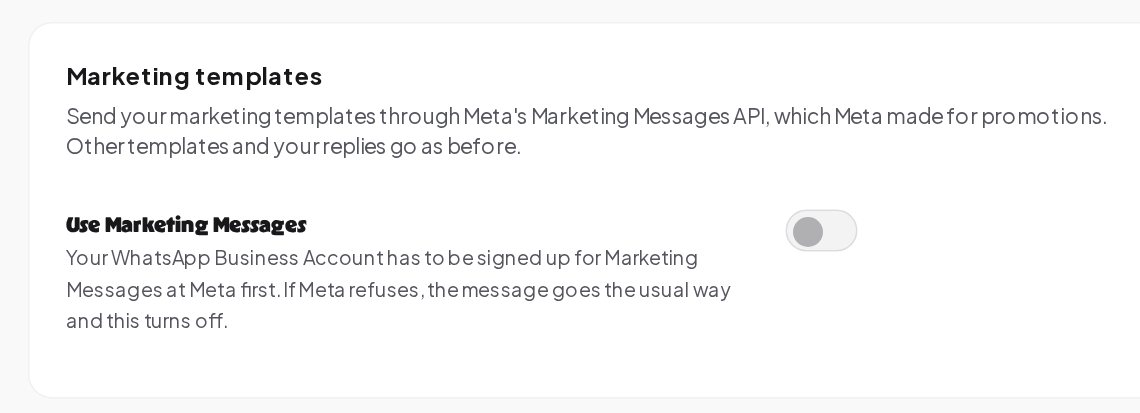
Your WhatsApp Business Account has to be signed up for Marketing Messages at Meta first. If Meta refuses a message, it goes the usual way and the setting turns off, so nothing is lost.
Automatic WhatsApp order updates, reminders and form follow-ups
The most valuable WhatsApp messages are the ones customers expect: confirmations, reminders and answers to what they just did. ChatinFlow sends them with templates when something happens elsewhere.
Order updates. Connect Shopify or WooCommerce under Settings, Integrations, Stores, and each new and paid order arrives. The buyer is matched by the email or phone on the order, and an approved template with the order number goes to their phone. ChatinFlow does not receive shipping events, so delivery updates are not automatic.
Cart reminders. From a Shopify store, an hour after a shopper leaves checkout with their phone typed in, a template with their cart link, items and total reaches them. If they order, the reminder stops, so nobody is chased after buying. WooCommerce sends no cart events, so there it is not automatic.
Booking reminders. At the times you set, such as a day before or two hours before, with a link to change or cancel, the same link every time. Taken, moved and canceled bookings can each start their own flow.
Form follow-ups. A website form, Typeform, JotForm or a Google Ads lead form creates or finds the contact from the email or phone they typed, saves every answer, and an approved template goes to their phone, even though they never wrote to you first. The team is alerted and the contact can be added to HubSpot, Klaviyo, Mailchimp, ActiveCampaign or Kit.
From Instagram or Messenger to WhatsApp. Any Instagram or Messenger flow can send a WhatsApp link with the Hand off to WhatsApp step, for people who would rather continue on WhatsApp.
WhatsApp opt-in, consent and opt-outs
Meta requires that people agree to hear from a business before it sends them templates, and that they can stop at any time.
- Collect opt-in where the number is collected. A checkbox on your form, a line at checkout, or a question in a flow. Say what you will send, such as order updates and appointment reminders.
- Keep your own proof. A contact gets a consent time and source when they subscribe through a flow's email or SMS step, or when you add or import them with consent ticked, and the contacts export includes that time. There is no separate WhatsApp opt-in record, so keep your own proof of WhatsApp opt-in.
- Honor stop. A message that says only STOP or UNSUBSCRIBE opts the person out, and opted-out contacts are skipped by every broadcast.
WhatsApp quality rating, messaging limits and account health
Meta watches how people react to your messages and gives your number a quality rating. When Meta reports a quality change on your number, ChatinFlow records it in the audit log, and when Meta restricts the account, ChatinFlow pauses sending and alerts workspace owners and admins. The best protection is the simplest: send templates people expect, keep marketing occasional, segment by what people asked for, and make opting out easy.
WhatsApp Business API glossary
- Cloud API. Meta's official interface to the WhatsApp Business Platform, the only way ChatinFlow connects to WhatsApp.
- Phone number ID. The numeric ID Meta gives your registered number, shown under API Setup. It is not the phone number itself.
- Permanent access token. A system user token that does not expire, with the whatsapp_business_messaging and whatsapp_business_management permissions.
- Customer service window. The 24 hours after a customer's last message, when any message can be sent.
- Template. A message Meta approves in advance, the only way to write to someone outside the window.
- Marketing Messages. Meta's separate route for promotional templates, which you can turn on in Settings, Channels, WhatsApp once the account is signed up at Meta.
- Quality changes. Changes Meta reports about how people respond to your messages. ChatinFlow records them, and a restricted account pauses sending.
WhatsApp Business API mistakes to avoid
- Using the temporary token. It expires after 24 hours. Use a permanent system user token.
- Copying the phone number instead of its ID. The connect screen needs the long numeric phone number ID.
- Marketing dressed as utility. Meta reviews categories; an offer belongs in Marketing.
- Free text after the window. It is never sent. Use a template.
- No opt-in proof. Keep a record of where and when each person agreed to WhatsApp messages.
WhatsApp Business API: FAQ
Can I write WhatsApp templates inside the tool?
Yes. Press New template in the message step of a WhatsApp broadcast, fill in the form and send it to Meta for review. Approved templates can then be used in broadcasts and flows.
How long does WhatsApp template approval take?
Meta reviews every template before it can be sent, usually within minutes and at times up to a day.
Can I send order confirmations on WhatsApp automatically?
Yes, from a connected Shopify or WooCommerce store: an approved template with the order number goes to the buyer's phone. Shipping updates are not automatic.
Is this the official WhatsApp Business API or an unofficial gateway?
No. Everything goes through Meta's official WhatsApp Business Cloud API.
Do I need a separate WhatsApp template for each language?
Yes. A template is approved in one language. Create one per language you serve, for example booking_reminder in English and in Turkish, and pick the right one for each segment.
Sources
- About the WhatsApp Business Platform, Meta for Developers, on the Cloud API.
- Template fundamentals, Meta for Developers, on templates and their review.
- Get opt-in for WhatsApp, Meta for Developers, on consent before business-initiated messages.