The full guide
Chatbot flow builder: how to build DM automations that answer and sell, without code
A flow is the set of steps that runs when someone comments, writes or books. This guide builds one on the canvas, from the trigger to the last message, and shows how to test it before it goes live.
A flow is a set of steps that runs on its own when something happens in a conversation: someone comments a keyword, replies to a story, sends a first message or taps a button. Good flows feel like a fast, helpful person on the other end. Bad ones feel like a phone menu. The difference is rarely the tool; it is how the flow is planned. This guide explains how flows work in ChatinFlow, from triggers and steps to branching, data collection, testing, versions and measurement, and walks through the patterns that turn messages into bookings, leads and sales.

What a chatbot flow is made of
Every flow has three kinds of pieces.
| Piece | What it does | Examples |
|---|---|---|
| Trigger | Decides when the flow starts | A comment with a keyword, a DM, a story reply, a button tap, a new tag, a birthday |
| Steps | Do the work, in order | Send a message, ask a question, wait, add a tag, set a field, call an API |
| Conditions | Decide which path a contact takes | Which button they tapped, what they answered, a tag, a field value |
The builder offers more than 40 step types in nine groups, from messages and questions to tags, fields, delays, AI steps and integrations. You place them on a canvas, connect them and see a preview of every message as you write it.
Triggers that start a chatbot flow
Triggers fall into two families.
Conversation triggers start when a person does something in a channel: comments on a post or a reel, sends a DM, replies to a story, mentions you, taps a button or writes a keyword. These are the triggers most people start with, because they answer someone who is waiting.
Event triggers, which ChatinFlow calls rules, start when something changes about a contact: a tag is added, a field changes, a new contact arrives, a sequence ends, a conversion is counted, a date or a birthday comes round, or someone answers an NPS question as a promoter, a passive or a detractor. A bulk import does not start rules unless you ask it to, so uploading a list never floods a thousand people with messages.
One message, one answer: how flows avoid double replies
When several flows could answer the same message, ChatinFlow picks one. The most specific match wins: a keyword that matches exactly beats one that starts the message, which beats one that only appears in it, and a longer keyword beats a shorter one. A flow set to answer any message is the fallback when nothing else matches.
This matters more than it sounds. Without it, a customer who writes "price list please" could receive the answer to "price" and the answer to "price list" at once. The builder also warns you when two flows use overlapping keywords, so you can fix the overlap before a customer sees it. To check how your keywords behave on real messages, use the Keyword Tester, which runs the same matching rules.
How to build your first chatbot flow, screen by screen
The fastest way to a working flow is a template or the quick setup, and you can open either one on the canvas whenever you want more steps. Here is the whole path, as it looks in the dashboard.
1. Pick a chatbot template or start blank
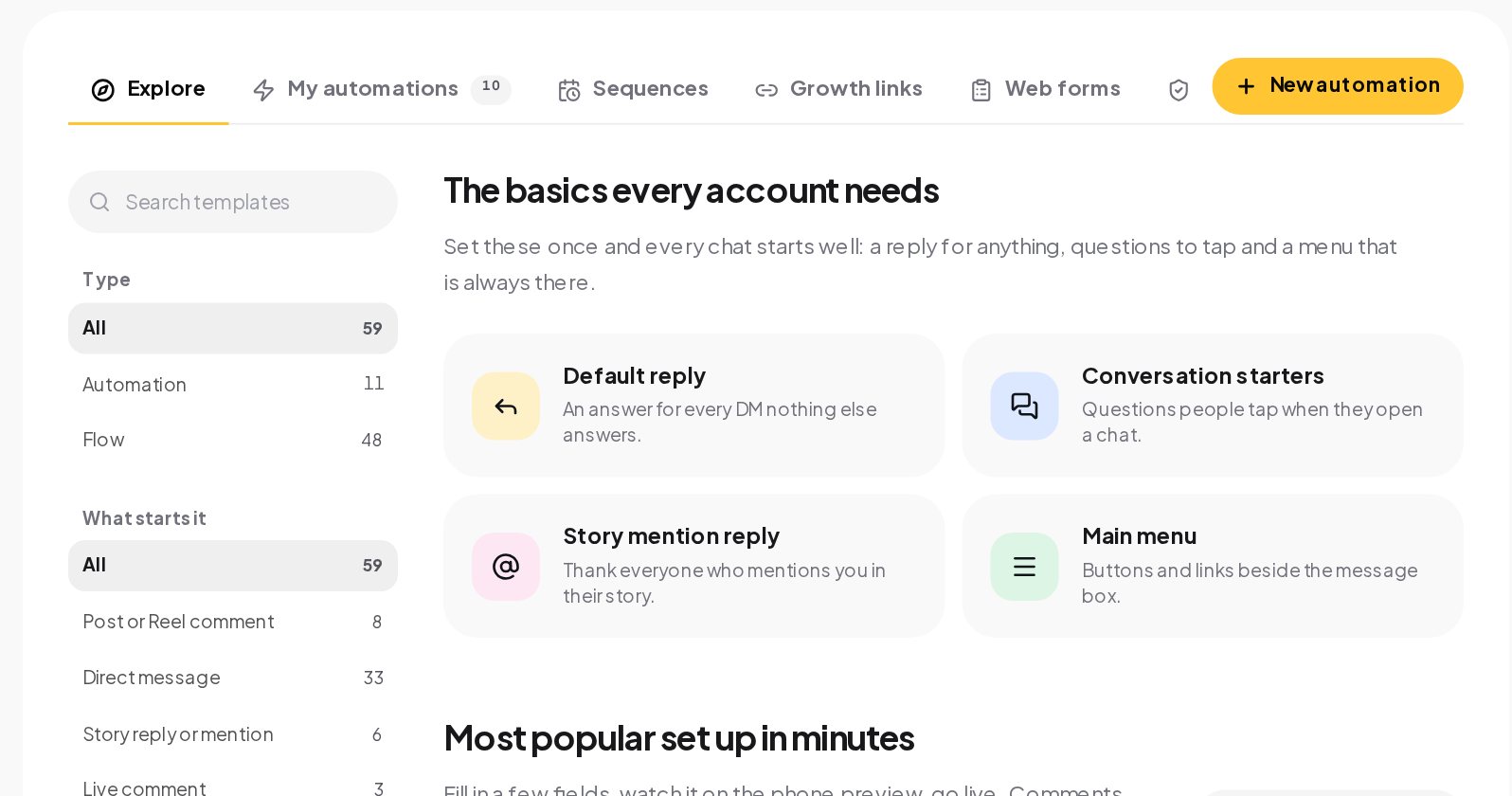
Open Automations and stay on Explore. The gallery holds about 60 ready-made templates. Filter them by type, either a quick automation that fits on one screen or a multi-step flow, and by what starts them: a post or reel comment, a direct message, a story reply or mention, a live comment and more. The first row covers the basics every account needs: a default reply, conversation starters, a story mention reply and a main menu.
2. Choose the channel and the trigger
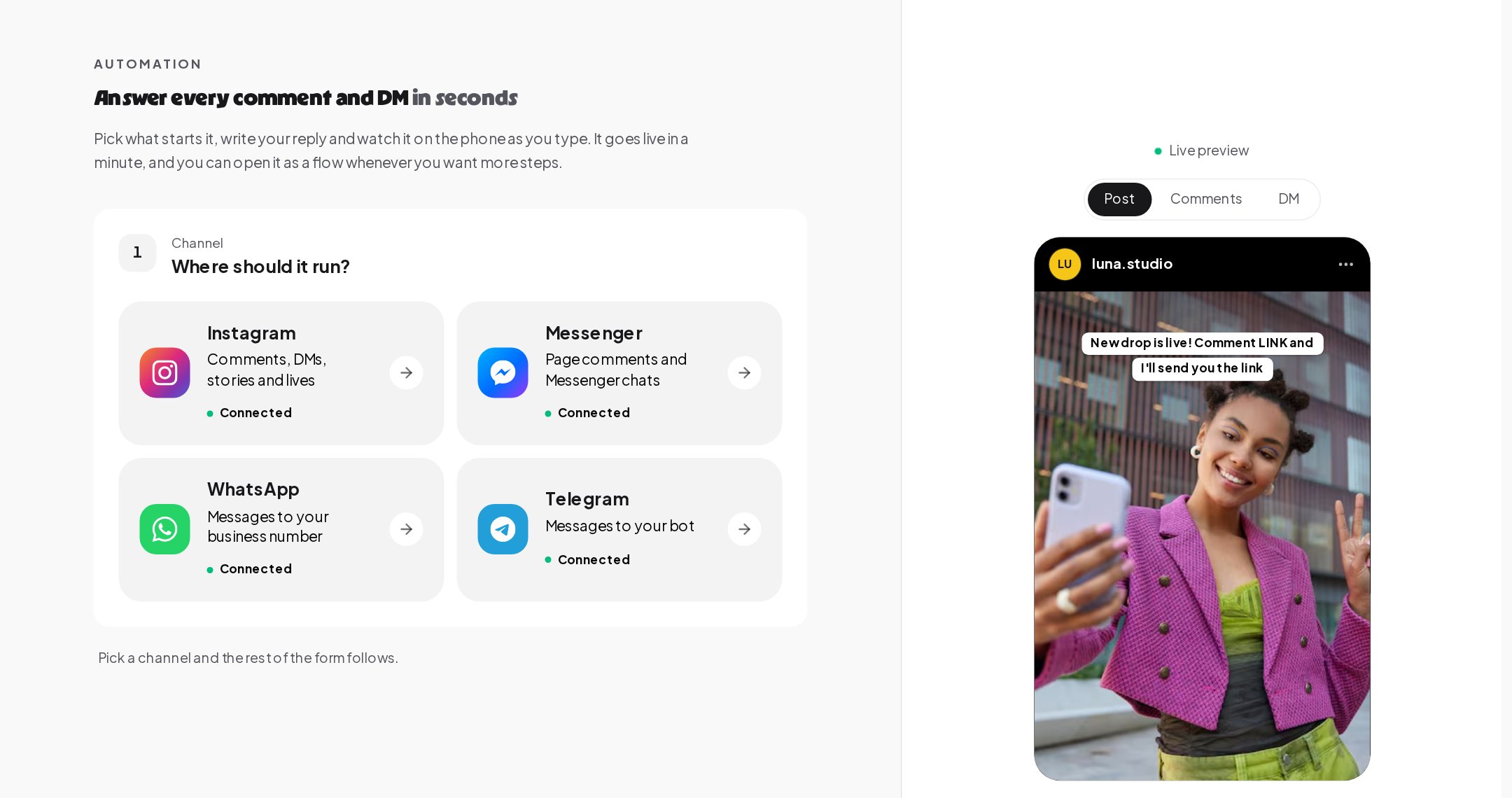
Press New automation. The quick setup asks where it should run, Instagram, Messenger, WhatsApp or Telegram, then what starts it and what to reply. A live preview on the right shows the post, the comments and the DM as your followers will see them, and it changes as you type.
3. Open it in the visual flow builder
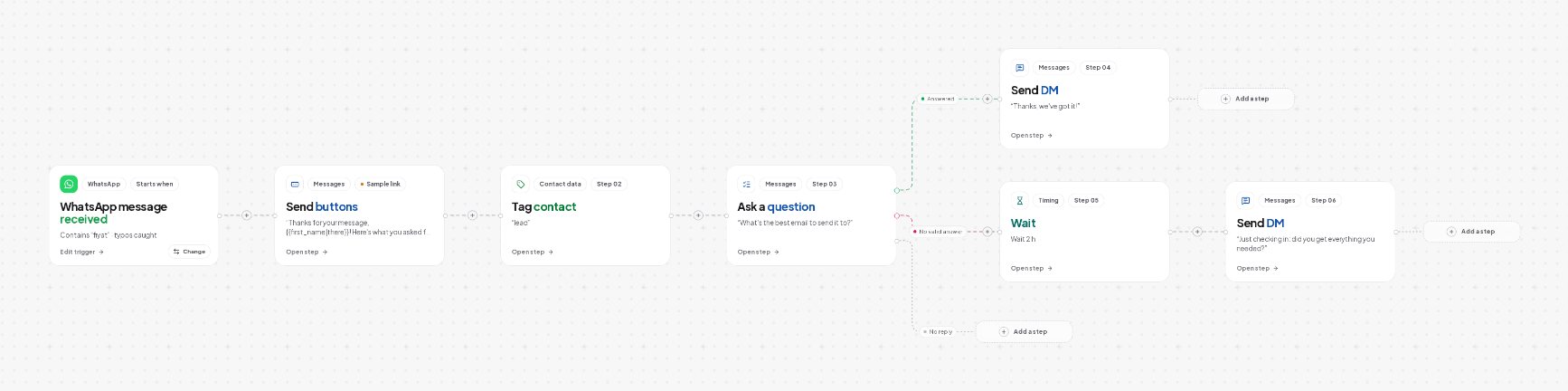
Switch from Automation to Flow at the top and the same setup opens on the canvas, one card per step. Here a WhatsApp flow answers a keyword with buttons, tags the contact and asks for an email, then splits into three paths: the email arrived, the answer did not fit, or no reply came.
4. Write each chatbot message
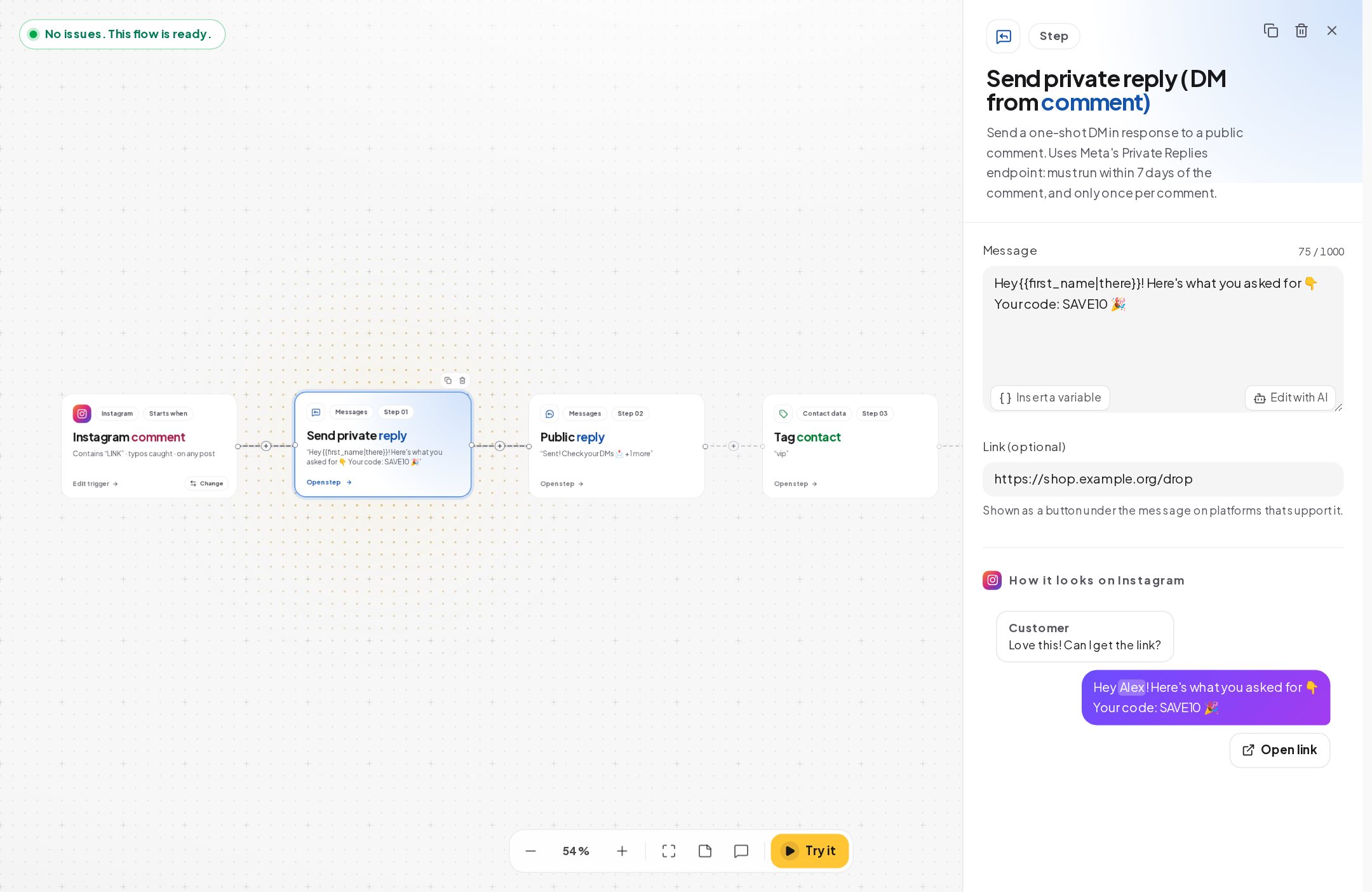
Open a step to edit it. The editor explains what the step does and its limits; a private reply, for example, must go out within 7 days of the comment and only once per comment. Write the message, insert a variable such as the first name, add a link that shows as a button where the platform supports it, and check the preview of how it looks on Instagram. Edit with AI rewrites the message for you when you have connected your own AI provider key.
5. Test the chatbot as your customer
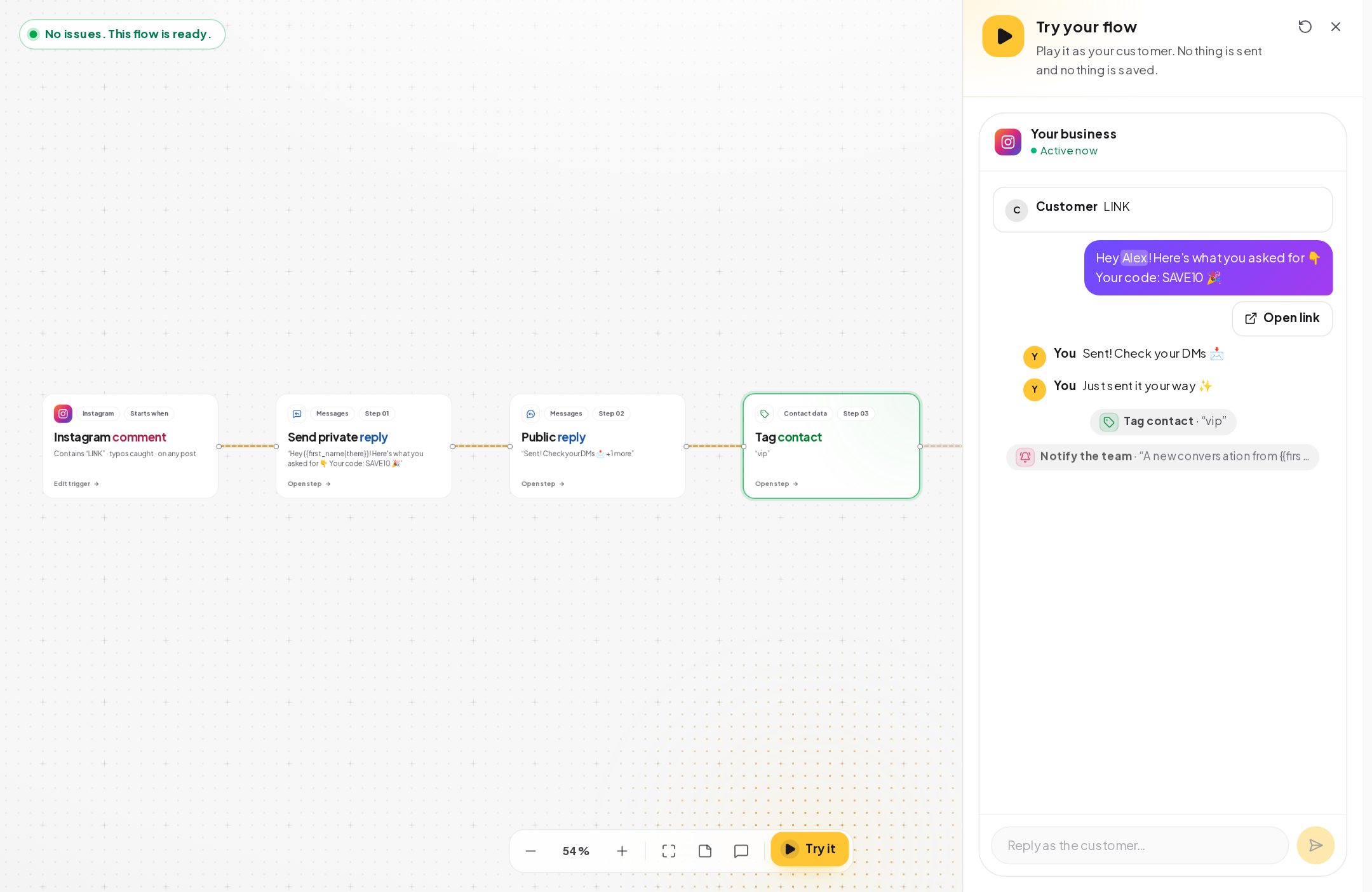
Press Try it and play the flow as a customer would, typing the keyword and tapping the buttons. Nothing is sent and nothing is saved. Underneath, Check flow lists findings with plain advice, such as two messages that go out back to back with nothing between them, or a trigger that can fire many times at once when a post gets a burst of comments. A short delay usually fixes both.
6. Set when it runs, then publish
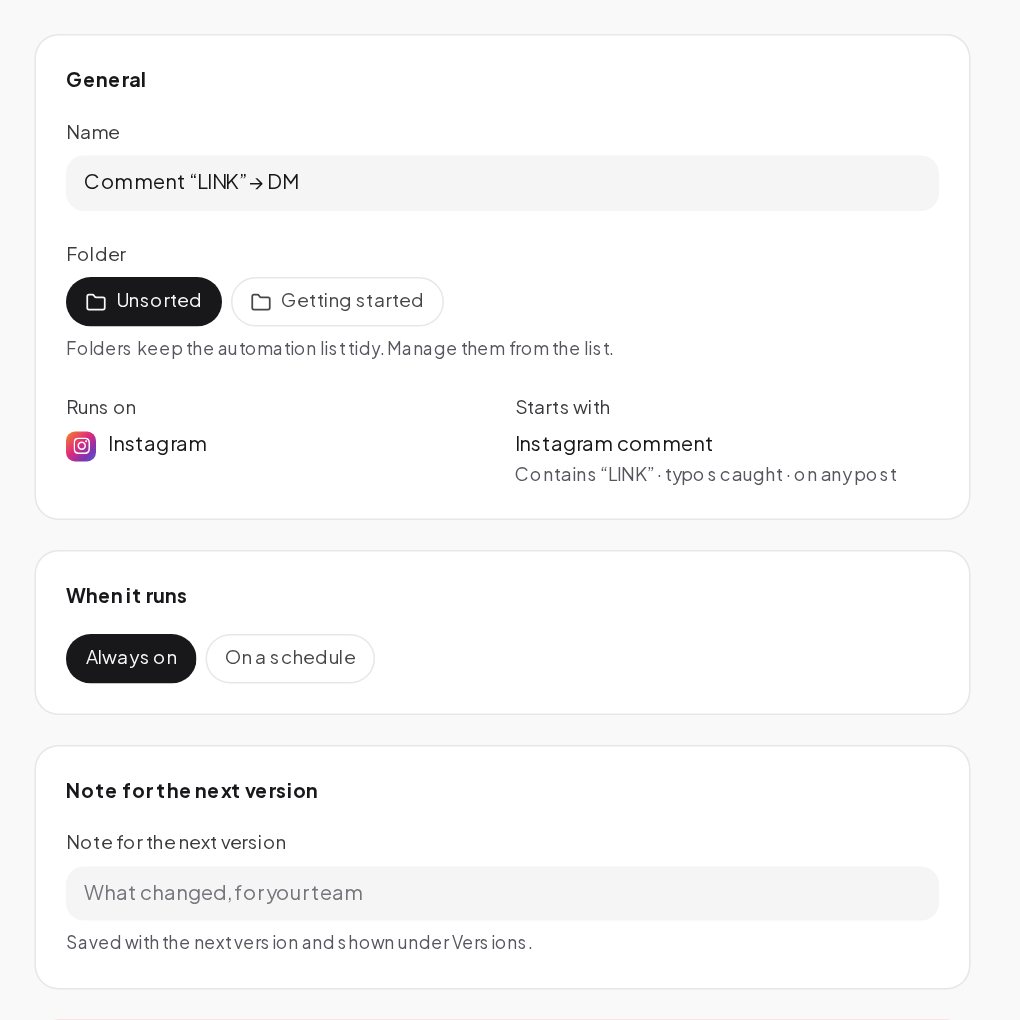
Under Settings, name the automation, file it in a folder and choose Always on or On a schedule. Write a note for the next version so your team knows what changed; it is saved with the version and shown under Versions. Then press Publish.
If you would rather describe a flow than build it, write one sentence such as "when someone comments PRICE, send the price list and ask for their email" and ChatinFlow drafts the steps for you, with no AI key needed. The draft never goes live on its own; you review it on the canvas and publish when it is right.
Chatbot branching and conditions without the spaghetti
Flows get messy when every possibility is handled in one long chain. A few habits keep them readable:
- Branch on what the person did. Button taps and answers are the clearest signals. Branch on a tag or a custom field when you already know something about the contact.
- Keep each branch short. If a branch grows past a handful of steps, move it into its own flow and use a "Start another flow" step to hand the contact over. Shared parts such as qualification or booking can live in one flow that others start. The first flow does not wait for the second to finish, so put the handover at the end of a branch.
- Save the steps you reuse. A group of steps you use in many flows, such as an opening hours reply, can be saved under "My steps" and dropped into any flow.
- Use "Any message" sparingly. One fallback flow is enough. More than one competes with your specific flows.
Collect emails, phone numbers and answers in the chat
A flow can ask for information the way a person would and store it on the contact: an email address, a phone number, a date, a number or an address. If someone types something that does not fit, the flow asks again, and people can type "skip" when a question is optional. Answers can feed calculations in fields and conditions later in the flow.
Messages can use what you know about the contact, with a fallback for when you do not: a greeting such as "Hi {{first_name|there}}" reads naturally whether or not the name is known. Use variables carefully; a message that shows an empty field looks broken.
Good data collection follows three rules:
- Ask for one thing at a time. A message that asks for name, email and phone at once gets fewer answers.
- Say why you are asking. "What is your email? I'll send the guide there" gets more replies than "Enter your email".
- Give something first. People share an email more readily after the flow has already been useful.
Delays, schedules and the 24-hour messaging window
Not every flow should run around the clock. Choose On a schedule in Settings and an automation gets a start time, an end time and weekly hours in your business timezone, plus holidays it skips or runs only on. A schedule affects only new starts: a conversation already in progress is never cut off halfway. In the list, each flow shows whether it is scheduled, outside its hours or finished.
Delays and sequences respect quiet hours, and sequence steps can wait for business hours, so a follow up does not arrive at three in the morning.
All of this sits inside the messaging rules of each channel. On Instagram, Messenger and WhatsApp a business can reply freely until 24 hours after the customer's last message. A comment can receive one private reply by DM within 7 days. After the window, WhatsApp only delivers templates Meta approved, and Instagram and Messenger wait for the customer to write again. The Messaging Window Calculator shows exactly when a window closes.
Choose which posts a comment flow watches
A comment flow can watch every post, only the posts you pick, your next post or every post after a given one. "Next post" is useful for a launch: you set up the flow before you publish, and it attaches itself to the post when it goes out. The publish time is read from Meta, so this needs the account to be connected.
Sell inside the chat with payment links
Flows do not have to send people away to buy. A message can carry a Buy button from Stripe or PayPal, so the customer pays without leaving the conversation, and the money goes to your own account. With Shopify connected, a cart abandoned flow can remind a shopper who left an email or phone number and did not order within an hour, with a link back to the cart, the total and the items. If the order arrives, the waiting reminder stops.
A "Count a conversion" step marks the moment a flow did its job, such as a booking confirmed or a lead captured, so you can see which flows produce results and not just activity.
Test a chatbot flow before you publish
A flow that works in your head can still surprise you. Try it and Check flow catch most problems; a few habits catch the rest:
- Walk every branch with your own test account, tapping each button.
- Write like a customer. Test with typos, lowercase, extra words and the phrasing people really use.
- Check the empty cases. What happens if someone has no first name on file, or skips a question?
- Read every message on a phone. Long messages that look fine on a laptop become walls of text in a chat.
Flow versions, approval and rollback
Every time you publish, ChatinFlow saves a version. The version history lets you make an earlier version live again in one click, which takes the fear out of editing a flow that already works. There is no side-by-side comparison of two versions, which is what the note for the next version in Settings is for: write what you changed and your team sees it under Versions. For a big rework, Stop and duplicate archives the live automation and opens an editable copy as a draft, so nothing half finished reaches customers.
Flows that can message a large audience need a second admin's approval before they go live. In a workspace with only one admin, a fresh two-factor check takes the place of the second person. It is a small pause that protects your account and your audience from a mistake sent to everyone.
A/B test a chatbot message
An A/B split step sends each contact down one of up to four branches, by weights you set, and keeps the same contact on the same branch next time. The flow's activity view shows how many contacts entered each variant and how many runs completed. ChatinFlow does not pick a winner for you. When the numbers are clear, you choose, edit the flow and publish again.
Test one thing at a time: the first line, the offer, the button labels. If you change three things at once, you will not know which one made the difference.
Measure what a chatbot flow does
Two views tell you how a flow performs.
| View | What it shows |
|---|---|
| The canvas | For each message step, how many were sent, read and clicked |
| The activity view | Total runs, success rate, average duration, failures over time, the step that fails most often, and every run with the steps it took |
The canvas shows counts per step rather than drop-off or conversion rates. Use the counts to spot the step where people stop, then rewrite it. The activity view is where you go when a flow misbehaves: open a single run and see exactly which steps it took.
When a person should take over the chat
Automation is best at the repeat questions. Anything new, sensitive or unhappy deserves a person. Flows can assign a conversation to a teammate, open it or close it, and the moment an agent starts typing in the inbox, the bot stays quiet so the two never talk over each other. A good handover message says who will answer and roughly when.
Call other tools and APIs from a flow
When a step you need does not exist, the HTTP request step can call another service's API, and outgoing webhooks send events to your own systems or to Zapier and Make. There is no step for running your own code, which keeps flows safe to edit for people who do not write software. Integrations such as HubSpot, Klaviyo, Mailchimp, ActiveCampaign and Kit use your own account keys.
Chatbot flow mistakes to avoid
- Building the whole customer journey in one flow. Split it into short flows that hand over to each other.
- Asking for an email in the first message. Be useful first.
- Forgetting the fallback. One friendly "Any message" flow saves the conversations no keyword catches.
- Overlapping keywords. Fix them when the builder warns you, or the wrong flow answers.
- Never reading the activity view. A flow with a failing step keeps failing quietly until you look.
Chatbot flow builder: FAQ
How many buttons can a chatbot message carry?
Up to 13 quick replies. Two to four are easier to read on a phone, and each one can open its own branch.
What happens when two flows match the same message?
Only one answers. An exact keyword beats one that starts the message, which beats one that only appears in it, and a longer keyword beats a shorter one. A flow set to any message is the fallback.
Can a chatbot flow run only during business hours?
Yes. Choose On a schedule in the automation's settings and set weekly hours in your business timezone, with holidays to skip. A conversation already in progress is never cut off.
Can a flow message people who never wrote to me?
Not on Instagram or Messenger. Flows answer people who reached you, within the messaging window of each channel. On WhatsApp, an approved template can start a conversation.
Sources
- Messenger Platform and IG Messaging API policy, Meta for Developers, on the 24-hour window.
- Private Replies, Meta for Developers, on replying to a comment by DM within 7 days.
- Template fundamentals, Meta for Developers, on WhatsApp templates.