


The full guide
Customer support automation on Instagram, WhatsApp and Messenger, with a human handoff
Answer repeat questions from your own help pages, route chats to the right agent, alert the team before a customer gives up and ask how it went.
Most of a chat support queue is the same handful of questions: where is my order, how do I return this, is there a size guide, my code is not working. They arrive on WhatsApp, Instagram, Messenger and the website chat, at every hour, and each one waits behind the last. ChatinFlow puts every channel into one inbox, answers the repeat questions from your own help pages on your own AI key, and hands everything that needs judgment to a person with the whole conversation attached. This guide walks a support lead through the set-up, step by step: sources, the AI agent, assignment, alerts, the satisfaction survey and the reports that show whether it works.
How a support desk runs on chat automation
| Support need | How ChatinFlow handles it |
|---|---|
| Answer the same questions faster | Keyword replies for the top questions, and the AI agent for everything your sources cover |
| Look up an order | An HTTP request step asks your system for the status and replies with it |
| Never answer twice | When a teammate replies, the automation in that chat stops and the bot stays quiet |
| Spread the work | Auto-assignment in turn or to the least busy agent, with a limit per agent |
| Catch slow replies | Unanswered conversation alerts after the wait you choose |
| Know how customers felt | A satisfaction survey when the conversation is closed |
| Show the trend | The time to the first answer and the share of replies sent by automations, in Analytics |
Start from a customer support template
Open Automations and search the gallery. A search for "AI" returns sixteen templates, ten of them under the Customer service goal, from comment auto-replies to DM answers and email list sign-ups.
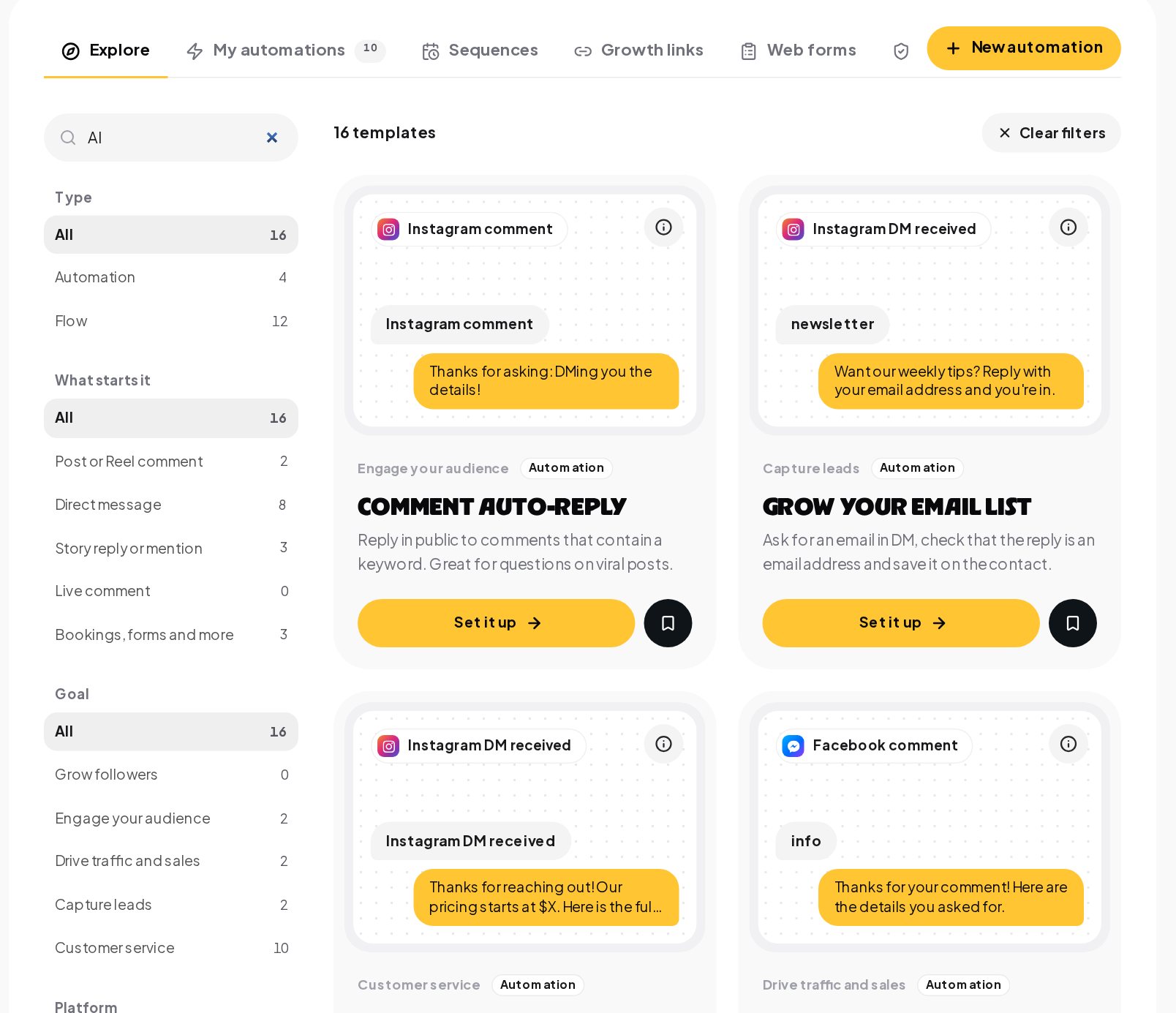
Every template opens as a draft, so you change the words, test it and publish when it reads the way your team writes.
Give the support chatbot your help center to answer from
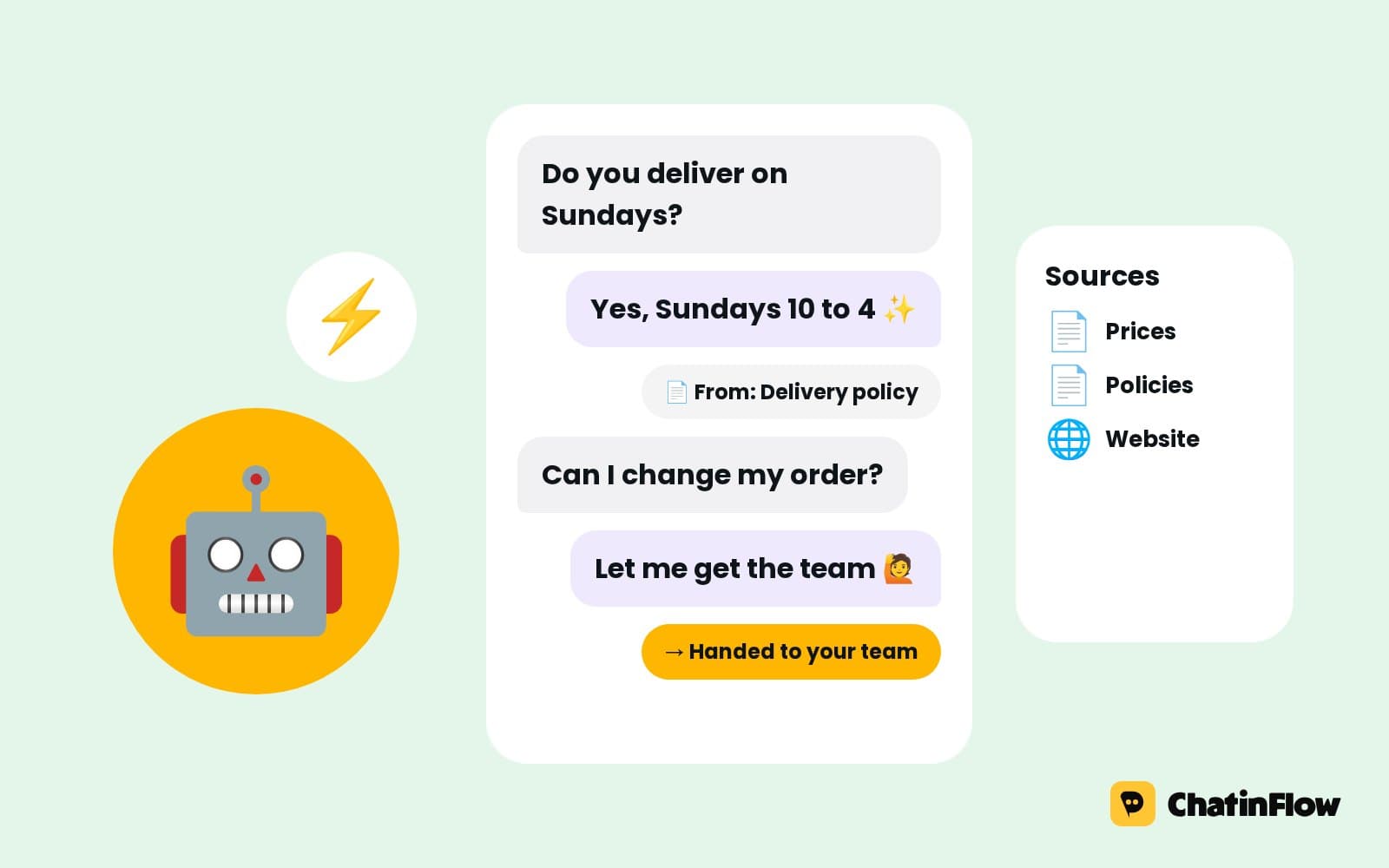
The AI agent answers only from Sources. Open AI, then Sources, and press Add a source. There are five kinds: text, questions and answers, one web page, your whole website and a file.
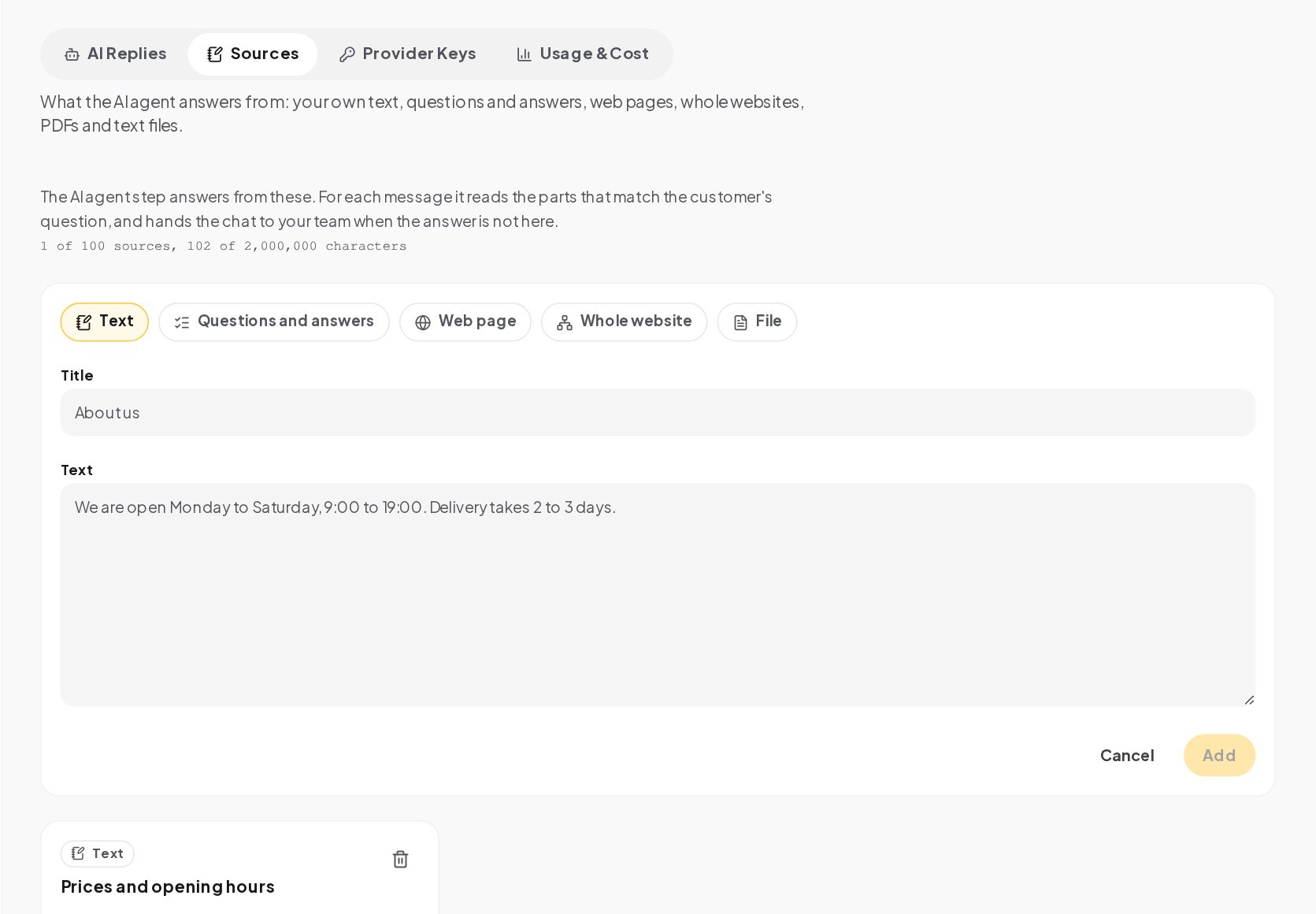
For a support desk, a good first set is:
- Your shipping and returns pages, added as web pages, so the answer changes when the page does.
- Your help center, added as a whole website. ChatinFlow reads up to 10, 25 or 50 pages, depending on your plan, from your sitemap or by following links, and respects your robots.txt.
- Your top twenty questions, written as questions and answers in the words customers use.
- A policy PDF, such as your warranty terms, as a file of up to 10 MB. A scanned or password-protected PDF cannot be read.
Keep each source short and factual. A clear paragraph with the return window in days beats a long page of marketing copy, and the agent answers better from it.
Connect your own AI key
On the Provider Keys tab, add a key from OpenAI, Anthropic, Google Gemini or Azure OpenAI. You can set an optional daily and monthly spending cap, and the key pauses when it reaches one. AI is part of every paid plan with unlimited replies on your own key, so the only AI bill is your provider's. Without a key, nothing is sent to an AI provider.
An AI support agent first, with a way to a person
In the flow builder, open Add a step and the AI group.
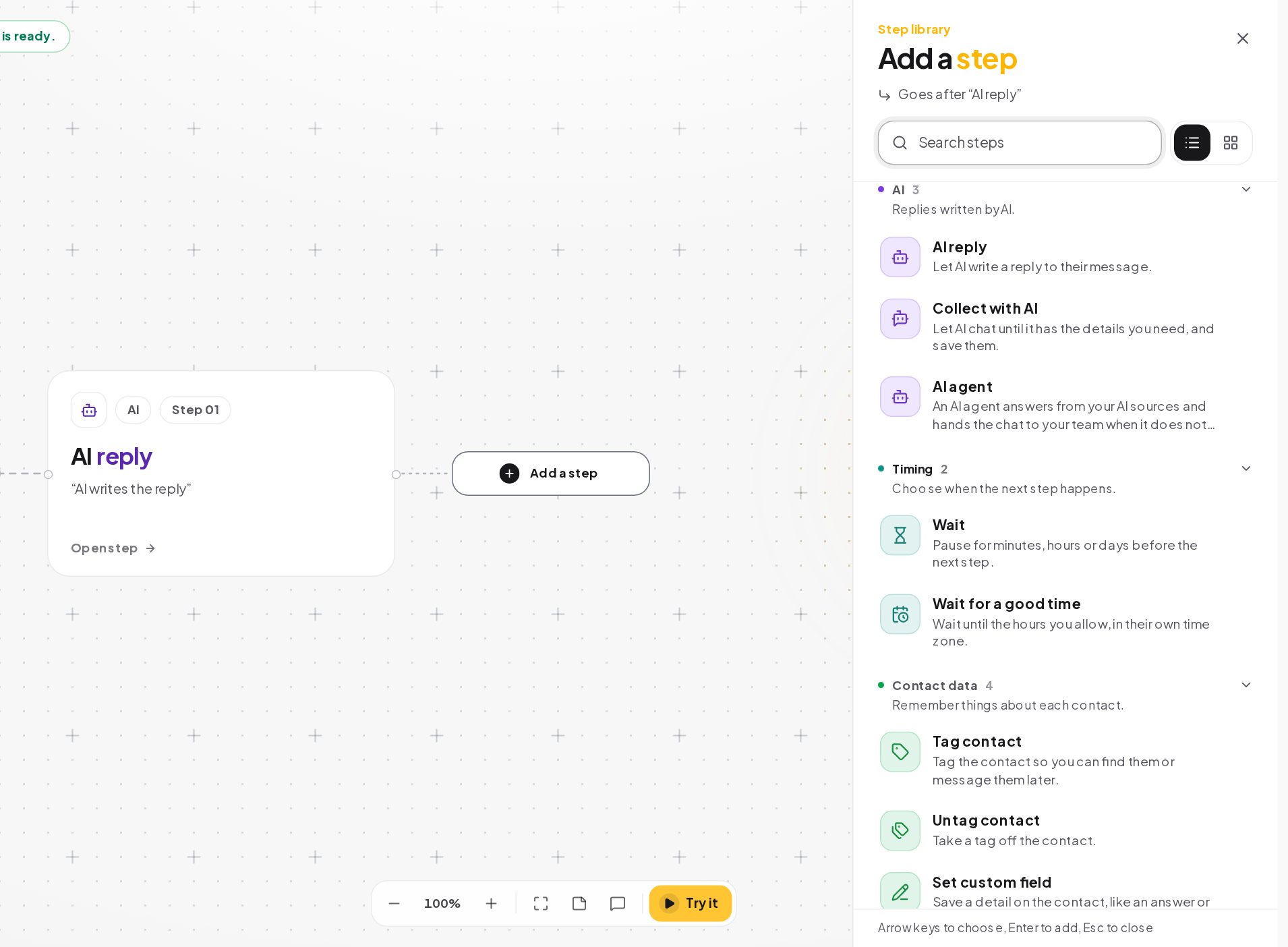
The AI agent answers from your sources and remembers the conversation. When the answer is not in your sources, when the customer asks for a person or when no answer comes back, it takes its other path. Connect that path to Notify the team or Assign the conversation, so nobody is left waiting for a bot that does not know. The agent can also be limited to outside your working hours, so your team answers during the day and the agent at night.
Put keyword replies in front for the questions you get most. A keyword answer costs nothing, is instant and says exactly what you wrote, and the AI handles what keywords cannot.
Look up orders in your own system
"Where is my order?" needs real data. A flow can ask for the order number with a question step, then send it to your store or order system with an HTTP request step. The response is saved in a flow variable, and the next message uses it to give the status and the tracking link. Changing an address or approving a refund still needs a person, so that path assigns the chat to your team with everything said so far.
Shopify and WooCommerce orders can also come into ChatinFlow through Settings, Integrations, Stores, so a paid order can start a flow, such as a thank-you message with the delivery details.
Route conversations to support agents
Open Settings, then Inbox. Under Inbox behavior, choose whether every incoming message starts a conversation or only the ones that should be opened explicitly, after the bot tries first. Two more settings matter for a support desk:
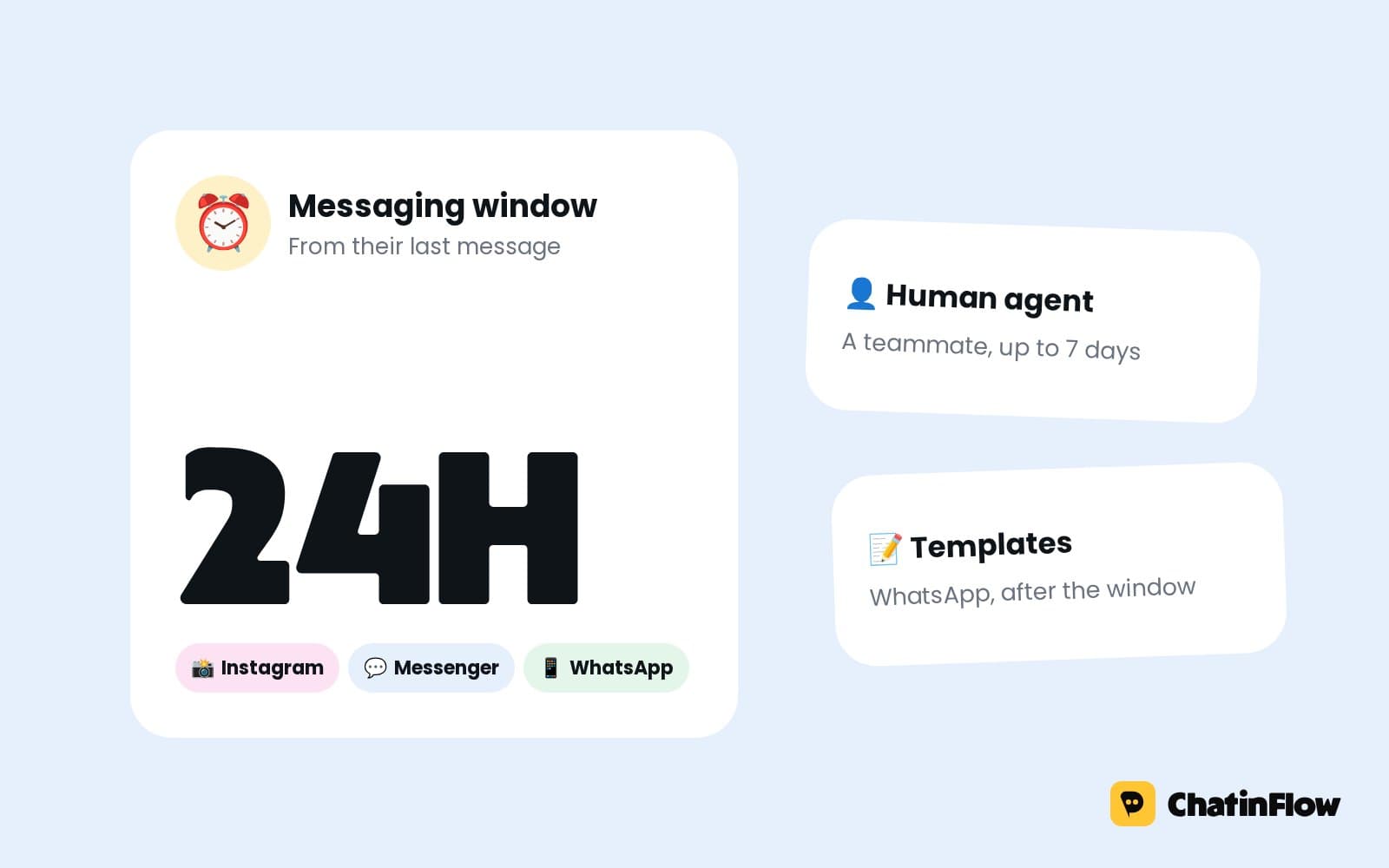
- Automation pause during human chat. While an agent is replying live, automations for that contact pause, for 30 minutes after the agent's last reply or the time you choose.
- Re-opened conversations. When a customer writes again after a chat was closed, it can go back to the agent who handled it last time.
Then set up Auto-assignment.
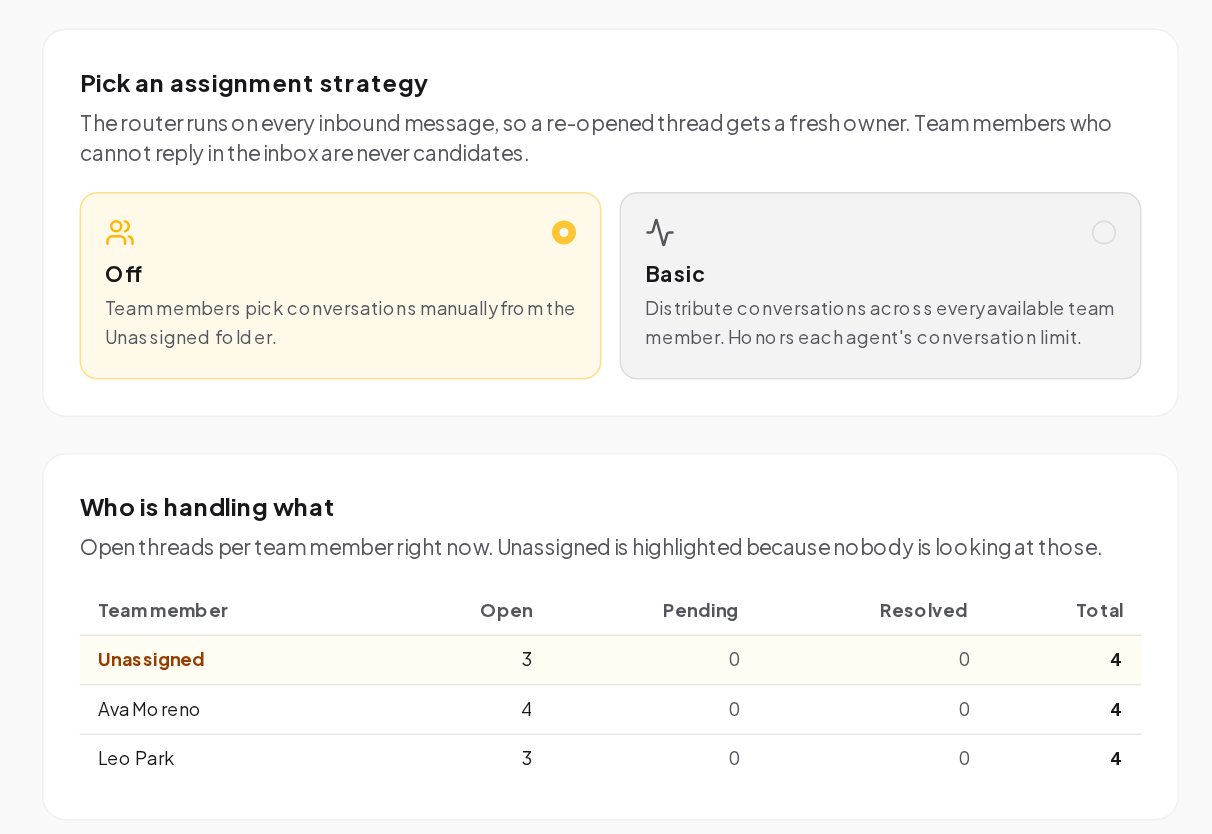
With Basic, conversations are spread across every available teammate, either in turn or to whoever has the fewest open conversations. A default limit per agent stops the router from giving more to someone who is full, and an agent's own limit always wins. Teammates who cannot reply in the inbox are never picked. The Who is handling what table shows open, pending and resolved conversations per teammate, and highlights the unassigned ones.
Reply time alerts before a customer gives up
Under Unanswered conversations, turn on Alert the team and choose the waiting time.
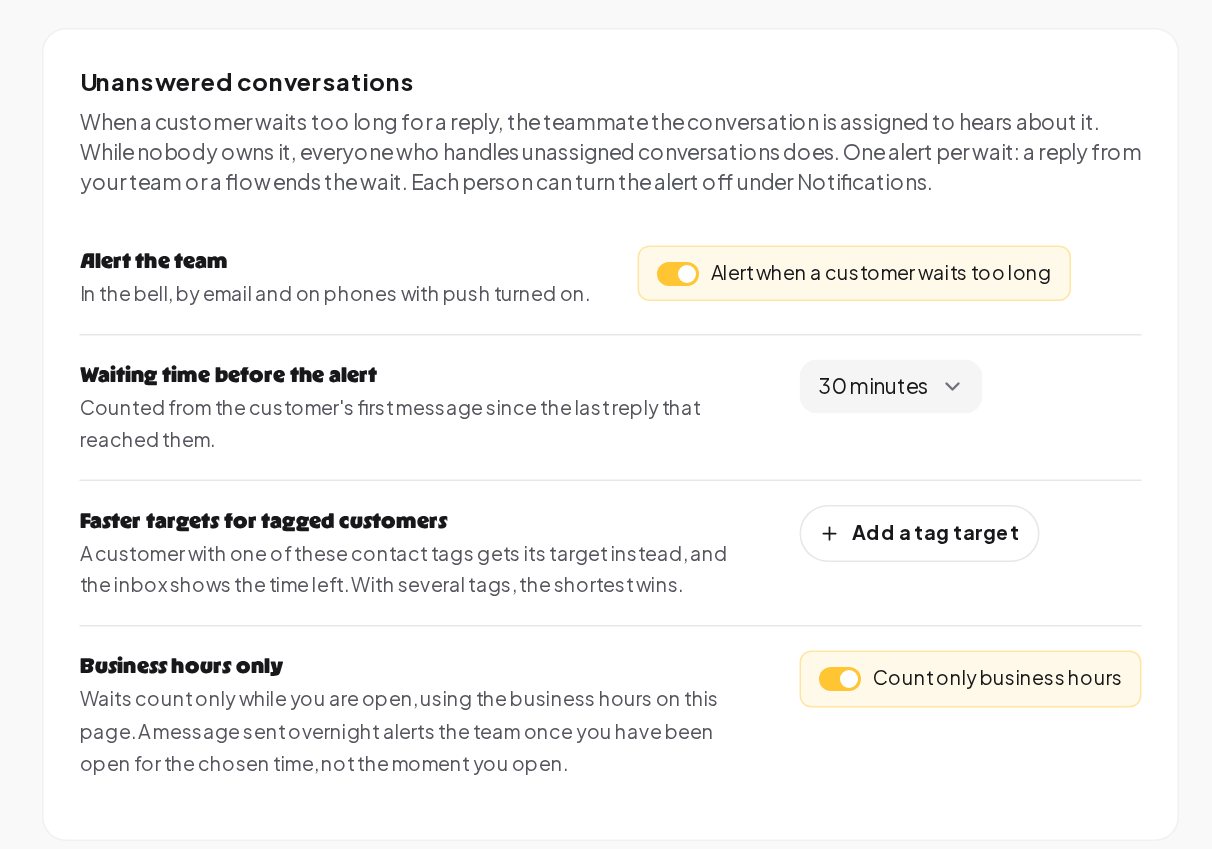
When a customer waits longer than that for a reply, the teammate the conversation is assigned to hears about it in the bell, by email and on phones with push turned on. While nobody owns it, everyone who handles unassigned conversations does. There is one alert per wait. Add faster targets for tagged customers, such as VIP or a pending refund, and the inbox shows the time left. Turn on Count only business hours, and a message sent overnight alerts the team once you have been open for the chosen time, not the moment you open.
Customer satisfaction (CSAT) after every chat
Under Satisfaction survey, turn on Ask customers to rate the conversation.
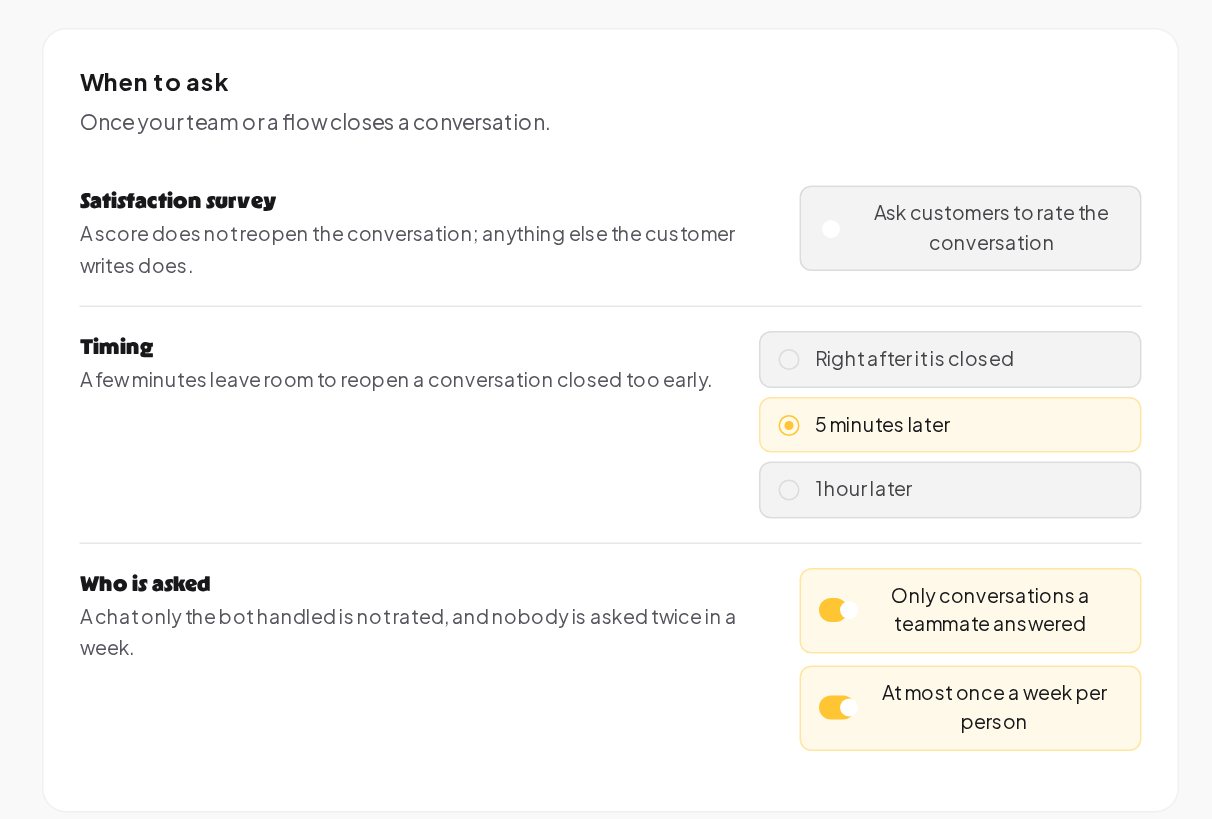
The survey goes out once your team or a flow closes a conversation: right away, 5 minutes later or 1 hour later. A few minutes leave room to reopen a chat closed too early. You can ask only about conversations a teammate answered, since a chat only the bot handled is not rated, and nobody is asked more than once a week.
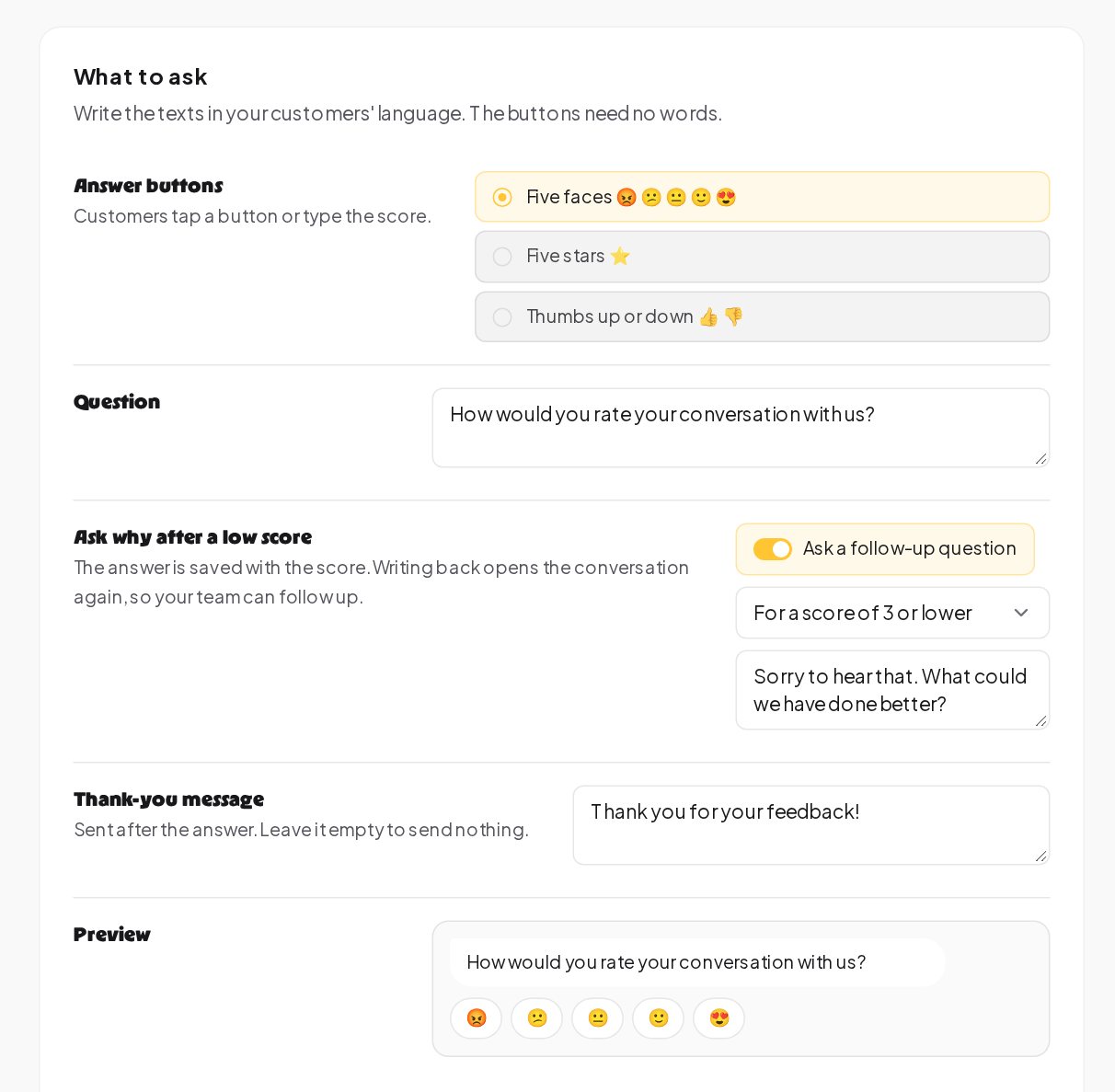
Pick five faces, five stars or thumbs up or down, write the question in your customers' language, and add a follow-up question for low scores, such as "Sorry to hear that. What could we have done better?" The answer is saved with the score, and writing back opens the conversation again, so your team can follow up before it turns into a public review. A score on its own does not reopen the conversation. The survey runs as a flow, so in a workspace that can reach 1,000 or more contacts it waits for a second approval before it goes live.
Weekly support metrics to read
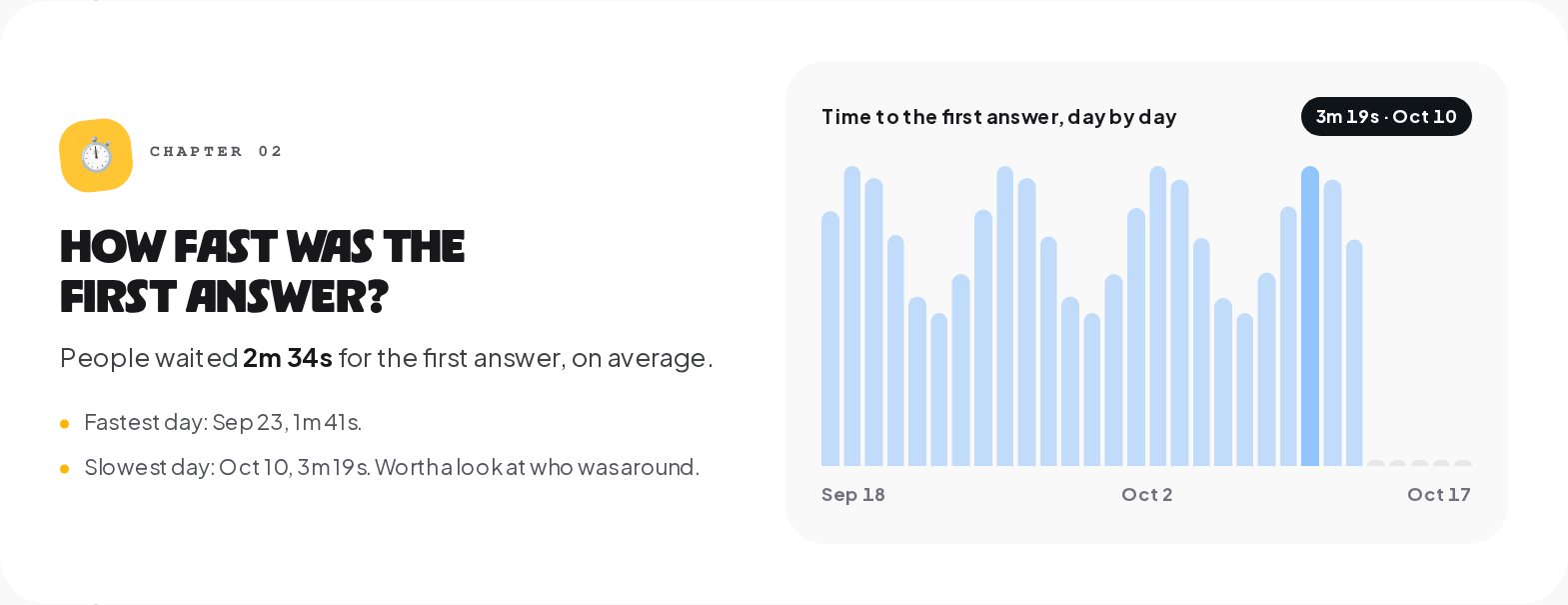
Open Analytics. The Answers tab shows how long customers waited for the first answer, day by day, with the fastest and the slowest day named, and The story tab shows the share of replies sent by automations and AI.
Satisfaction answers appear in Analytics by teammate and channel. Read the low scores first; each one is a conversation you can open and learn from.
A week-one plan for a support desk
- Day 1. Add your shipping, returns and help pages as sources, connect your AI key with a daily cap.
- Day 2. Write keyword replies for your top five questions and an AI agent flow for the rest, with its other path assigned to the team.
- Day 3. Invite your agents, turn on Basic auto-assignment and set a limit per agent.
- Day 4. Turn on unanswered conversation alerts and the satisfaction survey.
- Day 5. Test twenty real questions with Try it under AI Replies, including one your sources do not answer.
- Day 7. Read the first-answer time and the low scores, and fix the sources behind wrong answers.
How to write support answers that hold up
- Lead with the answer. "Returns are free within 30 days" before the explanation.
- One question per message. Ask for the order number, then for the email, not both at once.
- Say what happens next. "A teammate will reply within the hour" is better than "we'll be in touch".
- Keep a human exit everywhere. A "Talk to a person" button costs nothing and saves the angry ones.
- Write in the customer's language. Build one flow per language you serve; keyword triggers accept any script, and the language is not detected for you.
Is it right for your support team?
ChatinFlow suits support teams answering the same questions across chat channels, stores whose queue is mostly order status and returns, and teams that want AI to answer only from their own sources. It is not a phone support desk with call queues, and it is not for anyone who wants AI with no person behind it. There is no built-in helpdesk sync, shift scheduling or skill-based routing; an HTTP request step can open a ticket in your helpdesk through its API.
Support automation mistakes to avoid
- AI without sources. The agent answers only from what you add; an empty Sources tab means it hands every chat over.
- No other path. An AI agent with nothing connected to its other path leaves customers stuck.
- Everyone sees everything. Inbox agents see only their assigned conversations unless you turn on the visibility setting; decide on purpose.
- Surveying bot-only chats. Ask about conversations a teammate answered, or the scores rate your flows instead of your team.
- Ignoring the low scores. The follow-up answer is the most useful text in your inbox. Read it every week.
Customer support automation: FAQ
Can AI answer from our help center?
Yes. Add the help center as a whole website or its key pages as web pages under Sources, and the AI agent answers from them on your own provider key.
What happens when the AI does not know?
The AI agent takes its other path when the answer is not in your sources, when the customer asks for a person or when no answer comes back. Connect that path to Notify the team or Assign the conversation.
Can agents see only their own conversations?
Yes. Inbox agents see only the conversations assigned to them, unless you turn on "Inbox agents see every conversation" under Settings, Inbox. Owners, admins and members always see the whole inbox.
Do customers get two answers when a teammate joins?
No. When a teammate replies, the automation running in that chat stops, and automations for that contact stay paused for the time you set after the last reply.
Can we measure customer satisfaction?
Yes. The satisfaction survey asks customers to rate the conversation when it is closed, with faces, stars or thumbs, and shows the answers in Analytics by teammate and channel.
Sources
- Messenger Platform and IG Messaging API policy, Meta for Developers, on the 24-hour messaging window.
- About the WhatsApp Business Platform, Meta for Developers, on the Cloud API and its messaging rules.