The full guide
Shared inbox for Instagram DMs and every channel: how a team answers together
Run a shared inbox for Instagram DMs and every channel: assignment, departments, notes, saved replies, AI summaries, voice notes, reply time targets and the bot stepping aside.
When two people answer the same Instagram account from two phones, three things happen: a customer gets two answers, another gets none, and nobody knows who promised what. A shared inbox fixes that. Every conversation from every channel lands in one list your whole team works from, each chat has an owner, notes stay inside the chat, and the automation steps aside the moment a person writes. This guide shows how to run a team inbox for Instagram DMs, Messenger, Telegram, LINE, KakaoTalk, Viber, email and your website chat: assigning chats, departments, saved views, internal notes, saved replies, AI summaries, voice notes, snoozing, reply time targets and the trace that tells you why a message got no automatic answer.
What is a shared inbox for social media?
A shared inbox, or team inbox, is one place where everyone on a team reads and answers the messages a business gets, instead of each person logging in to each app. For DM-heavy businesses it replaces the phone passed around the counter, the shared password to the Instagram account and the "did anyone answer her?" message in the team chat.
What a good one does:
- One list for every channel, so nobody switches apps to see what is waiting.
- An owner for every chat, so nothing is answered twice or never.
- Notes the customer can't see, so the team talks inside the conversation.
- Automation and people side by side, so the bot answers what it can and steps aside for the rest.
How to set up a shared inbox in 10 minutes
- Connect your channels in Channels: Instagram, Messenger, Telegram, LINE, KakaoTalk, Viber, email and your website chat.
- Invite your team from Team, each with a role: owners and admins manage the workspace, inbox agents work only in the inbox.
- Create departments, such as Sales and Support, and put each teammate in the right one.
- Save the views each person needs: My open chats, Support queue, VIPs.
- Write five saved replies for the questions you answer every day.
- Set a reply time target on the tag that matters most.
- Publish a default reply, so every message gets an answer while the team is busy.
Which channels land in the inbox?
The chats from Instagram, Messenger, Telegram, Viber, LINE, KakaoTalk, email and your Lobby website chat land in the same list. WhatsApp sends from the same workspace: templates, broadcasts and order updates.
How to assign chats to your team
Open a chat and assign it to a teammate, or select several and assign them at once. Assignment can also come from a flow: a handover step assigns the chat to a person or the next free agent and alerts the team.
- Departments split the work, such as Sales and Support, so each team sees its own chats.
- Waiting time shows on every chat, so the customer who has waited longest is never the last one answered.
- Statuses keep the list honest: open, pending, resolved or archived, so the list shows what is left.
Saved views, filters and search
Saved views bring back exactly the chats you work on: your own open chats, a department's queue, the VIPs. Filter by channel, department or status, and search by name or by the latest message. A busy inbox becomes three short lists instead of one long one.
Internal notes and @mentions
An internal note sits inside the chat where the customer never sees it: "She ordered the M last time", "Asked for a refund, waiting for the warehouse". @mention a teammate in a note to pull them in without leaving the conversation; they get the context and the chat in one place.
Saved replies: answer the common questions in one tap
A saved reply drops your best answer into the reply box in a tap: shipping times, the return policy, the size chart. You adjust it to the customer and send it. A workspace can keep up to 500 saved replies, shared by the whole team, so every teammate answers with the same facts.
AI in the inbox: summaries and suggested replies
On a paid plan with your own AI key:
- Summary. One click sums up a long conversation before you jump in, so you don't read forty messages to find the question.
- Suggested replies. Ask the AI for a draft, then edit it before it goes out.
The rest of the inbox works without an AI key.
Voice notes, written down
Voice messages are transcribed on our own servers, so you read them in the inbox and your automations can answer them like typed messages. A customer who sends a voice note at a busy moment gets answered as fast as one who typed.
Snooze, priority and reply time targets
- Snooze parks a chat until later, such as 9:00 tomorrow, and brings it back on its own.
- Priority flags the urgent ones and keeps the list in the right order.
- Reply time targets give a tag a target, such as VIPs within ten minutes, and show each chat's clock.
Targets turn "answer quickly" into a number the team can see.
Bot and human: when the automation steps aside
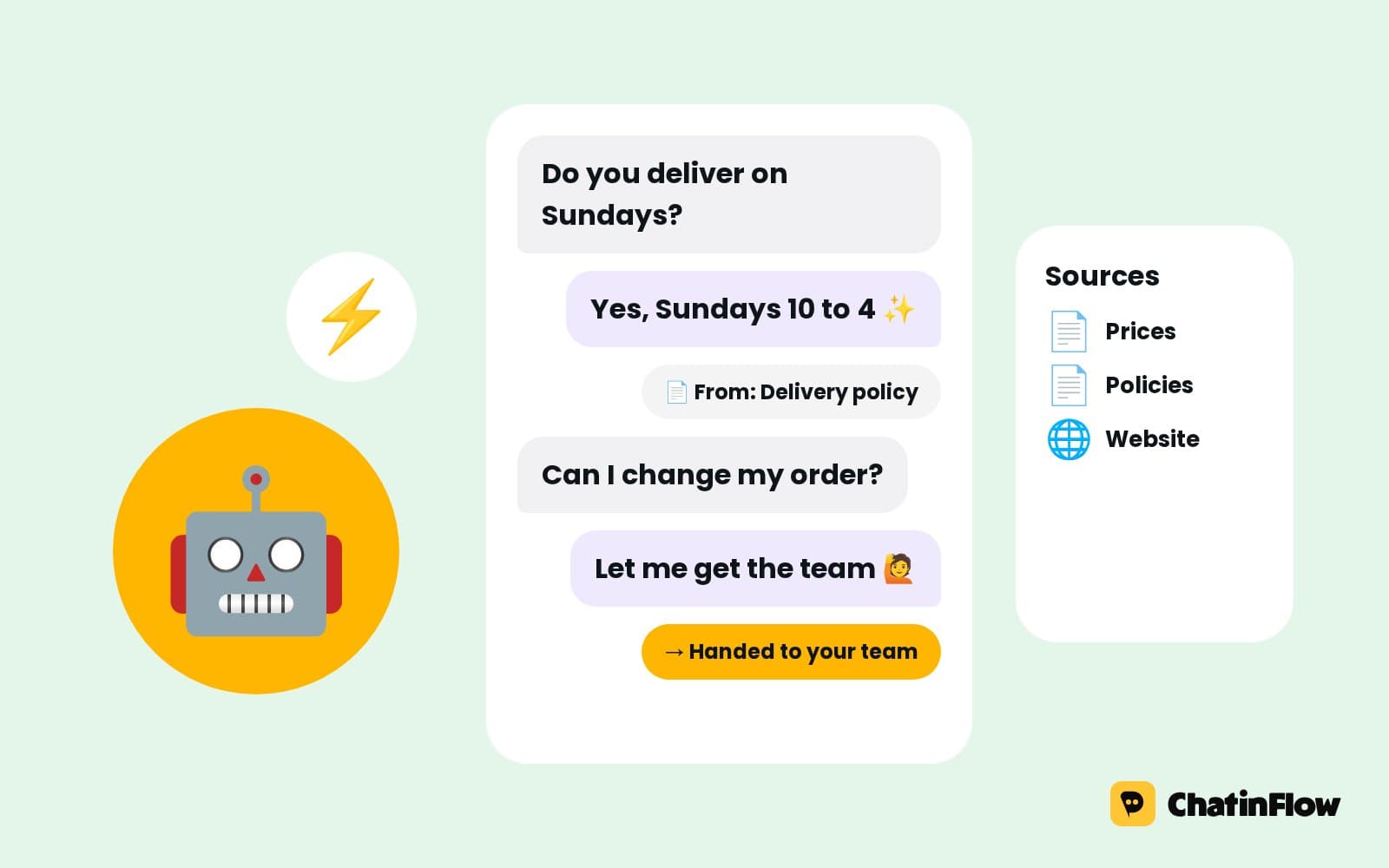
The automation answers prices, hours and links the moment someone asks. When a teammate replies in a chat, the automation steps aside for that conversation, so the customer never hears from the bot and a person at the same time. The chat shows that the bot is paused.
Why didn't the bot answer this message?
Every message has a trace. One click shows which automation ran, or which rule, schedule or window kept it quiet. When a customer says "your bot ignored me", the trace answers in seconds.
Messaging windows, flagged in the reply box
Instagram and Messenger let a business write freely for 24 hours after the customer's last message. The reply box tells you when a channel's window has closed, so a teammate doesn't write a long answer that can't be sent.
Customer satisfaction ratings at the end of a chat
When a chat closes, the customer can be asked to rate it, and the scores are shown per teammate. Ratings tell you which answers work and who needs help, from the people the team served.
Tags, files and the contact record
- Tags from the chat sort contacts and can start the next automation, such as a follow-up for everyone tagged wholesale.
- Photos and files go both ways: send attachments and emoji, and see the photos customers send.
- The contact record keeps every answer a flow collected, so a teammate knows the size, the date or the order before writing.
What a shared inbox adds to the apps' own inboxes
Each app has its own inbox, built around that app. A shared inbox puts the channels side by side and adds the team on top:
| Each app's own inbox | The shared inbox | |
|---|---|---|
| Channels | One app, or one company's apps | Instagram, Messenger, Telegram, LINE, KakaoTalk, Viber, email and website chat in one list |
| Ownership | Whoever opens the chat | An owner per chat, by person or department |
| Team talk | A separate group chat | Internal notes and @mentions inside the chat |
| Automation | Separate tools | Flows answer in the same place, and pause when a person writes |
| Speed | Hope | Waiting time on every chat and reply time targets |
Shared inbox metrics to watch
- Waiting time. How long the oldest open chat has waited, every morning and after lunch.
- Reply time against targets. Which tags are inside their target and which are not.
- Ratings per teammate. Who customers rate highly, and who could use a saved reply or a hand.
- Handovers. Which questions the automation passes to people, so the next flow can answer them.
Saved reply examples for a team inbox
Write them in your own words and keep the facts current: an old price in a saved reply is copied a hundred times.
Shared inbox best practices
- One owner per chat. Assign before you answer, even to yourself.
- Notes over side chats. Context belongs in the conversation, not in a separate messenger.
- Saved replies for facts, people for feelings. Prices and policies come from saved replies; complaints get a person's own words.
- Targets for the VIPs. A reply time target on the tag that matters most.
- Close what is done. Resolved chats keep the open list short and the numbers true.
Shared inbox for teams: who uses it how
- Online shops. Sales and Support departments, saved replies for shipping and returns, VIP targets.
- Salons and clinics. The front desk sees every booking question; the specialist gets the treatment questions by assignment.
- Agencies. One workspace per client, so each client's inbox stays separate.
- Restaurants. Reservations answered by flow, special requests assigned to the manager.
Bulk actions for busy mornings
After a long weekend, select a whole view and assign, resolve or archive it in one go: every "thanks!" after a resolved order, every chat that already got its answer. The open list shrinks to the chats that need a person.
Common mistakes with a team inbox
- Everyone answers everything. Without assignment, two people answer the same chat.
- Saved replies sent as they are. Adjust the name and the detail; a copied answer reads like one.
- No statuses. A list where nothing is resolved can't tell you what is waiting.
Shared inbox FAQ
Can several people answer the same Instagram account?
Yes. Everyone on the team works from the shared inbox with their own login, so nobody shares the Instagram password, and each chat shows who owns it.
What happens to the automation when someone on my team replies?
It steps aside for that conversation, and the chat shows that the bot is paused.
How many saved replies can we keep?
Up to 500 per workspace, shared by the whole team.
Do I need an AI key for summaries and suggested replies?
Yes. They come with the AI features of the paid plans and use your own key. The rest of the inbox works without one.
Can I answer from my phone?
Yes. The inbox runs in the browser on a phone as well as on a computer, so a teammate on the shop floor answers from the same list as the one at the desk.
How do I know who answered a customer?
Each chat shows its owner, the notes show who wrote them, and ratings at the end of a chat are shown per teammate, so you always know who served whom.
Can the inbox answer automatically at night?
Yes. Flows keep answering when the team is away: a default reply, the menu, a booking or an AI reply on a paid plan. In the morning the team picks up the chats that need a person.
Can an agent see only their own chats?
Yes. Roles decide what each person sees; an inbox agent can work only in the inbox and see the chats assigned to them.
Sources
- Messenger Platform and IG Messaging API policy, Meta for Developers, on the 24-hour window.