Copy this flow
Copy it. Make it yours.
Open the template in your workspace, change the words to yours and publish when it looks right. It's free to start.
More recipes
Flows that pair well with this one.
Bookings in the chat, from our blog.
 Growth5 min read
How to increase sales in 2026: 15 moves that work for small businesses
Most small businesses don't have a lead problem; they have a follow-through problem. Fifteen moves to increase sales, from answering faster and following up to easier checkout and repeat customers.
 Growth5 min read
How to get your first 1,000 customers
Your first 1,000 customers won't come from the same place as your next 100,000. What founders learned about that stage, from doing things that don't scale to picking one channel, and a four-week plan.
 Marketing5 min read
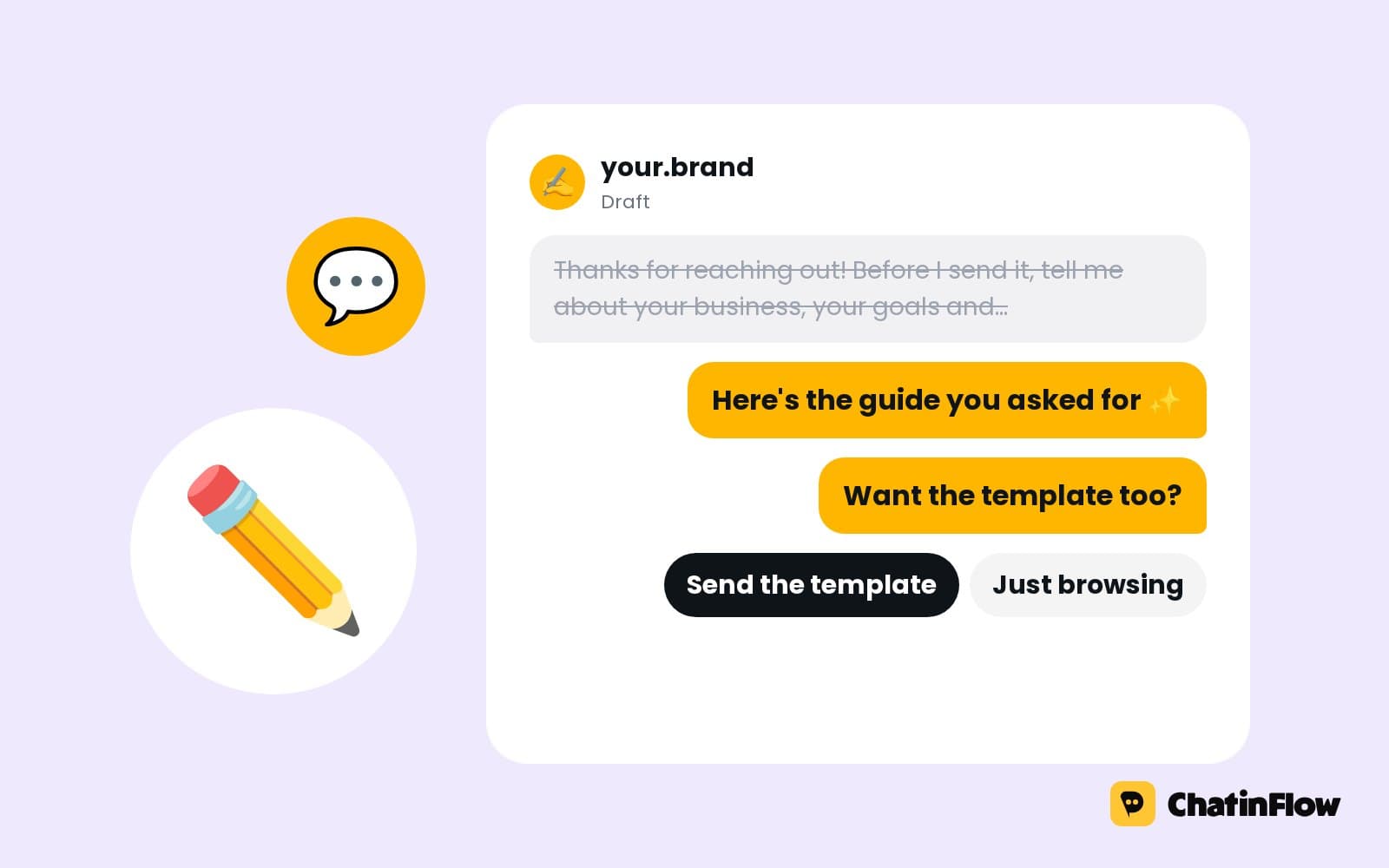
Writing copy that converts in chat: DMs people read and answer
A DM is read on a phone, one thumb away from closing the app. How to write chat messages people answer: deliver first, one idea per bubble, one question with buttons.
The full guide
Book appointments through Instagram and WhatsApp DMs, from times that are really free
Answer the price, offer the nearest free times for the service as buttons, book the tapped one and confirm it in the same chat, with reminders through their own flow.
"Any time Friday?" is a booking waiting to happen, and a slow answer loses it. A booking link sends people to another page, where many of them stop; a person checking the diary by hand answers an hour later. A booking flow answers in the chat: the price and what is included, then the nearest free times for that service as buttons, straight from Bookings, and one tap books the time. The confirmation goes out in the same chat, with a link to change or cancel. This guide sets it up step by step: Bookings first, then the flow, then the confirmation, reminders and what happens when nothing is free.
How appointment booking in Instagram and WhatsApp DMs works
| Step | What happens | Built with |
|---|---|---|
| 1. The question | "How much is a cut?" or "Any time Friday?" | A keyword or DM trigger |
| 2. The answer | The price, the length and what is included | Send DM with a Book button |
| 3. The service | Which service, as buttons | Ask a question |
| 4. The times | The nearest free times for that service | Offer times in the chat |
| 5. The booking | The tapped time is booked | Book the time they picked |
| 6. The confirmation | The details and the change link | Send booking details |
Set up online booking for your services
Open Bookings, then the set-up. It asks for five things in order: locations, staff and resources, services, time off and pacing. The first three are the essentials.
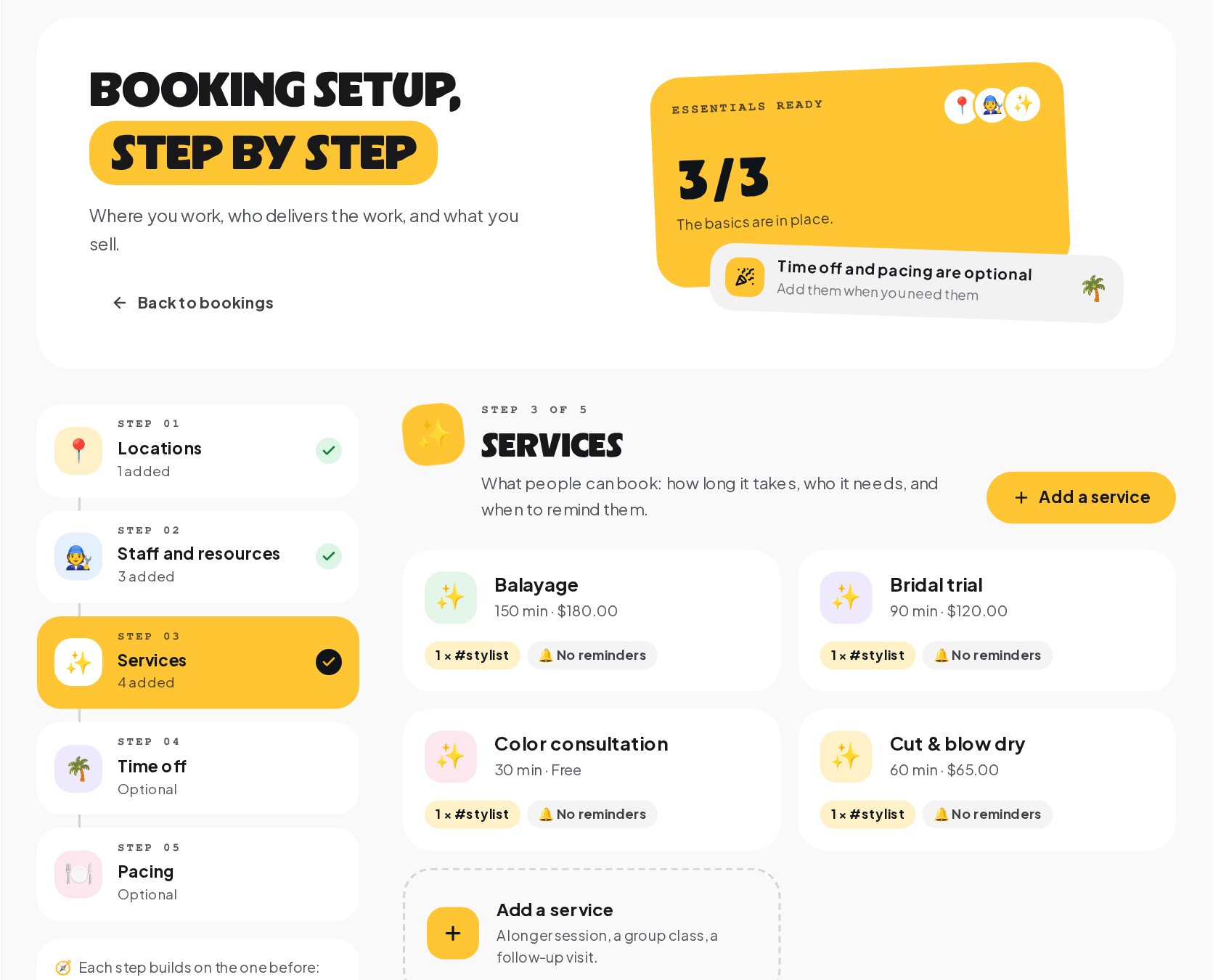
- Locations, each with its time zone and opening hours.
- Staff and resources: the people who deliver the work, with their shifts, and the chairs, tables or rooms a booking takes up, in groups such as stylist or table.
- Services: what people can book, how long it takes, the setup and cleanup buffers, who it needs from which group, the price and up to five reminder times.
- Time off: holidays and days off, so nobody is offered a time that does not exist.
- Pacing: an optional limit on how many people or bookings start in each period, mostly for restaurants.
Only times that are free across all of this are ever offered in the chat.
Start from an Instagram or WhatsApp booking template
Open Automations and search the gallery for "booking". Take bookings in WhatsApp shows the core of the flow: when someone asks to book, it offers your free times as a list and books the one they pick.
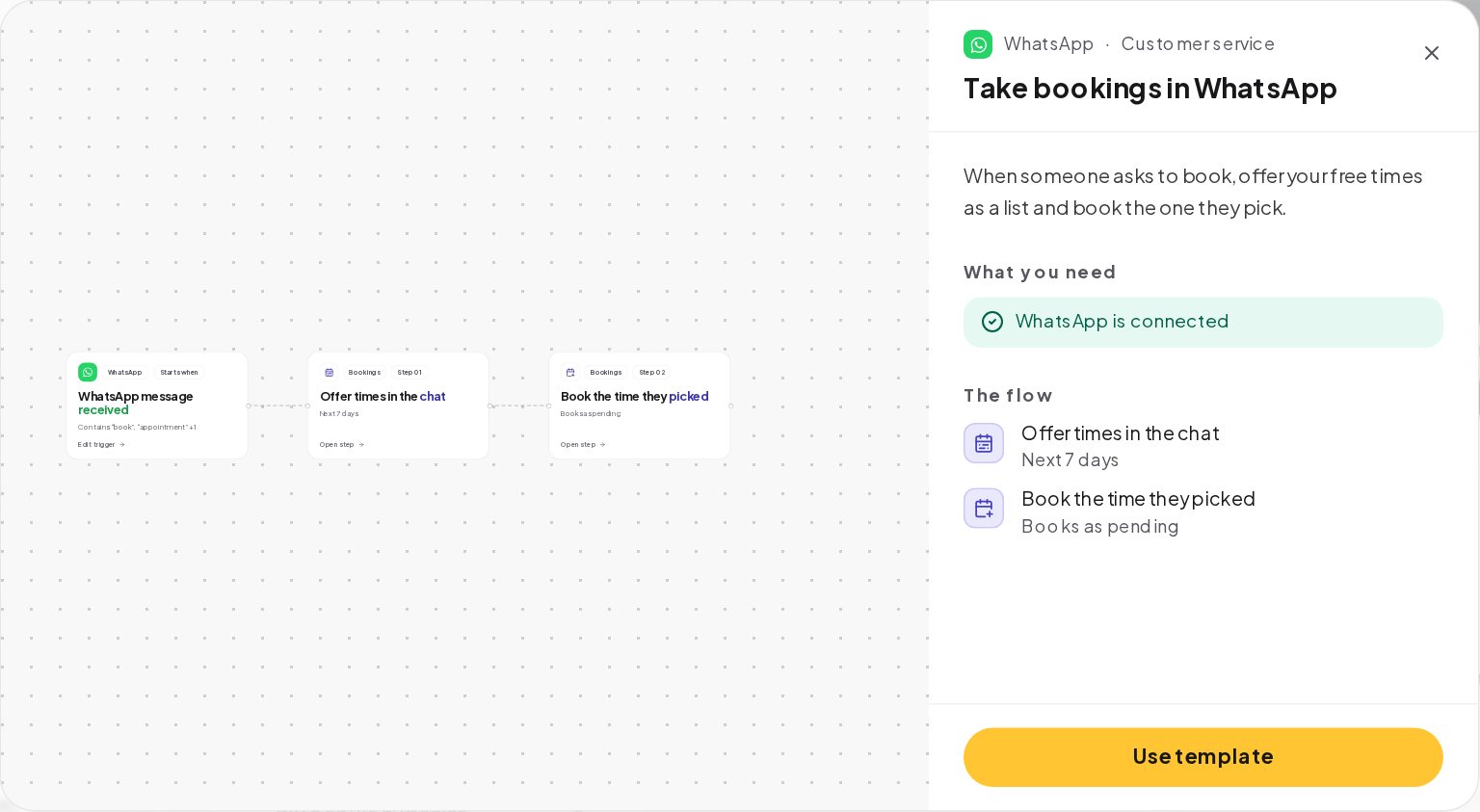
The same two steps work on Instagram, Messenger and Telegram, where the times come as buttons instead of a list. Use the template as the model, and build the flow on the channel your customers write on most.
Answer "how much?" before you offer a time
Most bookings start with a question about the price. Answer it before you offer times:
with buttons for your top services. Each tap leads to the times step for that service. A price answered in the first message is often the difference between a booking and "I'll think about it", so never make people ask twice.
Show available appointment times in the chat
The Offer times in the chat step needs three settings:
- The service, so the length, the buffers and the people it needs are known.
- How many days ahead to look, seven by default.
- How many times to offer, up to eight. Three to five are easier to choose from.
For bookings with a party size, such as a table for four, the step's party size is a fixed number. Ask the size with buttons first, and give each answer its own times step with that size.
When nothing is free in the days you set, the step takes its other path. Use it to offer the next week, a waiting message or a hand-over to your team, so nobody is left with silence.
Book the appointment the customer taps
The Book the time they picked step reads the reply and books it. The tap carries the exact time; a typed "14:00" is accepted only if it matches one offered time, so a booking never lands on the wrong day. The time is checked again at the moment of booking, and if someone else took it a second earlier, the step takes its other path, where the flow can offer fresh times.
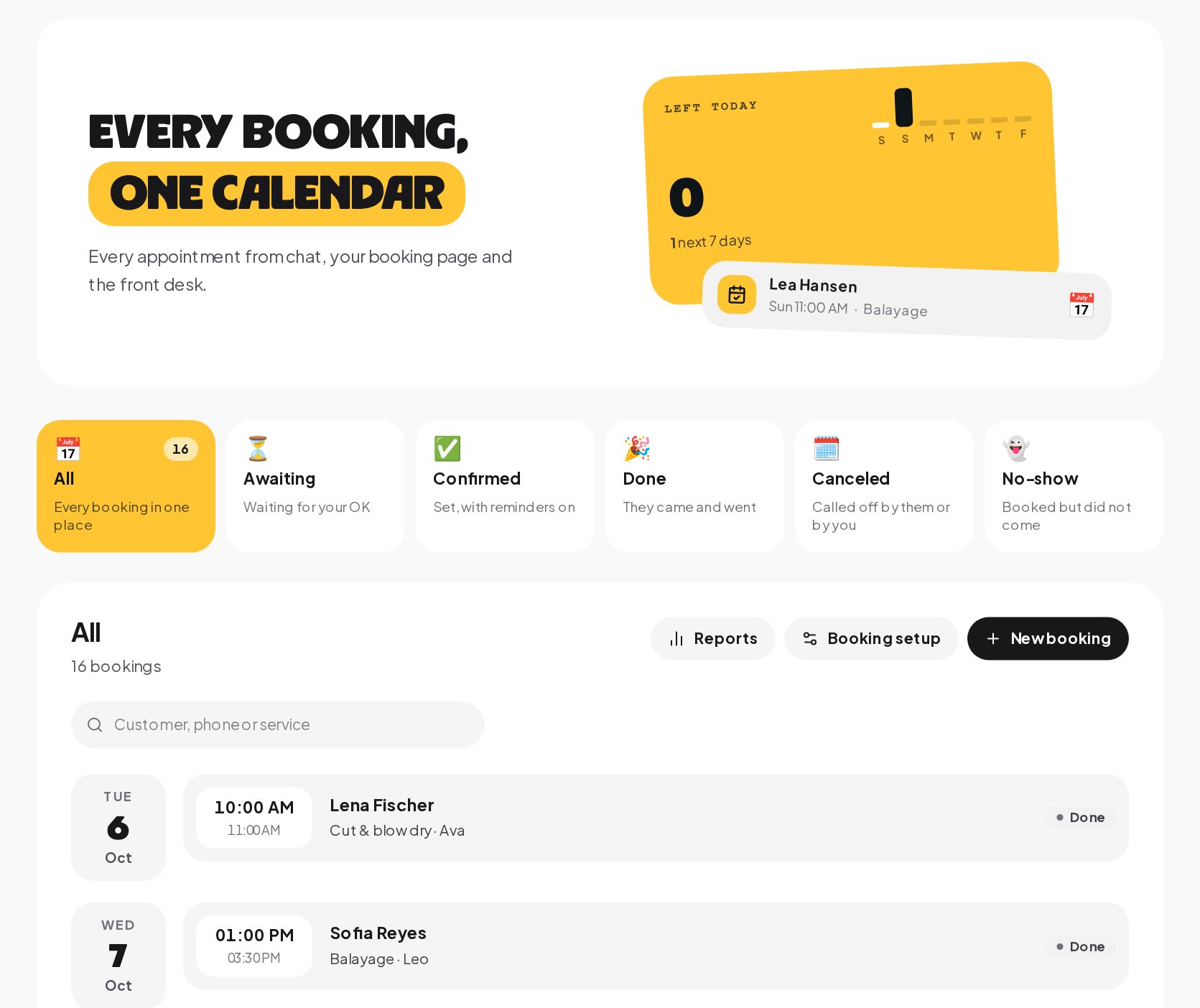
The step books as pending by default, which shows in Bookings as awaiting your OK, or as confirmed, if you would rather not check each one.
Send an automatic booking confirmation
Right after the booking, a Send booking details step sends the confirmation in the same chat. The Confirm new bookings template shows the pattern: it alerts your team and sends the customer their booking.
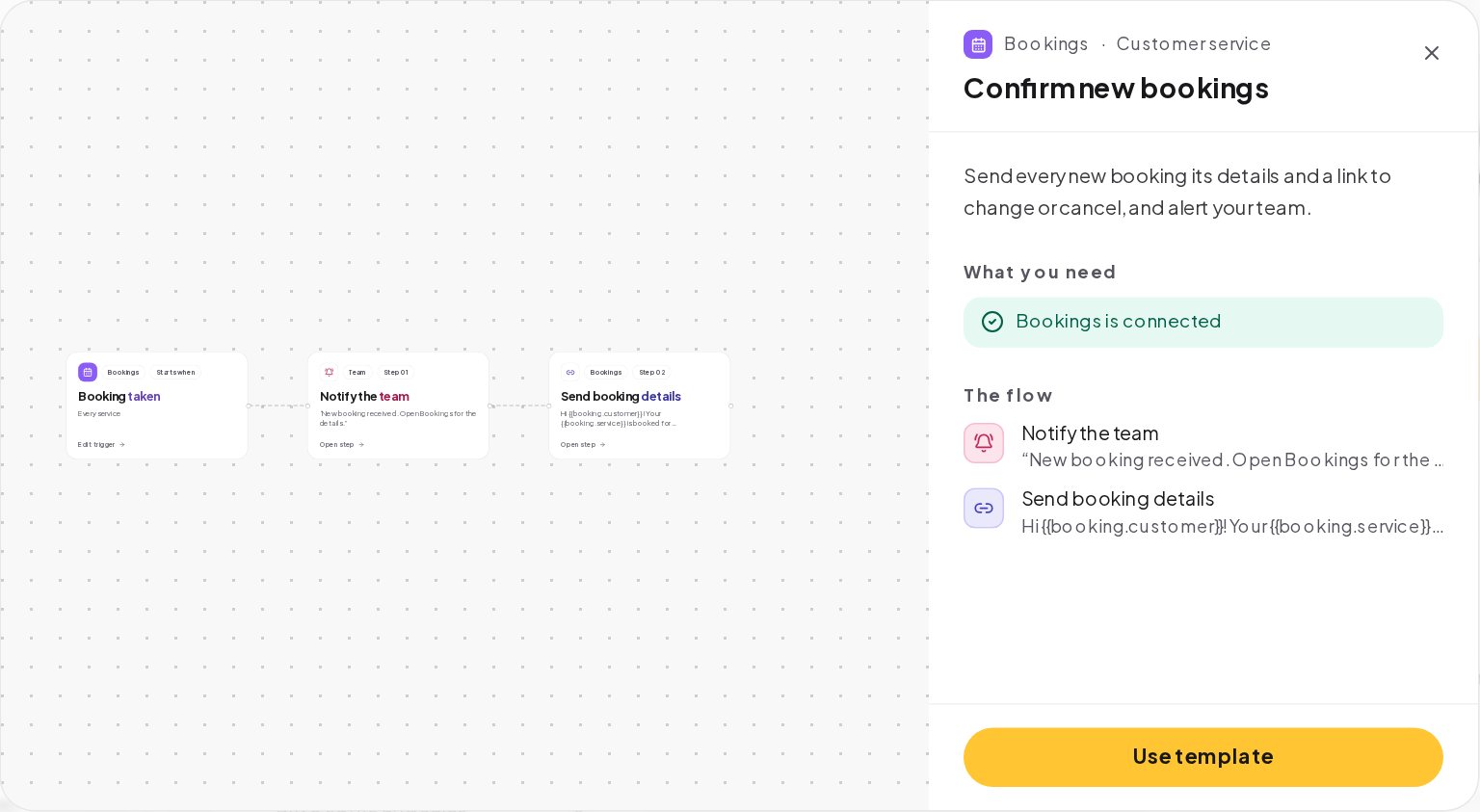
The message uses the booking's variables: the customer, the service, the date, the time and a link to change or cancel. A complete confirmation is the message every customer who books in the chat gets, so put everything in it: the address, what to bring, how to cancel.
Add appointment reminders and follow-ups
Bookings come with their own triggers, each a small flow:
- Booking reminder due runs at each reminder time set on the service, such as a day before or two hours before. The Booking reminders template sends the details with a reschedule link. Without a flow on this trigger, no reminder is sent.
- Booking completed runs when you mark a visit done, for a thank-you and a review link.
- Customer did not show runs when you mark a no-show, for a friendly message with a new time.
- Booking canceled and Booking moved run when a booking is canceled or moved, for a win-back message or an updated confirmation.
Reminders go out in a conversation the customer already has with you, on the first channel in your chain where they can still be reached. On Instagram and Messenger, a channel whose 24-hour window has closed is skipped; WhatsApp can use an approved template instead. ChatinFlow never opens a new conversation on a channel the customer has not used.
Instant booking or approval first: pending vs confirmed appointments
| Choose | When | What happens |
|---|---|---|
| Pending | You check each booking first, such as referrals, deposits or new clients | The booking shows as awaiting your OK, and a Booking confirmed flow can tell the customer once you accept it |
| Confirmed | Your calendar is the source of truth and every free time is really bookable | The booking is final at once, and the confirmation goes out in the same flow |
Most service businesses start with pending for first-time customers and confirmed for regulars, using a tag or a condition in the flow to send each down the right path.
How to make booking messages feel personal
People book more when the offer feels like a person wrote it, even when it did not:
- Name the day the way people say it, such as "tomorrow at 10:00" rather than a date format.
- Offer the nearest times first, then "more times" as a last button.
- Say how long it takes next to the service, so the time they pick fits their day.
- Confirm in one message, with the service, the day, the time and the place.
Connect bookings to tags, reminders and reports
A booking from the chat is more than a calendar entry:
- The contact who booked is the same one you see in the inbox and in Audience, so tags, segments and later broadcasts can follow the booking.
- A tag, such as booked-first-visit, lets you send a different follow-up to first-timers.
- The booking reports show the no-show rate and how full each person's diary was against the hours they could work.
- A Buy button before the booking can take a deposit for long services, with the money going straight to your Stripe or PayPal account.
DM booking example: a physiotherapy practice
A practice gets "do you have anything this week?" messages on Instagram every day.
- Bookings has one location, three physiotherapists in the group physio, and two services: a first assessment of 60 minutes with a 10-minute cleanup buffer, and a follow-up of 30 minutes.
- The flow answers "This week" or a price question with both services as buttons and their prices.
- The times step offers the next five free times for the tapped service, from any of the three physiotherapists.
- The booking is made as pending; the front desk confirms it in Bookings, which is where the practice checks referrals.
- The confirmation sends the address, what to wear and the change link.
- A reminder flow on Booking reminder due sends the details the day before to patients it can still reach.
Booking message templates you can copy
DM booking mistakes to avoid
- Services without buffers. Back-to-back bookings with no cleanup time make every afternoon late.
- Shifts only in your head. If a day off is not in Bookings, the chat will offer it.
- Too many times. Eight buttons are harder to choose from than four.
- No other path on the times step. When nothing is free, the customer gets silence.
- Counting on reminders two weeks out on Instagram. The window closes; make the confirmation complete.
Appointment booking glossary
- Service. What people can book, with its length, buffers, the group it needs, price and reminder times.
- Group. A set of people or resources, such as stylists or tables; a service asks for a group, and any free member can take the booking.
- Buffer. Setup or cleanup time around a booking that is not offered to anyone else.
- Pending. A booking awaiting your OK, the default for bookings made in the chat.
- Booking reminder due. The trigger that runs at each reminder time set on a service.
- 24-hour window. The time after a customer's last message when a business can reply freely on Instagram and Messenger.
Booking appointments in DMs: FAQ
Can customers reschedule or cancel an appointment themselves?
Yes. The confirmation and the reminders carry a link to change or cancel, and when the booking moves, its reminders move with it.
Can I take a deposit when someone books in the chat?
Yes. A Buy button can take a fixed deposit through your own Stripe or PayPal account, with the money going straight to you.
Do chat bookings and front desk bookings share one calendar?
Yes. Every booking lands on the same calendar in Bookings, with the same statuses.
Sources
- Messenger Platform and IG Messaging API policy, Meta for Developers, on the 24-hour window for replies and reminders.
- Template fundamentals, Meta for Developers, on WhatsApp templates for messages outside the window.