Copy this flow
Copy it. Make it yours.
Open the template in your workspace, change the words to yours and publish when it looks right. It's free to start.
More recipes
Flows that pair well with this one.
Reviews that grow you, from our blog.
 Growth5 min read
How to increase sales in 2026: 15 moves that work for small businesses
Most small businesses don't have a lead problem; they have a follow-through problem. Fifteen moves to increase sales, from answering faster and following up to easier checkout and repeat customers.
 Growth5 min read
How to get your first 1,000 customers
Your first 1,000 customers won't come from the same place as your next 100,000. What founders learned about that stage, from doing things that don't scale to picking one channel, and a four-week plan.
 Marketing5 min read
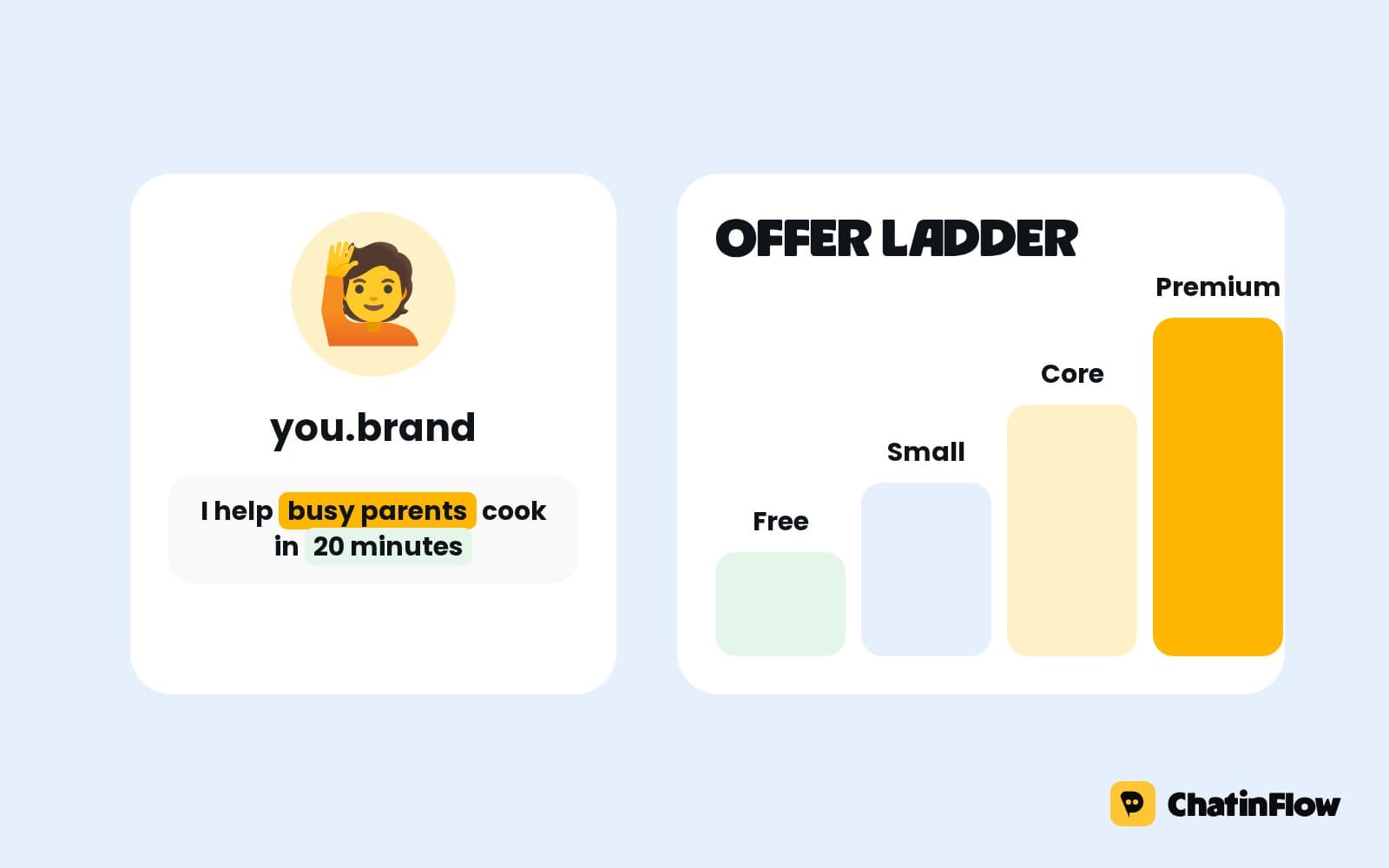
How to build a personal brand that sells in 2026
A personal brand that sells is a reputation for solving one problem, plus an easy path to buy. Positioning, content pillars, honest proof, an offer ladder and the conversations that turn attention into income.
The full guide
How to ask for Google reviews automatically: review requests at the right time
A thank-you with your review link a few hours after each visit marked done, sent to every customer, with problems routed to your team.
Reviews decide where new customers go, and most happy customers never leave one. Not because they would not, but because nobody asked at the moment they cared. A day later, the visit is a memory; a week later, it is forgotten. A review request flow asks a few hours after the visit, in the chat the customer already uses, with a thank-you for the exact service and a one-tap link to your review page. This guide sets it up step by step: the trigger in Bookings, the timing, the message, the rules that keep it honest, and how to handle the customer who had a bad day.
How automatic review requests work
| Step | What happens | Built with |
|---|---|---|
| 1. The visit | You mark the booking as done | Bookings |
| 2. The trigger | Booking completed starts the flow for that booking | The Booking completed trigger |
| 3. The wait | Two hours, or the time you choose | A Wait step |
| 4. The thank-you | By name, for the exact service, with the review link | Send booking details or Send DM |
| 5. The reply | A thank-you back, or a problem for your team | Buttons, Notify the team |
Start from the review request template
Open Automations and search the gallery for "review". Ask for a review after the visit thanks the customer two hours after a completed booking and asks for a quick review.
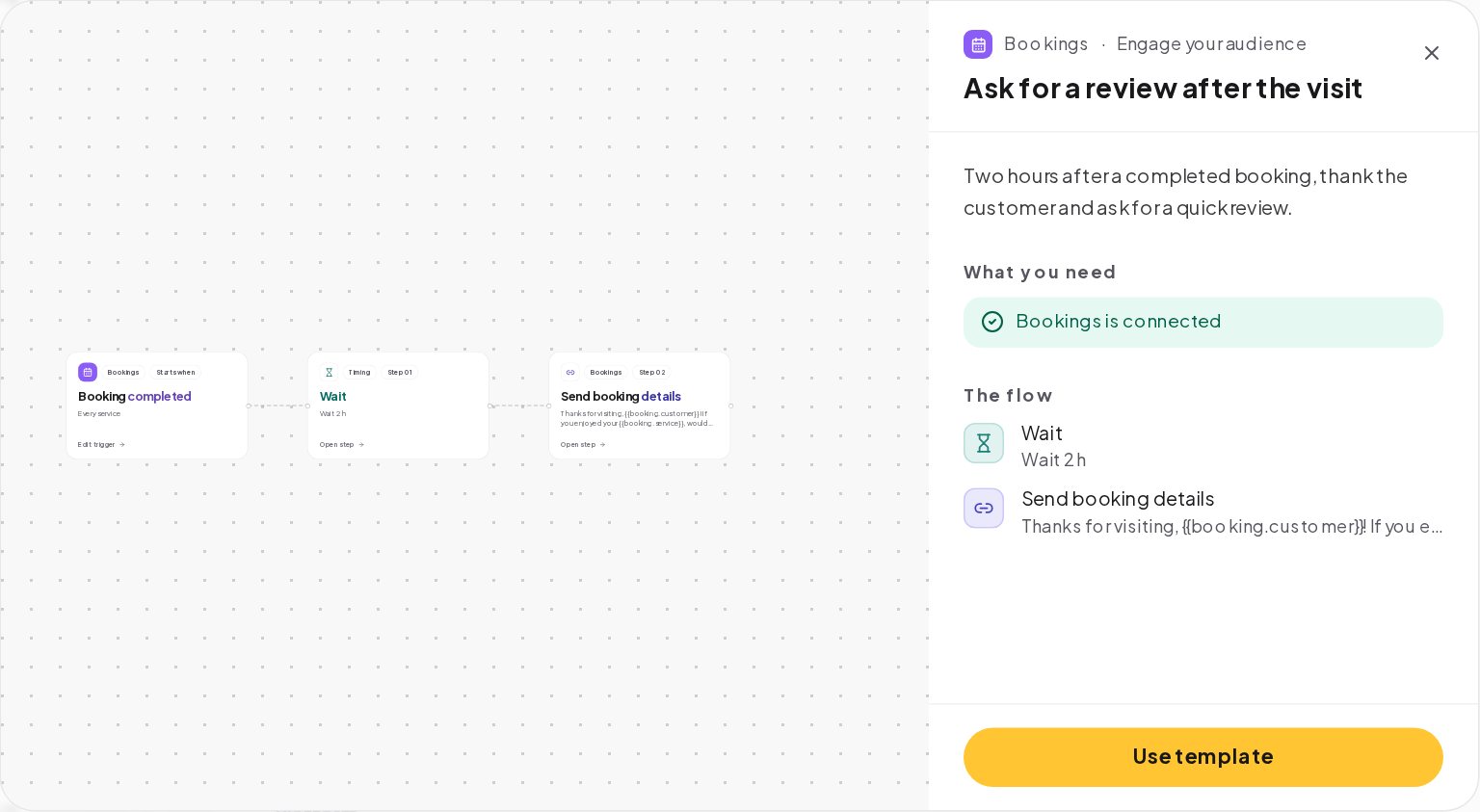
Its message reads: "Thanks for visiting, {{booking.customer}}! If you enjoyed your {{booking.service}}, would you leave us a quick review?" with the review link after it. Press Use template, put your own review link in, and rewrite the message in your voice.
Mark visits as done to send the request
The flow starts when a booking's status changes to done. Make that part of the end of each visit: the front desk marks the booking done in Bookings as the customer leaves, or at the end of the day.
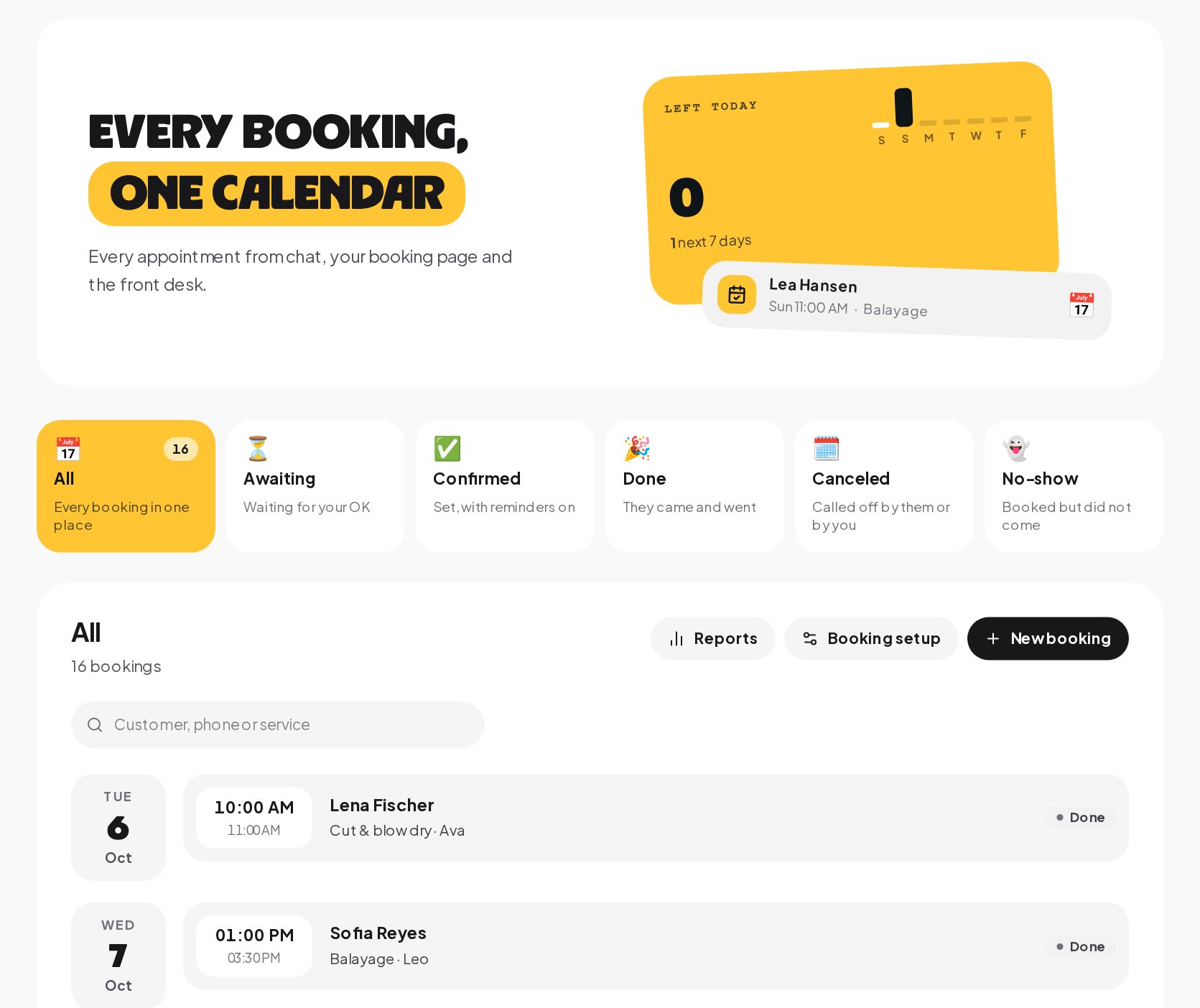
Marking at the end of the day works too, but then the two-hour wait lands late in the evening; shorten the wait, so the message does not arrive at night.
When to ask for a review after a visit
The template waits two hours. That is a good default for most services: long enough to get home, short enough that the visit is still fresh. Adjust it to the business:
| Business | When to ask | Why |
|---|---|---|
| Salon or barber | 1 to 2 hours after | The new look is still the talk of the day |
| Restaurant | The same evening | The meal is fresh in their mind |
| Clinic or therapy | The next day | Give the treatment time to settle |
| Home service | The same day, after the work | The result is in front of them |
| Hotel | After check-out | The stay is complete |
Write a review request message people answer
A good review request is short, personal and easy:
- Their name and the service, from the booking's variables, so it does not read like a mass message.
- One link, to the page where the review is written, not to your profile, so it is one tap from the message to the stars.
- A way to raise a problem, in the same message, so an unhappy customer writes to you first.
Ask every customer, and listen to every answer
Send the review link to every customer. Google's review policy does not allow asking only happy customers, and a link that only reaches people who said they loved it is exactly that. What you can do is make it easy for anyone with a problem to tell you:
- Add buttons after the thank-you, such as All good and Something wasn't right.
- Connect Something wasn't right to Notify the team and Assign the conversation, so a person answers the same day.
- Keep the review link in the message for everyone, whatever they tap.
A problem fixed in the chat often turns into a better review than a visit that went perfectly, because the customer saw how you handle things when they go wrong.
Review requests on WhatsApp, Instagram and Messenger: the 24-hour window
The request is a message, so each channel's rules apply:
- WhatsApp. More than 24 hours after the customer's last message, only a template Meta has approved can be sent. Write the review request as a template in ChatinFlow and send it for review before you need it.
- Instagram and Messenger. A business can message a customer only within 24 hours of their last message. A customer who booked in the chat a week ago may be outside it on the day of the visit.
- Telegram. A bot can write to people who started it, with no 24-hour window.
The message goes out in the conversation the customer already has with you, so it reaches the people who book in the chat.
Review request message templates you can copy
Each one thanks first, asks once, links once and opens the door to a private reply, in the voice of the business.
Review requests and customer satisfaction surveys
The satisfaction survey and the review request do different jobs, and they work well together:
- The survey rates a conversation with your team when it is closed, with faces, stars or thumbs, and the scores stay in Analytics by teammate and channel. It tells you how your team is doing.
- The review request asks for a public review after a visit. It tells the world how your business is doing.
Run the survey for chats, and the review request for visits. A customer who had a support chat and a visit in the same week gets one of each, at different moments, for different reasons.
How to reply to the reviews you get
The reviews land on Google, Yelp or your review site, and you answer them there. A few habits make the next customer more likely to book:
- Answer every review, good and bad, within a few days.
- Thank people by name and mention what they had, as the request did.
- Answer criticism calmly and briefly, with an offer to talk in private.
- Fix what keeps coming up. Three reviews about waiting times are a staffing question, not a wording one, and the fix shows in the next month's reviews.
Turn customer reviews into content
Good reviews make good posts. With the reviewer's permission, share a short quote in a story, or a carousel of the month's best, and link it to your booking page. People trust other customers more than they trust your caption.
Review request example: a barber shop
A barber shop marks each cut as done when the customer pays.
- Booking completed starts the review flow for that booking.
- A wait of 90 minutes follows.
- The message: "Thanks for coming in, Sam! Hope you like the fade. A quick review helps us a lot: [link]. Anything not right? Just reply."
- Two buttons: All good and Something wasn't right. All good gets "Thanks! See you in four weeks." Something wasn't right assigns the chat to the shop owner.
- Every customer gets the link, and the owner hears about every problem the same day.
A first month with review requests
- Week 1. Publish the flow with your review link and the two buttons, and mark every visit as done when the customer leaves.
- Week 2. Read every reply to the request. Adjust the wait if messages land at awkward times.
- Week 3. Look at the problems that reached your team, and fix the one that comes up most.
- Week 4. Compare the number of reviews on your page with the month before, and answer each new one.
The flow does the asking every day; the month is about listening to what comes back.
How to measure review requests
ChatinFlow does not see or count the reviews themselves; they live on Google, Yelp or your review site. What you can measure in ChatinFlow:
- The requests sent, in the automation's Activity tab.
- The replies, and the problems that reached your team.
- The clicks, if your review link goes through a link you can track.
Compare the number of reviews on your page before and after you turn the flow on, month by month.
Review request mistakes to avoid
- Asking only happy customers. It breaks Google's review policy. Send the link to everyone.
- Asking a week later. The moment has passed; ask the same day.
- A link to your profile. Link to the page where the review is written.
- No way to complain in private. Unhappy customers then complain in public.
- Forgetting to mark visits as done. The trigger only runs when the booking is marked.
Review request glossary
- Booking completed. The trigger that runs when a booking is marked as done in Bookings.
- Wait step. A flow step that holds the next message for the time you choose.
- Send booking details. The step that sends a message with the booking's variables, such as the customer and the service.
- Template. A WhatsApp message Meta approves in advance, used outside the 24-hour window.
- 24-hour window. The time after a customer's last message when a business can reply freely.
- Satisfaction survey. The inbox setting that asks customers to rate a conversation when it is closed.
- Review gating. Asking only happy customers for public reviews, which Google's review policy does not allow.
Automatic review requests: FAQ
Can I ask for a review after an online order?
The Booking completed trigger is for bookings. For store orders, a Store order paid flow with a wait step can ask for a review instead. A wait of several days takes the message outside Instagram's 24-hour window, so on WhatsApp use an approved template for it.
Is the satisfaction survey the same thing?
No. The satisfaction survey rates a conversation with your team when it is closed, and the scores stay in Analytics. A review request asks for a public review after a visit.
Can a customer get two requests for one visit?
No. The flow runs once per completed booking, so one visit gets one request.
Can I change the link later?
Yes. Edit the message and publish again; every visit marked done after that gets the new link.
Sources
- Prohibited and restricted content, Google Maps user contributed content policy, on not soliciting reviews selectively.
- Template fundamentals, Meta for Developers, on WhatsApp templates outside the window.
- Messenger Platform and IG Messaging API policy, Meta for Developers, on the 24-hour window.